





Teleport로 MCP 서버에 접근하기
Teleport v18.10요약
이 가이드는 Teleport가 제공하는 MCP 서버에 접근하도록 MCP 클라이언트를 구성하는 방법을 설명합니다. 실행 중인 Teleport (v18.1.0 or higher) 클러스터. Teleport 클러스터의 버전을 확인합니다.
이 가이드는 Teleport가 제공하는 MCP 서버에 접근하도록 MCP 클라이언트를 구성하는 방법을 설명합니다.
사전 요구 사항#
-
실행 중인 Teleport (v18.1.0 or higher) 클러스터. Teleport를 시작하려면 무료 체험판에 가입하거나 데모 환경을 구성하세요.
-
`tsh` client.
Installing \`tsh\` client
-
Teleport 클러스터의 버전을 확인합니다. `tsh` client는 Teleport 클러스터 버전보다 최대 한 개의 메이저 버전까지만 뒤처질 수 있습니다. Proxy Service의
/v1/webapi/find로 GET 요청을 보내고 JSON 쿼리 도구를 사용하여 클러스터 버전을 확인합니다.teleport.example.com:443를 Teleport Proxy Service의 웹 주소로 바꿉니다:$ TELEPORT_DOMAIN=teleport.example.com:443 $ TELEPORT_VERSION="$(curl -s https://$TELEPORT_DOMAIN/v1/webapi/find | jq -r '.server_version')" -
사용 중인 플랫폼에 대한 지침에 따라 `tsh` client를 설치합니다:
-
Mac
     \`tsh\` client가 포함된, 서명된 Teleport macOS .pkg 설치 프로그램을 다운로드합니다:

     ```code
     $ curl -O https://cdn.teleport.dev/teleport-${TELEPORT_VERSION?}.pkg
     ```

     Finder에서 `pkg` 파일을 더블 클릭하여 설치를 시작합니다.
       Homebrew를 사용하여 Teleport를 설치하는 것은 지원되지 않습니다. Homebrew의
       Teleport 패키지는 Teleport에서 유지 관리하지 않으므로 신뢰성이나 보안을
       보장할 수 없습니다.
Windows - Powershell
     ```code
     $ curl.exe -O https://cdn.teleport.dev/teleport-v${TELEPORT_VERSION?}-windows-amd64-bin.zip
     # Unzip the archive and move the \`tsh\` client to your %PATH%
     # NOTE: Do not place the \`tsh\` client in the System32 directory, as this can cause issues when using WinSCP.
     # Use %SystemRoot% (C:\Windows) or %USERPROFILE% (C:\Users\<username>) instead.
     ```
Linux
     Linux 설치판의 모든 Teleport 바이너리에는 \`tsh\` client가 포함되어 있습니다.  RPM/DEB
     패키지 및 i386/ARM/ARM64용 다운로드를 포함한 더 많은 옵션은
     [설치 페이지](../installation/installation.mdx)를 참조하세요.

     ```code
     $ curl -O https://cdn.teleport.dev/teleport-v${TELEPORT_VERSION?}-linux-amd64-bin.tar.gz
     $ tar -xzf teleport-v${TELEPORT_VERSION?}-linux-amd64-bin.tar.gz
     $ cd teleport
     $ sudo ./install
     # Teleport binaries have been copied to /usr/local/bin
     ```
-
Teleport MCP Access가 구성되어 있어야 합니다.
MCP Access 구성하기
1/2단계. 사용 가능한 MCP 서버 목록#
먼저, tsh login을 사용하여 Teleport 클러스터에 로그인합니다. 클러스터의 Teleport Proxy
Service 웹 주소를
teleport.example.com에 지정합니다:
$ tsh login --proxy=teleport.example.com --user=myuser@example.com
이제 사용 가능한 MCP 서버 목록을 확인할 수 있습니다:
$ tsh mcp ls
Name           Description                                Type  Labels
-------------- ------------------------------------------ ----- --------------------
fs             Filesystem MCP Server                      stdio env=prod
mcp-everything This MCP server attempts to exercise al... stdio env=dev,sandbox=true
2/2단계. MCP 클라이언트 구성하기#
tsh mcp config 명령을 사용하여 MCP 클라이언트 구성을 생성할 수 있습니다.
--labels 플래그를 사용하여 레이블로 필터링하거나, 접근 가능한 모든 MCP 서버를
구성하는 --all을 지정하여 구성할 서버를 선택할 수 있습니다.
이 명령은 수동 MCP 클라이언트 업데이트를 위한 구성 파일(mcpServers 형식 사용)을
생성하거나 MCP 클라이언트 구성을 자동으로 업데이트할 수 있습니다.
tsh는 Teleport 구성을 포함하도록 Claude Desktop MCP 구성 파일을 자동으로
업데이트할 수 있습니다:
$ tsh mcp config --all --client-config=claude
Found MCP servers:
fs
mcp-everything

Updated client configuration at:
~/Library/Application Support/Claude/claude_desktop_config.json

Teleport MCP servers will be prefixed with "teleport-mcp-" in this
configuration.

You may need to restart your client to reload these new configurations. If you
encounter a "disconnected" error when tsh session expires, you may also need to
restart your client after logging in a new tsh session.
Claude Desktop MCP 구성의 사용자 지정 경로를 제공할 수도 있습니다:
$ tsh mcp config --all --client-config=/path/to/config.json
구성을 업데이트한 후, 새로 추가된 MCP를 사용하기 전에 Claude Desktop 앱을 재시작해야 합니다.
tsh는 Teleport 구성을 포함하도록 Global Cursor MCP 서버를 자동으로 업데이트할 수
있습니다:
$ tsh mcp config --all --client-config=cursor
Found MCP servers:
fs
mcp-everything

Updated client configuration at:
/your/home/path/.cursor/mcp.json

Teleport MCP servers will be prefixed with "teleport-mcp-" in this
configuration.

You may need to restart your client to reload these new configurations. If you
encounter a "disconnected" error when tsh session expires, you may also need to
restart your client after logging in a new tsh session.
파일 경로를 제공하여 Cursor 프로젝트 MCP 서버를 업데이트할 수도 있습니다:
$ tsh mcp config --all --client-config=/path/to/project/.cursor/mcp.json
현재 tsh는 mcpServers 형식과 일부 클라이언트 특화 형식만 생성을 지원합니다.
특정 옵션 없이 config 명령을 실행하면 Teleport의 STDIO MCP 서버를 시작하는 데
사용되는 구성을 출력합니다. 이를 기반으로 수정하여 MCP 클라이언트 요구 사항에
맞게 사용할 수 있습니다.
$ tsh mcp config --all
Found MCP servers:
fs
mcp-everything

Here is a sample JSON configuration for launching Teleport MCP servers:
{
  "mcpServers": {
    "teleport-mcp-fs": {
      "command": "tsh",
      "args": ["mcp", "connect", "fs"]
    },
    "teleport-mcp-mcp-everything": {
      "command": "tsh",
      "args": ["mcp", "connect", "mcp-everything"]
    }
  }
}
MCP 클라이언트를 구성한 후에는 MCP 도구와 리소스를 사용할 수 있습니다.
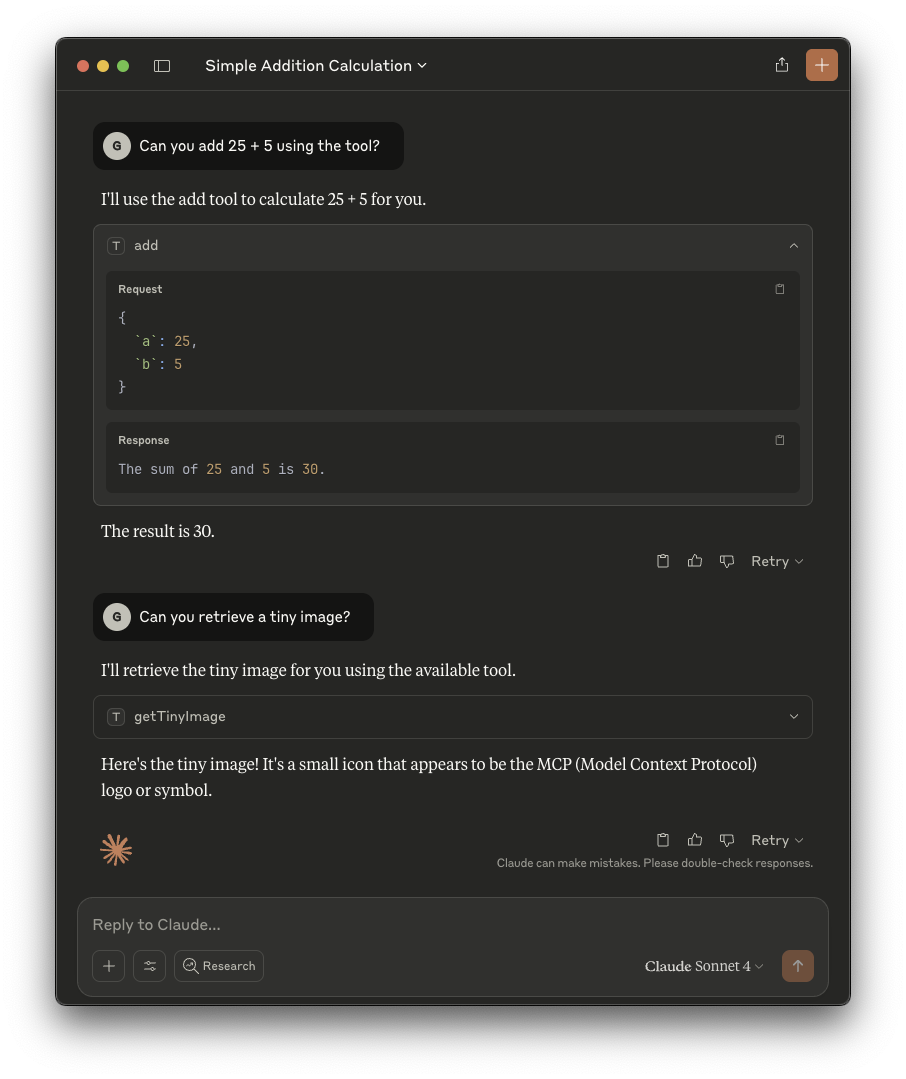
이제 평소와 같이 MCP 서버를 사용할 수 있습니다. 다음은 Claude Desktop을 통해
Teleport를 경유하여 mcp-everything 서버를 사용하는 예시입니다:
문제 해결#
서버는 실행 중이지만 도구 목록이 비어 있음#
MCP 서버에 접근하는 것 외에도, 서버가 제공하는 MCP 도구에 대한 권한도 필요합니다.
tsh mcp ls -v를 실행하여 어떤 도구를 사용할 수 있는지 확인할 수 있습니다.
도구 권한이 없는 경우, Teleport 관리자에게 연락하여 적절히 구성되도록 요청하세요.
만료된 tsh 세션#
MCP 서버 시작 시 유효한 tsh 세션이 있어야 하며, 그렇지 않으면 시작되지 않습니다.
MCP 서버가 실행 중인 동안 세션이 만료되면 다음 도구 호출이 실패합니다.
tsh login을 다시 실행하고 실패한 요청을 재시도해야 합니다. 이런 경우에는
MCP 클라이언트나 MCP 서버를 재시작할 필요가 없습니다.
tsh mcp 명령을 찾을 수 없음#
tsh mcp 명령 계열을 실행할 때 다음과 같은 오류가 발생하는 경우:
ERROR: expected command but got "mcp"
이는 오래된 버전의 tsh를 사용하기 때문에 발생합니다. MCP 명령이 포함된 최초
버전은 18.1.0이므로, 최소 이 버전 이상을 실행하고 있는지 확인해야 합니다.
tsh version을 실행하여 tsh 버전을 확인할 수 있습니다.
tsh mcp ls가 빈 서버 목록을 반환함#
Teleport 클러스터에 MCP 접근 리소스가 사용 가능하고 해당 리소스에 접근할 수 있는 올바른 권한이 있는지 확인하세요. 등록 방법은 가이드를 참조하세요.
MCP 클라이언트에서 tsh 경로 오류#
MCP 클라이언트를 시작할 때 spawn <tsh-path> ENOENT 또는 command not found와
같은 오류가 표시될 수 있습니다:
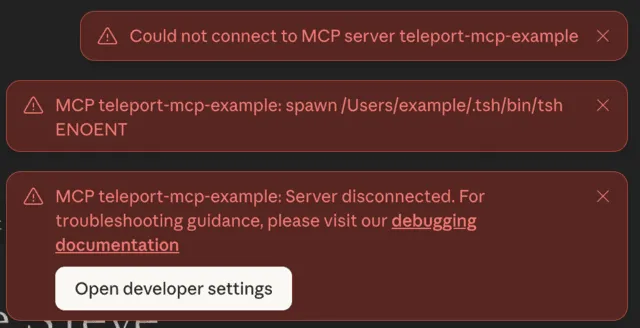
이 오류는 클라이언트 설정에서 tsh 바이너리 경로가 잘못 구성되었음을 나타냅니다.
이를 해결하려면 tsh mcp config 명령을 다시 실행하여 경로를 업데이트하거나,
클라이언트 구성 파일에서 수동으로 수정하세요. 자세한 내용은 MCP 클라이언트
연결을 참조하세요.
이 문제는 관리형 업데이트(managed update) 기능의 버그로 인해 발생할 수도 있으며,
이는 버전 18.2.3에서 수정되었습니다. Teleport 클러스터에서 도구에 대한 관리형
업데이트가 활성화되어 있는 경우, 다음과 같이 tsh 버전을 확인하세요:
$ tsh version
Teleport v18.2.3 git:v18.2.3-0-xxxxxxxx go1.24.7
Proxy version: 18.2.0
Proxy: teleport.example.com:443
Re-executed from version: 18.2.0
첫 번째 줄은 관리형 업데이트로 설치된 tsh 바이너리의 버전을 나타내고, 마지막
줄은 원래 설치본의 버전을 나타냅니다. 이 문제를 완전히 해결하려면 두 버전 모두
18.2.3 이상이어야 합니다.
첫 번째 줄에 표시된 버전이 오래된 경우, Teleport 관리자에게 문의하여 도구 업데이트
버전을 올리세요. "Re-executed from version"에 표시된 버전이 오래된 경우, 원래
설치본의 tsh 바이너리를 찾아서(예: which tsh) 제거하고 최신 릴리스를 설치하세요.
tsh가 업데이트되면 tsh mcp config 명령을 다시 실행하여 MCP 클라이언트를 다시
구성하세요.