





로컬 Windows 사용자 접근 구성
Teleport v18.10요약
이 가이드는 로컬 Windows 사용자를 위한 Microsoft Windows 데스크톱에 대한 안전한 패스워드리스 접근을 제공하도록 Teleport를 구성하는 방법을 보여줍니다. 로컬 사용자를 위한 패스워드리스 접근은 Teleport Community Edition에서 5개의 데스크톱으로 제한됩니다.
이 가이드는 로컬 Windows 사용자를 위한 Microsoft Windows 데스크톱에 대한 안전한 패스워드리스 접근을 제공하도록 Teleport를 구성하는 방법을 보여줍니다.
로컬 사용자를 위한 패스워드리스 접근은 Teleport Community Edition에서 5개의 데스크톱으로 제한됩니다.
ad: false로 static_hosts에 5개 이상의 데스크톱이 등록된 경우, Teleport
Community Edition은 그 중 어떤 것에도 연결을 허용하지 않습니다.
Teleport Enterprise 사용자는 무제한 수의 데스크톱을 가질 수 있습니다.
작동 원리#
Teleport Desktop Service는 Teleport 프록시 서비스와 인프라의 원격 Windows 데스크톱 간의 트래픽을 프록시합니다. Teleport 사용자는 Teleport Connect 또는 Teleport Web UI를 사용하여 Windows 데스크톱에 연결합니다. 이러한 그래픽 클라이언트는 독점 Teleport Desktop Protocol을 사용하여 Teleport Desktop Service와 트래픽을 주고받으며, Desktop Service는 TDP 메시지를 원격 데스크톱 프로토콜 메시지로 변환합니다.
원격 데스크톱에 접근하려면 Teleport 사용자는 해당 데스크톱에 대한 적절한 권한이 있는 역할이 있어야 합니다. 관리자는 Teleport 인증 기관을 신뢰하도록 데스크톱을 구성하고, Windows Desktop Service는 인증서 기반 인증을 사용하여 데스크톱에 접근합니다.
사전 요구 사항#
이 가이드의 단계를 완료하려면 환경이 다음 요구 사항을 충족하는지 확인하세요:
-
실행 중인 Teleport 클러스터. Teleport를 시작하려면 무료 체험판에 가입하거나 데모 환경을 구성하세요.
-
tctlandtshclients.Installing `tctl` and `tsh` clients
-
Teleport 클러스터의 버전을 확인합니다.
tctlandtshclients는 Teleport 클러스터 버전보다 최대 한 개의 메이저 버전까지만 뒤처질 수 있습니다. Proxy Service의/v1/webapi/find로 GET 요청을 보내고 JSON 쿼리 도구를 사용하여 클러스터 버전을 확인합니다.teleport.example.com:443를 Teleport Proxy Service의 웹 주소로 바꿉니다:$ TELEPORT_DOMAIN=teleport.example.com:443 $ TELEPORT_VERSION="$(curl -s https://$TELEPORT_DOMAIN/v1/webapi/find | jq -r '.server_version')" -
사용 중인 플랫폼에 대한 지침에 따라
tctlandtshclients를 설치합니다:
-
Mac
     `tctl` and `tsh` clients가 포함된, 서명된 Teleport macOS .pkg 설치 프로그램을 다운로드합니다:

     ```code
     $ curl -O https://cdn.teleport.dev/teleport-${TELEPORT_VERSION?}.pkg
     ```

     Finder에서 `pkg` 파일을 더블 클릭하여 설치를 시작합니다.
       Homebrew를 사용하여 Teleport를 설치하는 것은 지원되지 않습니다. Homebrew의
       Teleport 패키지는 Teleport에서 유지 관리하지 않으므로 신뢰성이나 보안을
       보장할 수 없습니다.
Windows - Powershell
     ```code
     $ curl.exe -O https://cdn.teleport.dev/teleport-v${TELEPORT_VERSION?}-windows-amd64-bin.zip
     # Unzip the archive and move the `tctl` and `tsh` clients to your %PATH%
     # NOTE: Do not place the `tctl` and `tsh` clients in the System32 directory, as this can cause issues when using WinSCP.
     # Use %SystemRoot% (C:\Windows) or %USERPROFILE% (C:\Users\<username>) instead.
     ```
Linux
     Linux 설치판의 모든 Teleport 바이너리에는 `tctl` and `tsh` clients가 포함되어 있습니다.  RPM/DEB
     패키지 및 i386/ARM/ARM64용 다운로드를 포함한 더 많은 옵션은
     [설치 페이지](../installation/installation.mdx)를 참조하세요.

     ```code
     $ curl -O https://cdn.teleport.dev/teleport-v${TELEPORT_VERSION?}-linux-amd64-bin.tar.gz
     $ tar -xzf teleport-v${TELEPORT_VERSION?}-linux-amd64-bin.tar.gz
     $ cd teleport
     $ sudo ./install
     # Teleport binaries have been copied to /usr/local/bin
     ```
- Teleport Windows Desktop 서비스를 실행할 Linux 서버. 다른 Teleport 인스턴스를 실행하는 기존 서버를 재사용할 수 있습니다. 그러나 기존 Teleport 인스턴스에 Windows Desktop Service를 추가하려면 새 초대 토큰을 생성해야 합니다.
- 원격 데스크톱이 활성화되고 Linux 서버로부터의 인바운드 연결을 위해 RDP 포트(일반적으로 포트 3389)가 열려 있는 Microsoft Windows를 실행하는 물리적 또는 가상 머신.
Teleport cluster에 연결할 수 있는지 확인하려면 tsh login으로 로그인한 다음,
현재 자격 증명으로 tctl 명령을 실행할 수 있는지 확인합니다.
예를 들어, teleport.example.com에 cluster 내 Teleport Proxy Service의
도메인 이름을, email@example.com에 Teleport 사용자 이름을 지정하여
다음 명령을 실행합니다:
$ tsh login --proxy=teleport.example.com --user=email@example.com
$ tctl status
# Cluster  (=teleport.url=)
# Version  (=teleport.version=)
# CA pin   (=presets.ca_pin=)
cluster에 연결하여 tctl status 명령을 실행할 수 있다면, 현재 자격 증명을 사용하여
워크스테이션에서 이후의 tctl 명령을 실행할 수 있습니다.
자체 Teleport cluster를 호스팅하는 경우, 전체 권한을 얻기 위해 Teleport Auth Service를
호스팅하는 컴퓨터에서 tctl 명령을 실행할 수도 있습니다.
1/4단계. Windows 준비#
Teleport로 보호할 리소스로 Microsoft Windows 데스크톱을 등록하기 전에, Teleport 인증 기관(CA)의 인증서로 Microsoft Windows 환경을 준비하고 원격 데스크톱 접근을 위한 기본 인증 서비스를 수정해야 합니다.
Windows 컴퓨터를 준비하려면:
-
등록하려는 Windows 컴퓨터에서 명령 프롬프트(
cmd.exe) 창을 엽니다. -
teleport.example.com을 Teleport 클러스터 주소에 할당하여 다음 명령어를 실행하여 Teleport 인증 기관을 내보냅니다:$ curl.exe -fo teleport.cer https://teleport.example.com/webapi/auth/export?type=windowsTeleport의 HSM 지원 키를 사용하는 경우, Teleport 클러스터에는 여러 CA 인증서가 있습니다 (각 Auth Service 인스턴스당 하나). URL에
&format=zip을 추가하여 모든 CA가 포함된 번들을 다운로드할 수 있습니다.
Teleport v18.7.0은 Windows Desktop Access 인증서 발급을 위한 Windows CA를 도입했습니다. 그 이전에는 user CA가 사용되었습니다.
v18.7.0(또는 그 이상)으로 업데이트된 클러스터는 user CA를 Windows CA로 자동 복제하므로, Windows CA가 순환(rotate)되기 전까지는 기존 신뢰 관계가 유지됩니다.
- Teleport Windows Auth 설치 프로그램을 다운로드합니다:
$ curl.exe -fo teleport-windows-auth-setup-v(=teleport.version=)-amd64.exe https://cdn.teleport.dev/teleport-windows-auth-setup-v(=teleport.version=)-amd64.exe
-
다운로드한 실행 파일을 두 번 클릭하여 Teleport Windows Auth Setup 프로그램을 대화형으로 실행하고 프롬프트에서 내보낸 Teleport 인증서를 선택합니다.
Teleport의 HSM 지원 키를 사용하고 2단계에서 zip 파일을 다운로드한 경우, zip 파일의 압축을 풀고 각 CA 인증서에 대해 아래 프로세스를 반복해야 합니다. 모든 인증서를 설치할 때까지 재부팅을 미룰 수 있습니다.
설치 프로그램은 다음을 수행합니다:
- Windows가 Teleport 인증 기관을 신뢰하도록 설정합니다.
- Teleport가 사용할 필요한 동적 링크 라이브러리(DLL)를 설치합니다.
- 원격 데스크톱 서비스를 위한 네트워크 수준 인증(NLA)을 비활성화합니다.
- RemoteFX 압축을 활성화합니다.
Teleport 17.4.0 이하 버전에서 로컬 사용자를 위한 Windows auth 패키지는 "탐욕스럽게" 모든
스마트 카드 로그인을 처리하려고 합니다. 이로 인해 Teleport 외부에서 스마트 카드 로그인이
작동하지 않게 되고, Teleport를 사용하여 Active Directory 사용자로 연결하는 것도 불가능해집니다.
이 문제는 Teleport 17.4.0 이상에서는 더 이상 발생하지 않습니다. 동일한 호스트에서 로컬 사용자와
Active Directory 사용자로 연결하려면 호스트를 Teleport에 두 번 등록해야 합니다. 한 번은
ad: true로, 한 번은 ad: false로 등록합니다.
참고: Windows LSA(Local Security Authority)가 Teleport DLL을 로드하려면 LSA 보호가 비활성화되어 있어야 합니다.
-
컴퓨터를 다시 시작합니다.
완료되면 명령 프롬프트에서 다음 명령을 실행하고 목록에
teleport가 표시되는지 확인하여 Teleport 인증 패키지가 로드되었는지 확인할 수 있습니다:$ REG QUERY "HKLM\SYSTEM\CurrentControlSet\Control\Lsa" /v "Authentication Packages"
설치 프로세스를 자동화하려면 다음 명령어로 관리자 명령 프롬프트 또는 PowerShell 콘솔에서 설치 프로그램을 실행할 수 있습니다:
$ teleport-windows-auth-setup-v(=teleport.version=)-amd64.exe install --cert=teleport.cer -r
2/4단계. Windows Desktop Service 구성#
클러스터에 등록하기 위한 Windows 컴퓨터를 준비했으므로, 다음 단계는 다음과 같습니다:
- 관리 워크스테이션에서 초대 토큰 생성.
- Windows Desktop Service를 실행하기 위한 Linux 서버 구성.
Windows Desktop Service를 구성하려면:
-
관리 워크스테이션에서 Teleport 클러스터에 로그인하여 신원을 인증합니다.
-
다음 명령어를 실행하여 단기 초대 토큰을 생성합니다:
$ tctl tokens add --type=windowsdesktop이 명령어는 다음과 유사한 정보를 표시합니다:
The invite token: (=presets.tokens.first=) This token will expire in 60 minutes. -
관리 워크스테이션에서 토큰을 복사하여 Windows Desktop Service를 실행할 Linux 서버의 파일에 붙여넣습니다.
예를 들어, Linux 서버에
/tmp/token파일을 만들고 토큰을 파일에 붙여넣습니다. -
다음 명령어를 실행하여 Windows Desktop Service를 실행할 Linux 서버에 Teleport가 설치되어 있는지 확인합니다:
$ teleport versionLinux 서버에 Teleport가 설치되어 있지 않으면 환경에 맞는 적절한 설치 지침을 따릅니다.
-
Windows Desktop Service를 위해 Linux 서버의
/etc/teleport.yaml파일을 다음과 유사한 설정으로 구성합니다:version: v3 teleport: nodename: windows.teleport.example.com proxy_server: teleport.example.com:443 auth_token: "/tmp/token" windows_desktop_service: enabled: true static_hosts: - name: host1 ad: false addr: 192.0.2.156 auth_service: enabled: false proxy_service: enabled: false ssh_service: enabled: false이 파일에서:
proxy_server를 Teleport 클러스터 주소로 설정합니다.static_hosts아래에 Windows 데스크톱을 나열합니다.
Teleport는 Active Directory 없이는 Windows 데스크톱을 자동으로 검색할 수 없습니다. 따라서 Teleport 구성 파일을 사용하여 등록할 Windows IP 주소나 호스트 이름을 지정하거나 Teleport API를 사용하여 자체 통합을 빌드해야 합니다.
API 통합 예시는 GitHub에서 찾을 수 있습니다.
-
(선택 사항) 구성 파일에 Windows Desktop Service의 레이블을 추가합니다.
호스트 구성의
labels섹션을 사용하여 Windows 컴퓨터에 레이블을 추가할 수 있습니다. 예를 들어, 다음은datacenter: dc1레이블을 추가합니다:version: v3 teleport: nodename: windows.teleport.example.com proxy_server: teleport.example.com:443 auth_token: /tmp/token windows_desktop_service: enabled: true static_hosts: - name: host1 ad: false addr: 192.0.2.156 + labels: + datacenter: dc1또는 호스트 이름과 일치시켜 Windows 컴퓨터에 레이블을 연결할 수 있습니다. 예를 들어, 다음은
.us-east-2.compute.internal로 끝나는 호스트 이름을 가진 컴퓨터에cloud: ec2레이블을 추가합니다:version: v3 teleport: nodename: windows.teleport.example.com proxy_server: teleport-proxy.example.com:443 windows_desktop_service: enabled: true static_hosts: - name: host1 ad: false - addr: 192.0.2.156 + addr: ip-192-0-2-156.us-east-2.compute.internal + host_labels: + - match: '.*\.us-east-2.compute.internal' + labels: + cloud: ec2레이블과 역할 사용에 대한 자세한 정보는 Windows 관련 역할 권한 구성을 참조하세요.
systemd 서비스를 생성하여 호스트가 부팅될 때 the Teleport Windows Desktop Service이 자동으로 시작되도록 구성합니다. 지침은 the Teleport Windows Desktop Service을 어떻게 설치했는지에 따라 다릅니다.
Package Manager
the Teleport Windows Desktop Service을 실행할 호스트에서 Teleport를 활성화하고 시작합니다:
$ sudo systemctl enable teleport
$ sudo systemctl start teleport
TAR Archive
the Teleport Windows Desktop Service을 실행할 호스트에서 Teleport용 systemd 서비스 구성을 생성하고, Teleport 서비스를 활성화한 후 Teleport를 시작합니다:
$ sudo teleport install systemd -o /etc/systemd/system/teleport.service
$ sudo systemctl enable teleport
$ sudo systemctl start teleport
systemctl status teleport로 the Teleport Windows Desktop Service의 상태를 확인하고 journalctl -fu teleport로
로그를 볼 수 있습니다.
다음은 몇 가지 문제 해결 팁입니다:
-
Linux 서버에서 서비스 상태를 확인합니다:
$ systemctl status teleport -
연결 오류에 대한 로그를 검토합니다:
$ sudo journalctl -u teleport -
토큰이 만료되지 않았는지 확인합니다 (토큰은 기본적으로 30분 동안 유효합니다).
-
Linux 서버가 Teleport Proxy Service에 접근할 수 있는지 확인합니다.
3/4단계. 원격 Windows 데스크톱 접근 구성#
원격 데스크톱에 접근하려면 Teleport 사용자는 해당 데스크톱에 대한 적절한 권한이 있는 역할이 있어야 합니다.
데스크톱 접근을 위한 역할을 구성하려면:
-
관리 워크스테이션에서 Teleport 클러스터에 로그인하여 신원을 인증합니다.
-
새 역할을 정의하는
windows-desktop-admins.yaml파일을 만듭니다:kind: role version: v6 metadata: name: windows-desktop-admins spec: allow: windows_desktop_labels: "*": "*" windows_desktop_logins: ["Administrator", "alice"]이 파일에서:
windows_desktop_labels를 설정하여 특정 호스트에 대한 접근을 허용하거나 거부하는 데 사용할 레이블을 지정합니다.windows_desktop_logins를 설정하여 역할에 할당된 Teleport 사용자가 Windows 데스크톱에 접근하는 데 사용할 수 있는 Windows 로그인을 지정합니다.
Windows에 대한 역할 기반 접근 제어를 구성하는 방법에 따라, Teleport는 지정한
windows_desktop_logins에서 로컬 사용자 로그인을 자동으로 만들 수 있습니다. Teleport가 로컬 Windows 로그인을 만들 수 있도록 활성화하는 방법에 대한 자세한 내용은 자동 사용자 생성을 참조하세요. -
다음 명령어를 실행하여 클러스터에 새 역할을 적용합니다:
$ tctl create -f windows-desktop-admins.yaml
Web UI를 사용하여 역할을 생성하고 편집할 수도 있습니다. Access -> Roles로 이동하여 Create New Role을 클릭하거나 편집할 기존 역할을 선택하십시오.
인증 공급자에 맞는 적절한 명령을 실행하여 windows-desktop-admins 역할을
your Teleport user에게 할당하십시오:
Local User
-
로컬 사용자의 역할을 쉼표로 구분된 목록으로 가져옵니다:
$ ROLES=$(tsh status -f json | jq -r '.active.roles | join(",")') -
로컬 사용자를 편집하여 새 역할을 추가합니다:
$ tctl users update $(tsh status -f json | jq -r '.active.username') \ --set-roles "${ROLES?},windows-desktop-admins" -
Teleport 클러스터에서 로그아웃한 다음 다시 로그인하여 새 역할을 적용합니다.
GitHub
-
텍스트 편집기에서
github인증 커넥터를 엽니다:$ tctl edit github/github -
github커넥터를 편집하여teams_to_roles섹션에windows-desktop-admins을 추가합니다.이 역할에 매핑해야 할 팀은 조직의 역할 기반 액세스 제어(RBAC)를 어떻게 설계했는지에 따라 달라집니다. 다만, 해당 팀은 여러분의 사용자 계정을 포함해야 하며 조직 내에서 가능한 한 가장 작은 팀이어야 합니다.
다음은 예시입니다:
teams_to_roles: - organization: octocats team: admins roles: - access + - windows-desktop-admins -
편집기에서 파일을 저장하고 닫아 변경 사항을 적용합니다.
-
Teleport 클러스터에서 로그아웃한 다음 다시 로그인하여 새 역할을 적용합니다.
SAML
-
saml구성 리소스를 가져옵니다:$ tctl get --with-secrets saml/mysaml > saml.yaml--with-secrets플래그는spec.signing_key_pair.private_key값을saml.yaml파일에 추가한다는 점에 유의하십시오. 이 키에는 민감한 값이 포함되어 있으므로, 리소스를 업데이트한 직후 saml.yaml 파일을 삭제해야 합니다. -
saml.yaml을 편집하여attributes_to_roles섹션에windows-desktop-admins을 추가합니다.이 역할에 매핑해야 할 속성은 조직의 역할 기반 액세스 제어(RBAC)를 어떻게 설계했는지에 따라 달라집니다. 다만, 해당 그룹은 여러분의 사용자 계정을 포함해야 하며 조직 내에서 가능한 한 가장 작은 그룹이어야 합니다.
다음은 예시입니다:
attributes_to_roles: - name: "groups" value: "my-group" roles: - access + - windows-desktop-admins -
변경 사항을 적용합니다:
$ tctl create -f saml.yaml -
Teleport 클러스터에서 로그아웃한 다음 다시 로그인하여 새 역할을 적용합니다.
OIDC
-
oidc구성 리소스를 가져옵니다:$ tctl get oidc/myoidc --with-secrets > oidc.yaml--with-secrets플래그는spec.signing_key_pair.private_key값을oidc.yaml파일에 추가한다는 점에 유의하십시오. 이 키에는 민감한 값이 포함되어 있으므로, 리소스를 업데이트한 직후 oidc.yaml 파일을 삭제해야 합니다. -
oidc.yaml을 편집하여claims_to_roles섹션에windows-desktop-admins을 추가합니다.이 역할에 매핑해야 할 클레임은 조직의 역할 기반 액세스 제어(RBAC)를 어떻게 설계했는지에 따라 달라집니다. 다만, 해당 그룹은 여러분의 사용자 계정을 포함해야 하며 조직 내에서 가능한 한 가장 작은 그룹이어야 합니다.
다음은 예시입니다:
claims_to_roles: - name: "groups" value: "my-group" roles: - access + - windows-desktop-admins -
변경 사항을 적용합니다:
$ tctl create -f oidc.yaml -
Teleport 클러스터에서 로그아웃한 다음 다시 로그인하여 새 역할을 적용합니다.
4/4단계. 연결#
Windows Desktop Service를 실행하는 Linux 서버를 구성하고 로컬 Windows 로그인으로 Microsoft
Windows에 연결할 수 있는 Teleport 사용자를 허용하는 역할을 만들었으므로, windows-desktop-admins
역할이 할당된 Teleport 사용자를 사용하여 Teleport Web UI에서 Windows 데스크톱에 연결할 수 있습니다.
또는 Teleport Connect를 사용하여 연결할 수 있습니다.
Windows 데스크톱에 연결하려면:
-
windows-desktop-admins역할이 할당된 계정을 사용하여 Teleport 클러스터에 로그인합니다. -
Resources를 선택합니다.
-
Type을 클릭한 다음 Desktops를 선택합니다.
-
접근하려는 Windows 데스크톱의 Connect를 클릭한 다음 연결에 사용할 Windows 로그인을 선택합니다.
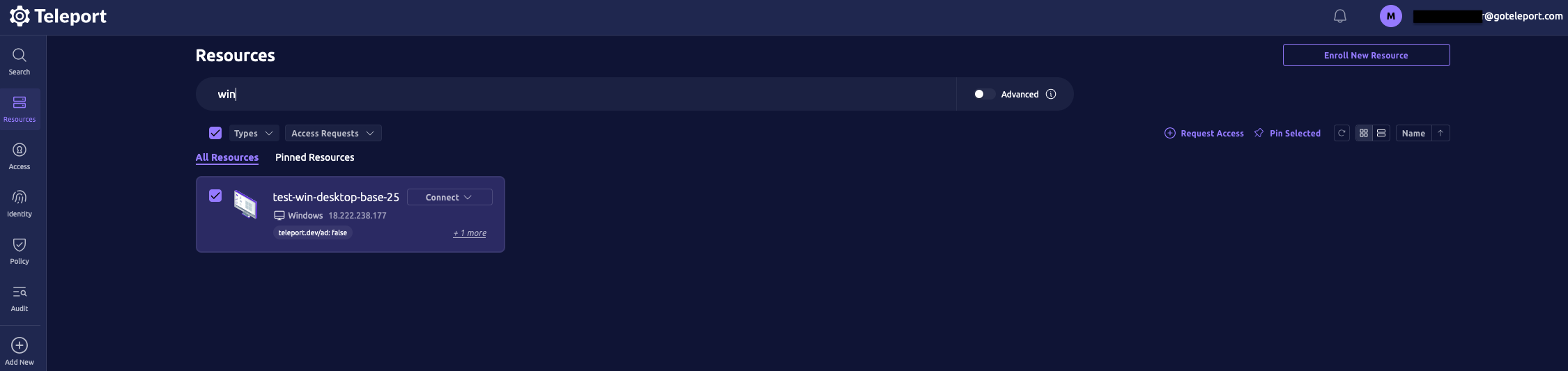
Teleport가 원격 데스크톱 연결을 열고 데스크톱 세션 녹화를 시작합니다. Windows 데스크톱 작업이 완료되면 More items 메뉴를 클릭한 다음 Disconnect를 클릭합니다.

녹화를 보려면 Teleport Web UI에서 Audit를 선택한 다음 메뉴에서 Session Recordings를 클릭합니다.
다음은 몇 가지 문제 해결 팁입니다:
-
Teleport 사용자에게
windows-desktop-admins역할(또는 데스크톱 권한이 있는 동등한 역할)이 할당되어 있는지 확인합니다. -
선택한 Windows 로그인이 Windows 컴퓨터에 존재하는지 확인합니다.
-
Desktop Service를 실행하는 Linux 서버와 Windows 호스트 간에 RDP 포트 3389가 열려 있는지 확인합니다.
-
연결에 실패하면 Linux 서버에서 Windows Desktop Service 로그를 검토합니다:
$ sudo journalctl -u teleport
제거#
로컬 사용자를 위한 패스워드 없는 로그인을 제공하기 위해 Teleport의 Windows auth 패키지를 사용하고 있는 경우, 관리자 명령 프롬프트에서 설정 프로그램을 실행하여 제거할 수 있습니다:
> teleport-windows-auth-setup.exe uninstall
패키지를 완전히 제거하려면 제거 완료 후 재부팅이 필요합니다.
다음 단계#
역할 생성, 할당 및 업데이트에 대한 일반적인 정보는 접근 제어 시작하기를 참조하세요. Windows 관련 역할 권한 구성에 대한 자세한 정보는 데스크톱을 위한 역할 기반 접근 제어를 참조하세요.