





Jenkins에 tbot 배포
Teleport v18.10요약
Jenkins는 CI/CD(지속적 통합 및 지속적 배포) 파이프라인을 구축하는 데 자주 사용되는 오픈 소스 자동화 서버입니다. 이 가이드에서는 머신 및 워크로드 아이덴티티 봇을 만들고, 이를 사용하여 Jenkins 파이프라인이 Teleport로 보호된 인프라에 연결할 때 사용할 수 있는 단기 자격 증명을 생성하는 방법을 다룹니다.
Jenkins는 CI/CD(지속적 통합 및 지속적 배포) 파이프라인을 구축하는 데 자주 사용되는 오픈 소스 자동화 서버입니다.
이 가이드에서는 머신 및 워크로드 아이덴티티 봇을 만들고, 이를 사용하여 Jenkins 파이프라인이 Teleport로 보호된 인프라에 연결할 때 사용할 수 있는 단기 자격 증명을 생성하는 방법을 다룹니다.
사전 요구사항#
Jenkins에서 Teleport를 사용하려면 다음 도구가 필요합니다.
-
실행 중인 Teleport 클러스터. Teleport를 시작하려면 무료 체험판에 가입하거나 데모 환경을 구성하세요.
-
tctlandtshclients.Installing `tctl` and `tsh` clients
-
Teleport 클러스터의 버전을 확인합니다.
tctlandtshclients는 Teleport 클러스터 버전보다 최대 한 개의 메이저 버전까지만 뒤처질 수 있습니다. Proxy Service의/v1/webapi/find로 GET 요청을 보내고 JSON 쿼리 도구를 사용하여 클러스터 버전을 확인합니다.teleport.example.com:443를 Teleport Proxy Service의 웹 주소로 바꿉니다:$ TELEPORT_DOMAIN=teleport.example.com:443 $ TELEPORT_VERSION="$(curl -s https://$TELEPORT_DOMAIN/v1/webapi/find | jq -r '.server_version')" -
사용 중인 플랫폼에 대한 지침에 따라
tctlandtshclients를 설치합니다:
-
Mac
     `tctl` and `tsh` clients가 포함된, 서명된 Teleport macOS .pkg 설치 프로그램을 다운로드합니다:

     ```code
     $ curl -O https://cdn.teleport.dev/teleport-${TELEPORT_VERSION?}.pkg
     ```

     Finder에서 `pkg` 파일을 더블 클릭하여 설치를 시작합니다.
       Homebrew를 사용하여 Teleport를 설치하는 것은 지원되지 않습니다. Homebrew의
       Teleport 패키지는 Teleport에서 유지 관리하지 않으므로 신뢰성이나 보안을
       보장할 수 없습니다.
Windows - Powershell
     ```code
     $ curl.exe -O https://cdn.teleport.dev/teleport-v${TELEPORT_VERSION?}-windows-amd64-bin.zip
     # Unzip the archive and move the `tctl` and `tsh` clients to your %PATH%
     # NOTE: Do not place the `tctl` and `tsh` clients in the System32 directory, as this can cause issues when using WinSCP.
     # Use %SystemRoot% (C:\Windows) or %USERPROFILE% (C:\Users\<username>) instead.
     ```
Linux
     Linux 설치판의 모든 Teleport 바이너리에는 `tctl` and `tsh` clients가 포함되어 있습니다.  RPM/DEB
     패키지 및 i386/ARM/ARM64용 다운로드를 포함한 더 많은 옵션은
     [설치 페이지](../installation/installation.mdx)를 참조하세요.

     ```code
     $ curl -O https://cdn.teleport.dev/teleport-v${TELEPORT_VERSION?}-linux-amd64-bin.tar.gz
     $ tar -xzf teleport-v${TELEPORT_VERSION?}-linux-amd64-bin.tar.gz
     $ cd teleport
     $ sudo ./install
     # Teleport binaries have been copied to /usr/local/bin
     ```
sshOpenSSH 도구- Jenkins
Teleport cluster에 연결할 수 있는지 확인하려면 tsh login으로 로그인한 다음,
현재 자격 증명으로 tctl 명령을 실행할 수 있는지 확인합니다.
예를 들어, teleport.example.com에 cluster 내 Teleport Proxy Service의
도메인 이름을, email@example.com에 Teleport 사용자 이름을 지정하여
다음 명령을 실행합니다:
$ tsh login --proxy=teleport.example.com --user=email@example.com
$ tctl status
# Cluster  (=teleport.url=)
# Version  (=teleport.version=)
# CA pin   (=presets.ca_pin=)
cluster에 연결하여 tctl status 명령을 실행할 수 있다면, 현재 자격 증명을 사용하여
워크스테이션에서 이후의 tctl 명령을 실행할 수 있습니다.
자체 Teleport cluster를 호스팅하는 경우, 전체 권한을 얻기 위해 Teleport Auth Service를
호스팅하는 컴퓨터에서 tctl 명령을 실행할 수도 있습니다.
아키텍처#
시작하기 전에 Jenkins는 보안이 어렵기로 악명 높은 도구라는 점을 알아야 합니다. 머신 및 워크로드 아이덴티티는 인프라를 보안하는 요소 중 하나이지만 그것만으로는 충분하지 않습니다. 아래에서 Jenkins 설치의 보안 자세를 개선하는 데 도움이 되는 몇 가지 기본 지침을 제공합니다.
단일 호스트 배포#
가장 간단한 Jenkins 배포는 컨트롤러(설정, 플러그인, UI를 저장하는 프로세스)와 에이전트(작업을 실행하는 프로세스)가 동일한 호스트에서 실행됩니다. 이 배포 모델은 시작하기 간단하지만, 단일 파이프라인 내에서 jenkins 사용자가 손상되면 전체 CI/CD 인프라가 손상될 수 있습니다.
다중 호스트 배포#
Jenkins 컨트롤러와 에이전트를 서로 다른 호스트에서 실행하고 특정 에이전트에 워크로드를 고정하는 것은 조금 더 복잡하지만 더 안전한 배포 방식입니다. 단일 파이프라인이 손상되었을 때의 영향 범위를 전체 인프라가 아닌 CI/CD 인프라의 일부로 제한할 수 있으므로 단순한 배포 방식보다 개선된 방법입니다.
모범 사례#
가능하다면 임시 호스트와 IAM 조인을 활용하여 두 번째 배포 모델을 사용하는 것을 강력히 권장합니다. 이 모델에서 머신 및 워크로드 아이덴티티를 사용할 때는 호스트별로 별도의 봇을 만들어 실행하고, 특정 파이프라인을 워커에 고정하십시오. 이렇게 하면 각 파이프라인에 서버 접근에 대한 최소 범위를 부여할 수 있고, 파이프라인 하나가 손상되었을 때의 영향 범위를 줄일 수 있으며, 악의적인 동작이 감지될 경우 파이프라인을 원격으로 감사하고 잠글 수 있습니다.
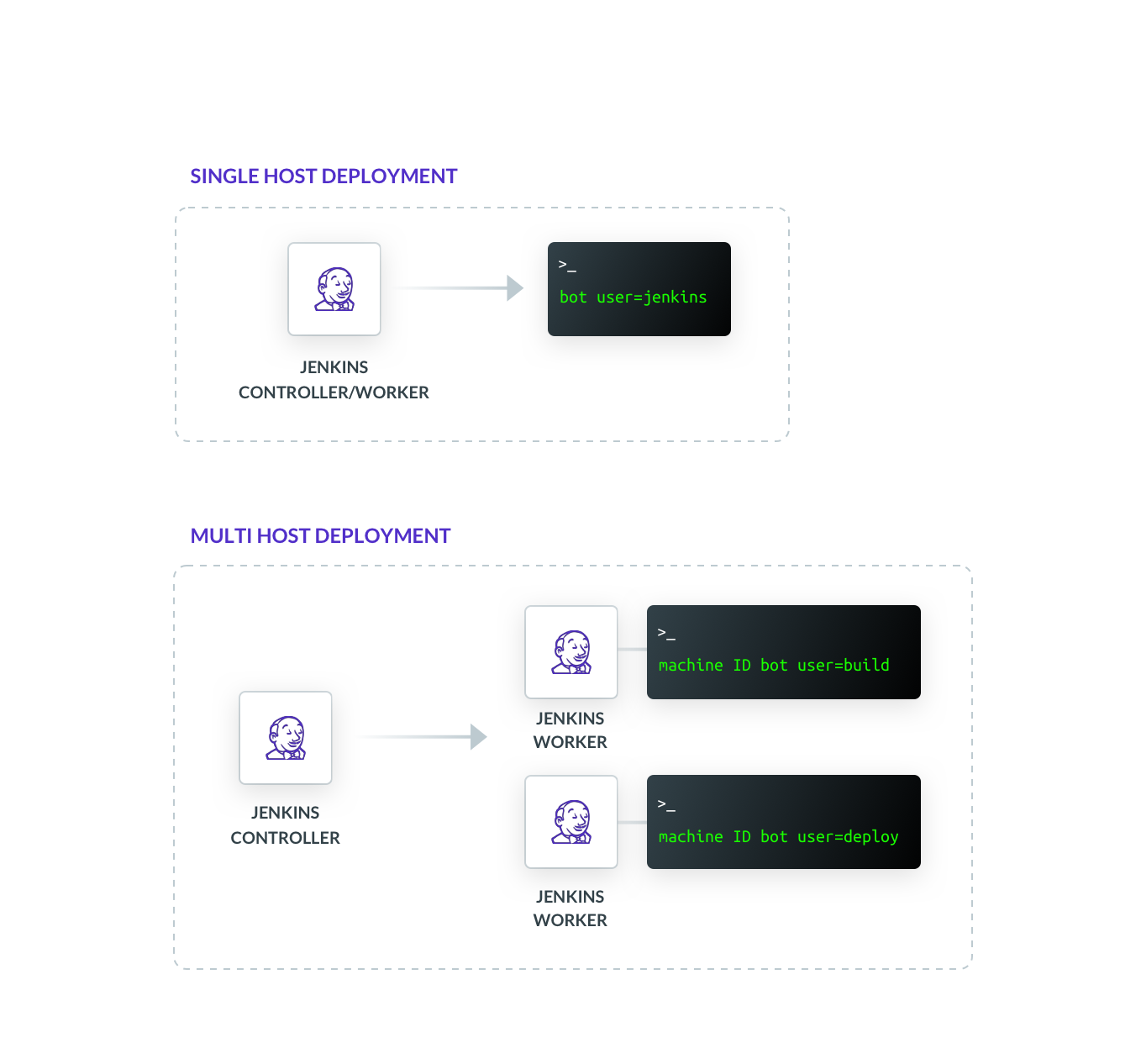
1단계/2단계. tbot 설정 및 시작#
먼저 Jenkins 워크플로에 사용할 새 역할을 만들지, 기존 역할을 사용할지 결정합니다. tctl get roles를 실행하여 기존 역할을 확인할 수 있습니다.
아래 예시에서는 레이블 group: api가 지정된 노드에 Linux 사용자 jenkins로 로그인할 수 있는 api-workers라는 새 역할을 만들기 위해, 아래 내용으로 api-workers.yaml 파일을 만듭니다.
kind: "role"
version: "v3"
metadata:
  name: "api-workers"
spec:
  allow:
    logins: ["jenkins"]
    node_labels:
      "group": "api"
클라이언트 머신에서 tctl을 사용하기 전에 tsh로 Teleport에 로그인합니다.
$ tctl create -f api-workers.yaml
$ tctl bots add jenkins --roles=api-workers
Teleport Auth Service에 연결하고 tctl을 사용하여 시스템에 존재하는 역할을 확인합니다.
$ tctl create -f api-workers.yaml
$ tctl bots add jenkins --roles=api-workers
머신 및 워크로드 아이덴티티 에이전트인 tbot을 사용하면 Linux 접근 제어 목록(ACL)을 사용하여 디스크에 저장된 인증서에 대한 접근을 제어할 수 있습니다. 이를 활용하여 tbot이 발급하는 단기 인증서에 대한 Jenkins의 접근을 제한합니다.
다음 예시에서는 tbot을 실행할 teleport라는 Linux 사용자를 만들지만, 단기 인증서는 Linux 사용자 jenkins로 디스크에 기록됩니다.
$ sudo adduser \
    --disabled-password \
    --no-create-home \
    --shell=/bin/false \
    --gecos "" \
    teleport
tbot init 명령을 사용하여 필요한 디렉터리를 만들고 초기화합니다.
$ sudo tbot init \
    --destination-dir=/opt/machine-id \
    --bot-user=teleport \
    --owner=teleport:teleport \
    --reader-user=jenkins
봇 데이터 디렉터리를 생성하고 tbot이 실행될 Linux 사용자(예제에서는
teleport)에게 해당 디렉터리에 접근할 권한을 부여하십시오.
# Make the bot directory and assign ownership to teleport user
$ sudo mkdir -p /var/lib/teleport/bot
$ sudo chown teleport:teleport /var/lib/teleport/bot
# Allow teleport user to open directory
$ sudo chmod +x /var/lib/teleport /var/lib/teleport/bot
다음으로 각 Jenkins 워커의 백그라운드에서 tbot을 시작해야 합니다.
먼저 /etc/tbot.yaml에 tbot 설정 파일을 만듭니다.
version: v2
# "example.teleport.sh:443"을 Teleport Proxy 또는
# Teleport Cloud 테넌트의 주소로 교체하세요.
proxy_server: "example.teleport.sh:443"
onboarding:
  join_method: "token"
  # 토큰 필드는 `tctl bots add`를 실행했을 때 출력된 토큰의 이름으로 교체하세요.
  token: "00000000000000000000000000000000"
storage:
  type: directory
  path: /var/lib/teleport/bot
services:
  - type: identity
    destination:
      type: directory
      path: /opt/machine-id
tbot systemd 유닛 파일 만들기#
기본적으로 tbot은 데몬 모드로 실행됩니다. 다만 이 경우 Linux 호스트의 서비스 관리자
내에서 서비스로 구성해야 합니다. 서비스 관리자는 부팅 시 tbot을 시작하고 실패할 경우
재시작되도록 보장합니다.
tbot이 Teleport 설치 스크립트 또는 teleport-update 명령을 사용하여 설치된 경우,
tbot systemd 서비스가 자동으로 생성됩니다.
tbot.yaml이 생성된 후, 서비스를 활성화하고 시작합니다.
$ sudo systemctl enable tbot --now
서비스가 성공적으로 시작되었는지 확인합니다.
$ sudo systemctl status tbot
User 및 Group과 같은 서비스 속성은 systemctl edit tbot을 사용하여 구성할 수 있습니다.`
tbot이 수동으로 설치된 경우, 서비스 구성도 수동으로 수행해야 합니다.
이 가이드에서는 systemd를 예로 들지만, tbot은 일반적인 모든 대안과 호환됩니다.
tbot install systemd를 사용하여 systemd 서비스 파일을 생성합니다.
$ sudo tbot install systemd \
   --write \
   --config /etc/tbot.yaml \
   --user teleport \
   --group teleport \
   --anonymous-telemetry
다음 항목을 반드시 변경하십시오.
teleport를tbot을 실행할 Linux 사용자 이름으로 변경합니다./etc/tbot.yaml을 생성한 구성 파일의 경로로 변경합니다.
--write를 생략하면 systemd 서비스 파일을 디스크에 쓰는 대신 콘솔에 출력할 수
있습니다.
--anonymous-telemetry는 익명 사용 텔레메트리 제출을 활성화합니다. 이는 tbot의 향후
개발 방향을 정하는 데 도움이 됩니다. 이를 생략하여 비활성화할 수 있습니다.
다음으로, 부팅 시 서비스가 시작되도록 서비스를 활성화한 후 서비스를 시작합니다.
$ sudo systemctl daemon-reload
$ sudo systemctl enable tbot --now
서비스가 성공적으로 시작되었는지 확인합니다.
$ sudo systemctl status tbot
2단계/2단계. Jenkins 파이프라인 업데이트 및 실행#
이제 tbot이 생성한 자격 증명을 Jenkins 파이프라인 내에서 사용하는 것은 한 줄만 변경하면 되는 작업입니다. 예를 들어 원격 호스트에서 hostname 명령을 실행하려면 Jenkins 파이프라인에 다음을 추가합니다.
steps {
  sh "ssh -F /opt/machine-id/ssh_config root@node-name.example.com hostname"
}
이제 준비가 완료되었습니다. Jenkins에 순환, 감사 및 접근 제어가 가능한 머신 아이덴티티에 연결된 단기 인증서를 제공했습니다.