





(권장) NGINX 프록시 설정
Mattermost v12.0요약
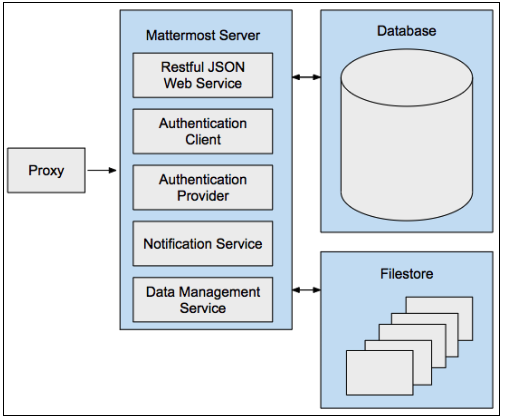
프록시 서버는 다른 서버에서 리소스를 요청하는 클라이언트의 중개 역할을 하는 서버(컴퓨터 시스템 또는 애플리케이션)입니다. Mattermost는 NGINX 프록시를 지원합니다. NGINX는 인기 있는 웹 서버로 인터넷에서 가장 크고 트래픽이 많은 일부 사이트를 호스팅하는 데 사용됩니다.
프록시 서버는 다른 서버에서 리소스를 요청하는 클라이언트의 중개 역할을 하는 서버(컴퓨터 시스템 또는 애플리케이션)입니다. Mattermost는 보안 강화, 성능 향상, Mattermost로 연결되는 트래픽의 모니터링 및 제어 능력을 위해 Mattermost 앞에 프록시를 사용하는 것을 권장합니다:
- 보안: 프록시 서버는 보안 소켓 레이어(TLS/SSL) 암호화를 관리하고 Mattermost 서버로의 네트워크 트래픽을 라우팅하는 정책을 설정할 수 있습니다.
- 성능: 고가용성 구성에서 프록시 서버는 최적화된 성능을 위해 여러 Mattermost 서버 간에 네트워크 부하를 분산합니다. SSL 암호화 및 복호화 처리 전용 장치가 있는 하드웨어 프록시도 성능 향상을 위해 사용할 수 있습니다.
- 모니터링: 프록시 서버는 연결 트래픽을 모니터링하고 Kibana, Splunk 등 일반적인 모니터링 도구가 소비하고 보고할 수 있는 표준 감사 로그에 트래픽을 기록할 수 있습니다. 파일 업로드 및 다운로드와 같이 Mattermost 서버 로깅 프로세스에서 추적되지 않는 이벤트도 캡처할 수 있습니다.
Mattermost는 NGINX 프록시를 지원합니다.
NGINX 서버 설치#
NGINX는 인기 있는 웹 서버로 인터넷에서 가장 크고 트래픽이 많은 일부 사이트를 호스팅하는 데 사용됩니다. 대부분의 경우 Apache보다 리소스 효율적이며 웹 서버 또는 리버스 프록시로 사용할 수 있습니다.
프로덕션 환경에서는 Mattermost의 보안과 성능을 높이기 위해 프록시 서버를 사용하는 것이 좋습니다:
- SSL 종단
- HTTP에서 HTTPS로 리디렉션
- 포트
:80에서:8065로 포트 매핑 - 표준 요청 로그
Ubuntu 서버에 NGINX 설치#
- 프록시를 호스팅할 서버에 로그인하고 터미널 창을 엽니다.
- NGINX를 설치합니다.
NGINX는 Ubuntu의 기본 리포지터리에서 사용할 수 있으므로
apt패키지 시스템을 사용하여 설치할 수 있습니다. 먼저 최신 패키지 목록에 접근하기 위해 로컬apt패키지 인덱스를 업데이트합니다. 그런 다음nginx를 설치합니다:sudo apt update sudo apt install nginx절차를 수락하면
apt가 NGINX와 필요한 모든 의존성을 서버에 설치합니다.
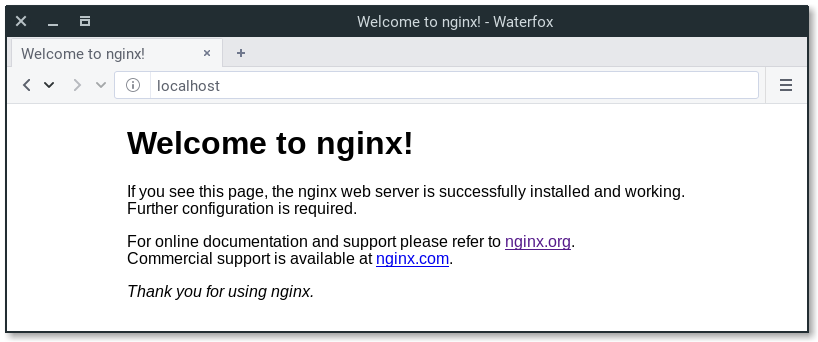
- 설치 후 필요한 모든 것이 준비됩니다. 브라우저에서 서버 IP 주소로 접속할 수 있습니다. 기본 NGINX 랜딩 페이지가 표시되어야 합니다:
이 페이지가 표시되면 웹 서버에 NGINX가 성공적으로 설치된 것입니다. 이 페이지는 서버가 올바르게 실행 중임을 보여주기 위해 NGINX에 포함되어 있습니다.
또는
curl http://localhost를 실행하여 확인할 수도 있습니다.NGINX가 실행 중이면 다음 출력이 표시됩니다:
<!DOCTYPE html> <html> <head> <title>Welcome to nginx!</title> . . . <p><em>Thank you for using nginx.</em></p> </body> </html>
NGINX 프로세스 관리#
이제 웹 서버가 실행 중이므로 몇 가지 기본 관리 명령을 살펴보겠습니다. 이 명령들은 모두 명령줄 인터페이스에서 실행됩니다.
웹 서버를 중지하려면: sudo systemctl stop nginx
중지된 웹 서버를 시작하려면: sudo systemctl start nginx
서비스를 중지하고 다시 시작하려면: sudo systemctl restart nginx
구성만 변경하는 경우, NGINX는 종종 연결을 끊지 않고 다시 로드할 수 있습니다. 이를 위해: sudo systemctl reload nginx
기본적으로 NGINX는 서버 부팅 시 자동으로 시작하도록 구성되어 있습니다. 원하지 않는 경우 다음 명령으로 이 동작을 비활성화할 수 있습니다: sudo systemctl disable nginx
부팅 시 서비스를 다시 활성화하려면: sudo systemctl enable nginx
다음 단계#
- DNS 서버/서비스에서
mattermost.example.com과 같은 정규화된 도메인 이름(FQDN)을 NGINX 서버를 가리키도록 매핑합니다. - 인터넷에서 Mattermost 서버로의 연결을 프록시하도록 NGINX를 구성합니다.
Mattermost 서버를 위한 NGINX 프록시 구성#
NGINX는 /etc/nginx/sites-available 디렉터리의 파일을 사용하여 구성됩니다. 파일을 만든 다음 활성화해야 합니다. 파일을 만들 때 Mattermost 서버의 IP 주소와 Mattermost 웹사이트의 정규화된 도메인 이름(FQDN)이 필요합니다.
- NGINX를 호스팅하는 서버에 로그인하고 터미널 창을 엽니다.
- 다음 명령을 실행하여 Mattermost에 대한 구성 파일을 만듭니다:
Ubuntu에서:
sudo touch /etc/nginx/sites-available/mattermostRHEL 8에서:
sudo touch /etc/nginx/conf.d/mattermost
- 텍스트 편집기에서 root 사용자로
/etc/nginx/sites-available/mattermost(Ubuntu) 또는/etc/nginx/conf.d/mattermost(RHEL 8) 파일을 열고 기존 내용이 있다면 다음 줄로 교체합니다. server_name에는 Mattermost 서버 IP 주소와 FQDN으로 각각의 값을 사용하세요.
제공된 구성 예시에서는 SSL 및 HTTP/2가 활성화되어 있습니다.
- Let's Encrypt를 사용하여 SSL 인증서를 관리하려면 3단계에서 중단하고 NGINX HTTP/2 및 SSL 제품 문서를 참조하세요.
- NGINX가 인증서를 올바르게 고정하려면 유효한 SSL 인증서가 필요합니다. 또한 브라우저에서 해당 인증서를 유효한 CA 서명 인증서로 수락할 수 있는 권한이 있어야 합니다.
- 이 문서의 예시에 포함된 IP 주소는 네트워크 구성과 일치하지 않을 수 있습니다.
- Mattermost와 동일한 머신에서 NGINX를 실행 중이고 NGINX가
localhost를 하나 이상의 IP 주소(IPv4 또는 IPv6)로 확인하는 경우localhost대신127.0.0.1을 사용하는 것을 권장합니다.
upstream backend {
   server 10.10.10.2:8065;
   keepalive 32;
}

server {
  listen 80 default_server;
  server_name   mattermost.example.com;
  return 301 https://$server_name$request_uri;
}

server {
   listen 443 ssl http2;
   listen [::]:443 ssl http2;
   server_name    mattermost.example.com;

   ssl_certificate /etc/letsencrypt/live/{domain-name}/fullchain.pem;
   ssl_certificate_key /etc/letsencrypt/live/{domain-name}/privkey.pem;
   ssl_session_timeout 1d;

   # Enable TLS versions (TLSv1.3 is required upcoming HTTP/3 QUIC).
   ssl_protocols TLSv1.2 TLSv1.3;

   # Enable TLSv1.3's 0-RTT. Use $ssl_early_data when reverse proxying to
   # prevent replay attacks.
   #
   # @see: https://nginx.org/en/docs/http/ngx_http_ssl_module.html#ssl_early_data
   ssl_early_data on;

   ssl_ciphers 'ECDHE-ECDSA-AES256-GCM-SHA384:ECDHE-RSA-AES256-GCM-SHA384:ECDHE-ECDSA-CHACHA20-POLY1305:ECDHE-RSA-CHACHA20-POLY1305:ECDHE-ECDSA-AES256-SHA384:ECDHE-RSA-AES256-SHA384';
   ssl_prefer_server_ciphers on;
   ssl_session_cache shared:SSL:50m;
   # HSTS (ngx_http_headers_module is required) (15768000 seconds = six months)
   add_header Strict-Transport-Security max-age=15768000;
   # OCSP Stapling ---
   # fetch OCSP records from URL in ssl_certificate and cache them
   ssl_stapling on;
   ssl_stapling_verify on;

   add_header X-Early-Data $tls1_3_early_data;

   location ~ /api/v[0-9]+/(users/)?websocket$ {
       proxy_set_header Upgrade $http_upgrade;
       proxy_set_header Connection "upgrade";
       client_max_body_size 50M;
       proxy_set_header Host $host;
       proxy_set_header X-Real-IP $remote_addr;
       proxy_set_header X-Forwarded-For $proxy_add_x_forwarded_for;
       proxy_set_header X-Forwarded-Proto $scheme;
       proxy_set_header X-Frame-Options SAMEORIGIN;
       proxy_buffers 256 16k;
       proxy_buffer_size 16k;
       client_body_timeout 60s;
       send_timeout 300s;
       lingering_timeout 5s;
       proxy_connect_timeout 90s;
       proxy_send_timeout 300s;
       proxy_read_timeout 90s;
       proxy_http_version 1.1;
       proxy_pass http://backend;
   }

   location / {
       client_max_body_size 100M;
       proxy_set_header Connection "";
       proxy_set_header Host $host;
       proxy_set_header X-Real-IP $remote_addr;
       proxy_set_header X-Forwarded-For $proxy_add_x_forwarded_for;
       proxy_set_header X-Forwarded-Proto $scheme;
       proxy_set_header X-Frame-Options SAMEORIGIN;
       proxy_buffers 256 16k;
       proxy_buffer_size 16k;
       proxy_read_timeout 600s;
       proxy_http_version 1.1;
       proxy_pass http://backend;
   }
}

# This block is useful for debugging TLS v1.3. Please feel free to remove this
# and use the `$ssl_early_data` variable exposed by NGINX directly should you
# wish to do so.
map $ssl_early_data $tls1_3_early_data {
  "~." $ssl_early_data;
  default "";
}
sudo rm /etc/nginx/sites-enabled/default(Ubuntu) 또는sudo rm /etc/nginx/conf.d/default(RHEL 8)를 실행하여 기존 기본 sites-enabled 파일을 제거합니다.sudo ln -s /etc/nginx/sites-available/mattermost /etc/nginx/sites-enabled/mattermost(Ubuntu) 또는sudo ln -s /etc/nginx/conf.d/mattermost /etc/nginx/conf.d/default.conf(RHEL 8)를 실행하여 mattermost 구성을 활성화합니다.sudo systemctl restart nginx를 실행하여 NGINX를 재시작합니다.curl https://localhost를 실행하여 프록시를 통해 Mattermost를 볼 수 있는지 확인합니다. 모든 것이 작동하면 Mattermost 회원가입 페이지의 HTML이 표시됩니다.- 포트 8065에 대한 접근을 제한합니다.
기본적으로 Mattermost 서버는 네트워크의 모든 머신에서 포트 8065로의 연결을 허용합니다. 방화벽을 사용하여 NGINX를 호스팅하는 머신과 Mattermost 서버를 관리하는 데 사용하는 머신을 제외한 모든 머신에서 포트 8065로의 연결을 거부합니다. Amazon Web Services에 설치하는 경우 보안 그룹을 사용하여 접근을 제한할 수 있습니다.
이제 NGINX가 설치되고 실행 중이므로 SSL을 사용하도록 구성하여 HTTPS 연결과 HTTP/2 프로토콜을 사용할 수 있습니다.
SSL 및 HTTP/2를 사용하여 NGINX 구성#
NGINX는 /etc/nginx/sites-available 디렉터리의 파일을 사용하여 구성됩니다. 파일을 만든 다음 활성화해야 합니다. 파일을 만들 때 Mattermost 서버의 IP 주소와 Mattermost 웹사이트의 정규화된 도메인 이름(FQDN)이 필요합니다.
SSL을 사용하면 Mattermost 클라이언트와 Mattermost 서버 간의 통신이 암호화되어 보안이 강화됩니다. 또한 HTTP/2 프로토콜을 사용하도록 NGINX를 구성할 수 있습니다.
SSL 없이도 HTTP/2를 구성할 수 있지만 Firefox와 Chrome 브라우저는 보안 연결에서만 HTTP/2를 지원합니다.
모든 인증서를 사용할 수 있지만, 이 지침에서는 무료 인증 기관인 Let's Encrypt에서 인증서를 다운로드하고 설치하는 방법을 안내합니다.
Let’s Encrypt가 활성화된 경우 Let's Encrypt 인증을 완료하기 위해 Forward80To443 config.json 설정을 true로 설정하여 방화벽을 통해 포트 80을 전달하세요. 추가 지원은 Let's Encrypt/Certbot 문서를 참조하세요.
- NGINX를 호스팅하는 서버에 로그인하고 터미널 창을 엽니다.
- 텍스트 편집기에서 root로 Mattermost
nginx.conf파일을 열고,upstream backend의{ip}주소를 Mattermost를 가리키도록 업데이트하고(예:127.0.0.1:8065),server_name을 Mattermost 도메인으로 업데이트합니다.
참고
- Ubuntu에서 이 파일은
/etc/nginx/sites-available/에 있습니다. 이 파일이 없으면sudo touch /etc/nginx/sites-available/mattermost를 실행합니다.- CentOS/RHEL에서 이 파일은
/etc/nginx/conf.d/에 있습니다. 이 파일이 없으면sudo touch /etc/nginx/conf.d/mattermost를 실행합니다.- 이 문서의 예시에 포함된 IP 주소는 네트워크 구성과 일치하지 않을 수 있습니다.
- Mattermost와 동일한 머신에서 NGINX를 실행 중이고 NGINX가
localhost를 하나 이상의 IP 주소(IPv4 또는 IPv6)로 확인하는 경우localhost대신127.0.0.1을 사용하는 것을 권장합니다.
upstream backend {
    server {ip}:8065;
    keepalive 32;
    }

server {
    listen 80 default_server;
    server_name mattermost.example.com;

    location ~ /api/v[0-9]+/(users/)?websocket$ {
        proxy_set_header Upgrade $http_upgrade;
        proxy_set_header Connection "upgrade";
        client_max_body_size 50M;
        proxy_set_header Host $http_host;
        proxy_set_header X-Real-IP $remote_addr;
        proxy_set_header X-Forwarded-For $proxy_add_x_forwarded_for;
        proxy_set_header X-Forwarded-Proto $scheme;
        proxy_set_header X-Frame-Options SAMEORIGIN;
        proxy_buffers 256 16k;
        proxy_buffer_size 16k;
        client_body_timeout 60s;
        send_timeout 300s;
        lingering_timeout 5s;
        proxy_connect_timeout 90s;
        proxy_send_timeout 300s;
        proxy_read_timeout 90s;
        proxy_pass http://backend;
    }

    location / {
        client_max_body_size 50M;
        proxy_set_header Connection "";
        proxy_set_header Host $http_host;
        proxy_set_header X-Real-IP $remote_addr;
        proxy_set_header X-Forwarded-For $proxy_add_x_forwarded_for;
        proxy_set_header X-Forwarded-Proto $scheme;
        proxy_set_header X-Frame-Options SAMEORIGIN;
        proxy_buffers 256 16k;
        proxy_buffer_size 16k;
        proxy_read_timeout 600s;
        proxy_http_version 1.1;
        proxy_pass http://backend;
    }
}
sudo rm /etc/nginx/sites-enabled/default(Ubuntu) 또는sudo rm /etc/nginx/conf.d/default(RHEL 8)를 실행하여 기존 기본 sites-enabled 파일을 제거합니다.sudo ln -s /etc/nginx/sites-available/mattermost /etc/nginx/sites-enabled/mattermost(Ubuntu) 또는sudo ln -s /etc/nginx/conf.d/mattermost /etc/nginx/conf.d/default.conf(RHEL 8)를 실행하여 Mattermost 구성을 활성화합니다.sudo nginx -t를 실행하여 구성이 올바르게 완료되었는지 확인합니다. 오류가 발생하면 NGINX 구성을 확인하고/etc/nginx/sites-available/mattermost파일을 수정합니다.sudo systemctl start nginx를 실행하여 NGINX를 재시작합니다.curl http://localhost를 실행하여 프록시를 통해 Mattermost를 볼 수 있는지 확인합니다.
모든 것이 작동하면 Mattermost 회원가입 페이지의 HTML이 표시됩니다. IP 또는 localhost를 통해 접근할 때 잘못된 인증서가 표시됩니다. 전체 FQDN 도메인을 사용하여 SSL 인증서가 올바르게 고정되고 유효한지 확인하세요.
sudo snap install core; sudo snap refresh core를 실행하여 Snap을 설치하고 업데이트합니다.sudo snap install --classic certbot를 실행하여 Certbot 패키지를 설치합니다.sudo ln -s /snap/bin/certbot /usr/bin/certbot를 실행하여 Certbot을 실행할 수 있도록 심볼릭 링크를 추가합니다.sudo certbot certonly --dry-run을 실행하여 DNS가 올바르게 구성되었는지 Let's Encrypt 설치 프로그램 드라이런을 실행합니다.
이 명령은 이메일 입력, TOS 동의, 이메일 공유, certbot을 활성화할 도메인 선택을 요청합니다. 이 명령은 DNS가 이 서버를 올바르게 가리키고 있는지, 인증서를 성공적으로 생성할 수 있는지 검증합니다. 성공적으로 완료되면 12단계로 진행합니다.
sudo certbot를 실행하여 Let's Encrypt 설치 프로그램을 실행합니다. 이 명령은 certbot을 실행하고 선택한 사이트의 NGINX 구성 파일을 자동으로 편집합니다.curl https://{your domain here}를 실행하여 SSL이 올바르게 구성되었는지 확인합니다.- 마지막으로 기본 Let's Encrypt 이상으로 SSL 보안 설정을 높이기 위해 구성 파일을 다시 편집하는 것을 권장합니다. 위의 2단계와 동일한 파일입니다. 다음과 같이 편집합니다:
upstream backend {
    server {ip}:8065;
   keepalive 32;
    }

proxy_cache_path /var/cache/nginx levels=1:2 keys_zone=mattermost_cache:10m max_size=3g inactive=120m use_temp_path=off;

server {
    server_name mattermost.example.com;

    location ~ /api/v[0-9]+/(users/)?websocket$ {
        proxy_set_header Upgrade $http_upgrade;
        proxy_set_header Connection "upgrade";
        client_max_body_size 50M;
        proxy_set_header Host $http_host;
        proxy_set_header X-Real-IP $remote_addr;
        proxy_set_header X-Forwarded-For $proxy_add_x_forwarded_for;
        proxy_set_header X-Forwarded-Proto $scheme;
        proxy_set_header X-Frame-Options SAMEORIGIN;
        proxy_buffers 256 16k;
        proxy_buffer_size 16k;
        client_body_timeout 60s;
        send_timeout 300s;
        lingering_timeout 5s;
        proxy_connect_timeout 90s;
        proxy_send_timeout 300s;
        proxy_read_timeout 90s;
        proxy_http_version 1.1;
        proxy_pass http://backend;
    }

    location / {
        client_max_body_size 50M;
        proxy_set_header Connection "";
        proxy_set_header Host $http_host;
        proxy_set_header X-Real-IP $remote_addr;
        proxy_set_header X-Forwarded-For $proxy_add_x_forwarded_for;
        proxy_set_header X-Forwarded-Proto $scheme;
        proxy_set_header X-Frame-Options SAMEORIGIN;
        proxy_buffers 256 16k;
        proxy_buffer_size 16k;
        proxy_read_timeout 600s;
        proxy_http_version 1.1;
        proxy_pass http://backend;
    }

    listen 443 ssl http2; # managed by Certbot
    ssl_certificate /etc/letsencrypt/live/mattermost.example.com/fullchain.pem; # managed by Certbot
    ssl_certificate_key /etc/letsencrypt/live/mattermost.example.com/privkey.pem; # managed by Certbot
    # include /etc/letsencrypt/options-ssl-nginx.conf; # managed by Certbot
    ssl_dhparam /etc/letsencrypt/ssl-dhparams.pem; # managed by Certbot

    ssl_session_timeout 1d;

    # Enable TLS versions (TLSv1.3 is required upcoming HTTP/3 QUIC).
    ssl_protocols TLSv1.2 TLSv1.3;

    # Enable TLSv1.3's 0-RTT. Use $ssl_early_data when reverse proxying to
    # prevent replay attacks.
    #
    # @see: https://nginx.org/en/docs/http/ngx_http_ssl_module.html#ssl_early_data
    ssl_early_data on;

    ssl_ciphers ECDHE-ECDSA-AES256-GCM-SHA384:ECDHE-RSA-AES256-GCM-SHA384:ECDHE-ECDSA-CHACHA20-POLY1305:ECDHE-RSA-CHACHA20-POLY1305:ECDHE-ECDSA-AES256-SHA;
    ssl_prefer_server_ciphers on;
    ssl_session_cache shared:SSL:50m;
    # HSTS (ngx_http_headers_module is required) (15768000 seconds = six months)
    add_header Strict-Transport-Security max-age=15768000;
    # OCSP Stapling ---
    # fetch OCSP records from URL in ssl_certificate and cache them
    ssl_stapling on;
    ssl_stapling_verify on;
}


server {
    if ($host = mattermost.example.com) {
        return 301 https://$host$request_uri;
    } # managed by Certbot


    listen 80 default_server;
    server_name mattermost.example.com;
    return 404; # managed by Certbot

}
- SSL 인증서가 올바르게 설정되었는지 확인합니다.
- https://www.ssllabs.com/ssltest/index.html과 같은 사이트를 방문하여 SSL 인증서를 테스트합니다.
- 누락된 체인 또는 인증서 경로에 대한 오류가 있는 경우, 포함해야 하는 중간 인증서가 누락된 것일 가능성이 있습니다.
고성능 확장 구성#
여러 Mattermost 서버와 높은 트래픽 부하를 가진 대규모 배포의 경우 추가 NGINX 최적화가 권장됩니다. 이 구성은 대규모 Mattermost 배포에서의 성능 테스트를 기반으로 합니다.
이 설정은 고성능 환경을 위해 설계되었습니다. 표준 배포의 경우 위의 기본 구성으로 충분합니다.
NGINX 메인 구성 최적화#
다음 성능 최적화로 메인 NGINX 구성 파일(/etc/nginx/nginx.conf)을 업데이트합니다:
user www-data;
worker_processes auto;
worker_rlimit_nofile 100000;
pid /run/nginx.pid;
include /etc/nginx/modules-enabled/*.conf;

events {
  worker_connections 20000;
  use epoll;
}

http {
  map $status $loggable {
    ~^[23] 0;
    default 1;
  }

  sendfile on;
  tcp_nopush on;
  tcp_nodelay off;
  keepalive_timeout 75s;
  keepalive_requests 16384;
  types_hash_max_size 2048;
  include /etc/nginx/mime.types;
  default_type application/octet-stream;
  ssl_prefer_server_ciphers on;
  access_log /var/log/nginx/access.log combined if=$loggable;
  error_log /var/log/nginx/error.log;
  gzip on;
  include /etc/nginx/sites-enabled/*;
}
이 구성의 주요 최적화 사항:
- worker_processes auto: CPU 코어에 따라 작업자 프로세스를 자동으로 설정
- worker_rlimit_nofile 100000: 높은 동시성을 위한 파일 설명자 제한 증가
- worker_connections 20000: 각 작업자가 더 많은 동시 연결을 처리하도록 허용
- use epoll: Linux에서 효율적인 연결 처리 활성화
- keepalive_timeout 75s 및 keepalive_requests 16384: 연결 재사용 최적화
- 조건부 로깅: 오류 및 2xx/3xx가 아닌 응답만 기록하여 로그 볼륨 감소
멀티노드 백엔드 구성#
여러 Mattermost 애플리케이션 서버를 사용하는 배포의 경우 로드 밸런싱으로 사이트 파일(/etc/nginx/sites-available/mattermost)을 구성합니다:
upstream backend {
  server 172.27.205.186:8065 max_fails=0;
  server 172.27.213.167:8065 max_fails=0;
  # Add additional Mattermost servers as needed

  keepalive 256;
}

proxy_cache_path /var/cache/nginx levels=1:2 keys_zone=mattermost_cache:10m max_size=3g inactive=60m use_temp_path=off;

server {
  listen 80 reuseport;
  server_name _;

  location ~ /api/v[0-9]+/(users/)?websocket$ {
    proxy_set_header Upgrade $http_upgrade;
    proxy_set_header Connection "upgrade";
    include /etc/nginx/snippets/proxy.conf;
  }

  location ~ /api/v[0-9]+/users/[a-z0-9]+/image$ {
    proxy_set_header Connection "";
    include /etc/nginx/snippets/proxy.conf;
    include /etc/nginx/snippets/cache.conf;
    proxy_ignore_headers Cache-Control Expires;
    proxy_cache_valid 200 24h;
  }

  location / {
    proxy_set_header Connection "";
    include /etc/nginx/snippets/proxy.conf;
    include /etc/nginx/snippets/cache.conf;
  }
}
NGINX 프록시 구성 스니펫#
다양한 위치에서 재사용하기 위한 최적화된 프록시 구성 스니펫을 만듭니다.
/etc/nginx/snippets/proxy.conf를 만듭니다:
client_max_body_size 50M;
proxy_set_header Host $http_host;
proxy_set_header X-Real-IP $remote_addr;
proxy_set_header X-Forwarded-For $proxy_add_x_forwarded_for;
proxy_set_header X-Forwarded-Proto $scheme;
proxy_set_header X-Frame-Options SAMEORIGIN;
proxy_buffers 256 16k;
proxy_buffer_size 16k;
client_body_timeout 60s;
send_timeout 300s;
lingering_timeout 5s;
proxy_connect_timeout 30s;
proxy_send_timeout 90s;
proxy_read_timeout 90s;
proxy_http_version 1.1;
proxy_pass http://backend;
/etc/nginx/snippets/cache.conf를 만듭니다:
proxy_cache mattermost_cache;
proxy_cache_revalidate on;
proxy_cache_min_uses 2;
proxy_cache_use_stale timeout;
proxy_cache_lock on;
주요 성능 최적화#
고성능 구성에는 몇 가지 중요한 최적화가 포함되어 있습니다:
로드 밸런싱:
- max_fails=0: 서버가 사용 불가로 표시되는 것을 방지
- keepalive 256: 백엔드 서버에 영구 연결 유지
- reuseport: 여러 작업자 프로세스가 동일한 포트에 바인딩하도록 허용
캐싱 전략:
- 사용자 이미지 24시간 캐싱: 정적 콘텐츠에 대한 애플리케이션 서버 부하 감소
- 캐시 재검증: 성능을 유지하면서 새로운 콘텐츠 보장
- 캐시 잠금: 캐시 쇄도 시나리오 방지
버퍼 및 타임아웃 최적화:
- proxy_buffers 256 16k: 높은 처리량 데이터 전송을 효율적으로 처리
- 최적화된 타임아웃: 응답성과 리소스 사용 사이의 균형
- HTTP/1.1 keepalive: 연결 오버헤드 감소
리소스 제한:
- 50M client_max_body_size: 대형 파일 업로드 수용
- 파일 설명자 제한 증가: 높은 동시성 시나리오 지원
구현 참고 사항#
-
IP 주소 교체: 백엔드 서버 IP(172.27.205.186, 172.27.213.167)를 실제 Mattermost 서버 주소로 업데이트합니다.
-
캐시 디렉터리 생성: 캐시 디렉터리가 존재하고 적절한 권한이 있는지 확인합니다:
sudo mkdir -p /var/cache/nginx sudo chown -R www-data:www-data /var/cache/nginx -
구성 테스트: 항상 적용하기 전에 구성을 테스트합니다:
sudo nginx -t -
성능 모니터링: NGINX 접근 로그와 모니터링 도구를 사용하여 성능 개선 사항을 확인합니다.
-
점진적 확장: 이러한 최적화를 점진적으로 적용하고 특정 배포에 미치는 영향을 모니터링합니다.
NGINX 구성 FAQ#
"리디렉션이 너무 많습니다" 오류가 발생하는 이유는 무엇입니까?#
서브 경로에 Mattermost를 설정하는 경우 이 오류가 발생할 수 있습니다. 이 오류를 해결하려면 HEAD 요청에 다음 블록을 추가합니다:
location ~* ^/sub-path {
    client_max_body_size 250M;
    proxy_set_header Connection "";

    if ($request_method = HEAD) {
        return 200;
    }
}
WebSocket 연결이 403 오류를 반환하는 이유는 무엇입니까?#
교차 출처 확인이 실패하기 때문일 가능성이 높습니다. WebSocket 코드의 경우 Origin 헤더가 호스트 헤더와 동일한지 확인합니다. 동일하지 않으면 403 오류가 반환됩니다. 텍스트 편집기에서 root로 /etc/nginx/sites-available/mattermost 파일을 열고 프록시에서 설정되는 호스트 헤더가 동적인지 확인합니다:
location ~ /api/v[0-9]+/(users/)?websocket$ {
  proxy_pass            http://backend;
  (...)
  proxy_set_header      Host $host;
  proxy_set_header      X-Forwarded-For $remote_addr;
}
그런 다음 config.json에서 AllowCorsFrom 설정을 클라이언트가 사용하는 도메인과 일치하도록 설정합니다. 클라이언트가 보낼 수 있는 호스트 이름의 변형을 추가해야 할 수도 있습니다. NGINX 로그가 문제 진단에 도움이 될 것입니다.
"EnableUserAccessTokens": false,
"AllowCorsFrom": "domain.com domain.com:443 im.domain.com",
"SessionLengthWebInDays": 30,
Mattermost Docker 설치에서 NGINX 프록시를 설정하는 방법은 무엇입니까?#
- Mattermost 네트워크의 이름을 찾아 NGINX 프록시에 연결합니다.
docker network ls
# Grep the name of your Mattermost network like "mymattermost_default".
docker network connect mymattermost_default nginx-proxy
- Mattermost Docker 컨테이너를 재시작합니다.
docker-compose stop app
docker-compose start app
NGINX 프록시가 수신 요청을 수락하므로 'web' 컨테이너를 실행할 필요가 없습니다.
docker-compose.yml파일을 업데이트하여 새 환경 변수VIRTUAL_HOST와expose지시문을 추가합니다.
environment:
  # set same as db credentials and dbname
  - MM_USERNAME=mmuser
  - MM_PASSWORD=mmuser-password
  - MM_DBNAME=mattermost
  - VIRTUAL_HOST=mymattermost.tld
expose:
  - "80"
  - "443"
Azure에서 Mattermost가 포함된 GitLab CE를 설치할 때 NGINX가 실패하는 이유는 무엇입니까?#
GitLab 인스턴스 내의 Mattermost 애플리케이션 항목에 대한 콜백 URL을 업데이트해야 할 수 있습니다.
- 관리자로 GitLab 인스턴스에 로그인합니다.
- Admin > Applications으로 이동합니다.
- GitLab-Mattermost에서 편집을 선택합니다.
- 콜백 URL을 새 도메인/URL로 업데이트합니다.
- 변경 사항을 저장합니다.
/etc/gitlab/gitlab.rb구성 파일에서 GitLab 및 Mattermost의 외부 URL을 업데이트합니다.
Certbot이 http-01 챌린지에 실패하는 이유는 무엇입니까?#
Requesting a certificate for yourdomain.com
Performing the following challenges:
http-01 challenge for yourdomain.com
Waiting for verification...
Challenge failed for domain yourdomain.com
http-01 challenge for yourdomain.com
Cleaning up challenges
Some challenges have failed.
위와 같은 오류가 표시되면 일반적으로 Certbot이 포트 80에 접근할 수 없기 때문입니다. 방화벽 또는 다른 DNS 구성 때문일 수 있습니다. A/AAAA 레코드가 이 서버를 가리키고 있는지, NGINX 구성 내의 server_name에 리디렉션이 없는지 확인하세요.
Cloudflare를 사용하는 경우 force traffic to https를 비활성화해야 합니다.
Certbot 속도 제한#
독립형으로 certbot을 실행하면 다음 오류가 표시됩니다:
Error: Could not issue a Let's Encrypt SSL/TLS certificate for example.com.
One of the Let's Encrypt rate limits has been exceeded for example.com.
See the related Knowledge Base article for details.
Details
Invalid response from https://acme-v02.api.letsencrypt.org/acme/new-order.
Details:
Type: urn:ietf:params:acme:error:rateLimited
Status: 429
Detail: Error creating new order :: too many failed authorizations recently: see https://letsencrypt.org/docs/rate-limits/
Mattermost 내에서 Let's Encrypt를 실행하면 다음 오류가 표시됩니다:
{"level":"error","ts":1609092001.752515,"caller":"http/server.go:3088","msg":"http: TLS handshake error from ip:port: 429 urn:ietf:params:acme:error:rateLimited: Error creating new order :: too many failed authorizations recently: see https://letsencrypt.org/docs/rate-limits/","source":"httpserver"}
인증서 생성을 너무 많이 시도했다는 의미입니다. 자세한 내용은 여기에서 확인할 수 있습니다.