InfoGrab Docs

인증 구성 설정

요약

Mattermost는 최대 4가지의 동시 사용자 인증 방법을 지원합니다: 셀프 호스팅 Mattermost를 관리하는 시스템 관리자는 아래 표에 설명된 대로 config.json 파일을 편집할 수 있습니다. System Console에서 Authentication > Signup으로 이동하여 다음 구성 설정에 접근하세요.

Mattermost는 최대 4가지의 동시 사용자 인증 방법을 지원합니다:

  • OpenID 공급자
  • SAML 공급자
  • LDAP 인스턴스 (예: Active Directory, OpenLDAP)
  • 이메일 및 비밀번호
제품 메뉴 → System ConsoleAuthentication에서 다음 인증 구성 옵션을 검토하고 관리하세요:
Tip

셀프 호스팅 Mattermost를 관리하는 시스템 관리자는 아래 표에 설명된 대로 config.json 파일을 편집할 수 있습니다. 각 구성 값에는 JSON 인식 도구를 사용하여 프로그래밍 방식으로 config.json 파일에서 값에 접근할 수 있는 JSON 경로가 포함됩니다. 예를 들어, EnableUserCreation 값은 TeamSettings 아래에 있습니다.

    • jq <https://stedolan.github.io/jq/>`__ 와 같은 도구를 사용하는 경우: cat config/config.json | jq '.TeamSettings.EnableUserCreation'</li><li>config.json 파일을 수동으로 편집할 때는 TeamSettings 와 같은 객체를 찾은 뒤 그 안에서 EnableUserCreation`` 키를 찾으세요.

#

가입#

System Console에서 Authentication > Signup으로 이동하여 다음 구성 설정에 접근하세요.

  • true: (Default) Anyone can sign up for a user account on this server without needing to be invited. Applies to email-based signups only.
  • false: The ability to create accounts is disabled. Selecting Create Account displays an error. Applies to email, OpenID Connect, and OAuth 2.0 user account authentication.

계정 생성 활성화#

- true: (Default) Anyone can sign up for a user account on this server without needing to be invited. Applies to email-based signups only. - false: The ability to create accounts is disabled. Selecting Create Account displays an error. Applies to email, OpenID Connect, and OAuth 2.0 user account authentication.- System Config path: Authentication > Signup - config.json setting: TeamSettings > EnableUserCreation > true - Environment variable: MM_TEAMSETTINGS_ENABLEUSERCREATION
Note
    • LDAP 및 SAML 사용자는 이 구성 설정의 활성화 여부와 관계없이 LDAP 또는 SAML 자격 증명으로 로그인하여 Mattermost 계정을 항상 생성할 수 있습니다.
    • Mattermost v10.9부터 꺾쇠 괄호로 묶인 이메일 주소(예: <billy@example.com>)는 거부됩니다. 문제를 방지하려면 모든 사용자 이메일이 일반 주소 형식(예: billy@example.com)을 준수하는지 확인하세요. 또한, 이 제품 변경 사항에 맞게 Mattermost 사용자 데이터를 사전에 감사하고 업데이트하는 조치를 취하는 것을 강력히 권장합니다. 영향을 받는 사용자는 Mattermost 접근 또는 사용자 프로필 관리에 문제가 생길 수 있습니다. mmctl user email 을 사용하여 이러한 사용자 이메일을 수동으로 업데이트할 수 있습니다.
    • Mattermost가 SAML에 대해 지원하는 암호화 방법 에 대한 자세한 내용은 암호화 옵션 문서를 참조하세요.

This setting limits the email address domains that can be used to create a new account or team.

You must set Require Email Verification to true for the restriction to function.

This setting only affects email login.

String input of a comma-separated list of domains, i.e. corp.mattermost.com, mattermost.com

계정 생성을 지정된 이메일 도메인으로 제한#

This setting limits the email address domains that can be used to create a new account or team. You must set Require Email Verification to true for the restriction to function. This setting only affects email login.- System Config path: Authentication > Signup - config.json setting: TeamSettings > RestrictCreationToDomains - Environment variable: MM_TEAMSETTINGS_RESTRICTCREATIONTODOMAINS
  • true: Users can create accounts on the server without an invitation.
  • false: (Default) Users must have an invitation to create an account on the server.

오픈 서버 활성화#

- true: Users can create accounts on the server without an invitation. - false: (Default) Users must have an invitation to create an account on the server.- System Config path: Authentication > Signup - config.json setting: TeamSettings > EnableOpenServer - Environment variable: MM_TEAMSETTINGS_ENABLEOPENSERVER
  • true: Allows users to send email invitations.
  • false: (Default) Disables email invitations.

이메일 초대 활성화#

- true: (Default for Cloud deployments) Allows users to send email invitations. - false: (Default for self-hosted deployments) Disables email invitations.- System Config path: Authentication > Signup - config.json setting: ServiceSettings > EnableEmailInvitations > false - Environment variable: MM_SERVICESETTINGS_ENABLEEMAILINVITATIONS
Note

클라우드 관리자는 이 구성 설정을 수정할 수 없습니다.

대기 중인 이메일 초대 무효화#

This button invalidates email invitations that have not been accepted (by default, invitations expire after 48 hours). This option has no config.json setting or environment variable.- System Config path: Authentication > Signup - config.json setting: N/A - Environment variable: N/A

이메일#

System Console에서 Authentication > Email로 이동하여 다음 구성 설정에 접근하세요.

  • true: (Default) Allows creation of team and user accounts with email and password.
  • false: Disables creation of team and user accounts with email and password. This requires a single sign-on service to create accounts.

이메일로 계정 생성 활성화#

- true: (Default) Allows creation of team and user accounts with email and password. - false: Disables creation of team and user accounts with email and password. Requires a single sign-on (SSO) service to create accounts.- System Config path: Authentication > Email - config.json setting: EmailSettings > EnableSignUpWithEmail - Environment variable: MM_EMAILSETTINGS_ENABLESIGNUPWITHEMAIL
Note

Cloud admins can't modify this configuration setting.

    • true: Requires email verification for new accounts before allowing the user to sign-in.
    • false: (Default) Disables email verification. This can be used to speed development by skipping the verification process.

이메일 인증 필수#

- true: (Default for Cloud deployments) Requires email verification for new accounts before allowing the user to sign-in. - false: (Default for self-hosted deployments) Disables email verification. can be used to speed development by skipping the verification process.- System Config path: Authentication > Email - config.json setting: EmailSettings > RequireEmailVerification > false - Environment variable: MM_EMAILSETTINGS_REQUIREEMAILVERIFICATION
  • true: (Default) Allows users to sign-in with email and password.
  • false: Disables authentication with email and password, and removes the option from the login screen. Use this option to limit authentication to single sign-on services.

이메일로 로그인 활성화#

- true: (Default) Allows users to sign-in with email and password. - false: Disables authentication with email and password, and removes the option from the login screen. Use this option to limit authentication to single sign-on services.- System Config path: Authentication > Email - config.json setting: EmailSettings > EnableSignInWithEmail - Environment variable: MM_EMAILSETTINGS_ENABLESIGNINWITHEMAIL
Note
    • 로그인 페이지에서 이메일 로그인 옵션만 단일하게 제공하려면, 사용자명으로 로그인 활성화 구성 설정이 false로 설정되어 있는지 확인하세요.
    • Mattermost v10.9부터 꺾쇠 괄호로 묶인 이메일 주소(예: <billy@example.com>)는 거부됩니다. 문제를 방지하려면 모든 사용자 이메일이 일반 주소 형식(예: billy@example.com)을 준수하는지 확인하세요. 또한, 이 제품 변경 사항에 맞게 Mattermost 사용자 데이터를 사전에 감사하고 업데이트하는 조치를 취하는 것을 강력히 권장합니다. 영향을 받는 사용자는 Mattermost 접근 또는 사용자 프로필 관리에 문제가 생길 수 있습니다. mmctl user email 을 사용하여 이러한 사용자 이메일을 수동으로 업데이트할 수 있습니다.
    • true: (Default) Allows authentication with a username and password for accounts created with an email address. This setting does not affect AD/LDAP sign-in.
    • false: Disables authenticaton with a username and removes the option from the login screen.

사용자명으로 로그인 활성화#

- true: (Default) Allows authentication with a username and password for accounts created with an email address. This setting does not affect AD/LDAP sign-in. - false: Disables authenticaton with a username and removes the sign in option from. from the login screen.- System Config path: Authentication > Email - config.json setting: EmailSettings > EnableSignInWithUsername - Environment variable: MM_EMAILSETTINGS_ENABLESIGNINWITHUSERNAME

Note

이메일 기반 인증은 개인 네트워크의 소규모 팀에서만 사용하도록 강력히 권장합니다.

#

비밀번호#

System Console에서 Authentication > Password로 이동하여 다음 구성 설정에 접근하세요.

Note

Mattermost v11.0부터 비밀번호 해싱에 보안 강화를 위해 PBKDF2를 사용합니다. 사용자 비밀번호는 v11.0 이상으로 업그레이드한 후 로그인할 때 자동으로 마이그레이션됩니다. 이 마이그레이션은 점진적으로 이루어지며 사용자가 인증할 때 투명하게 처리됩니다.

최소 비밀번호 길이#

This setting determines the minimum number of characters in passwords. It must be a whole number greater than or equal to 5 and less than or equal to 72. Numerical input. Default is 5.- System Config path: Authentication > Password - config.json setting: PasswordSettings > MinimumLength - Environment variable: MM_PASSWORDSETTINGS_MINIMUMLENGTH

비밀번호 요건#

This setting controls password character requirements. By checking the corresponding box, passwords must contain: - At least one lowercase letter - At least one uppercase letter - At least one number - At least one symbol out of these: !"#$%&'()*+,-./:;<=>?@[]^_` The error message previewed in the System Console will appear if the user attempts to set an invalid password. The default for all boxes is unchecked. The default for all settings in config.json is false.</th><th>- System Config path: <strong>Authentication > Password</strong> - config.json settings: PasswordSettings > Lowercase > false, PasswordSettings > Uppercase > false, PasswordSettings > Number > false, PasswordSettings > Symbol > false - Environment variables: MM_PASSWORDSETTINGS_LOWERCASE, MM_PASSWORDSETTINGS_UPPERCASE, MM_PASSWORDSETTINGS_NUMBER, MM_PASSWORDSETTINGS_SYMBOL ~.

최대 로그인 시도 횟수#

This setting determines the number of failed sign-in attempts a user can make before being locked out and required to go through a password reset by email. Numerical input. Default is 10.- System Config path: Authentication > Password - config.json setting: ServiceSettings > MaximumLoginAttempts > 10 - Environment variable: MM_SERVICESETTINGS_MAXIMUMLOGINATTEMPTS
  • true: (Default) Displays the Forgot Password link on the Mattermost login page.
  • false: Hides the Forgot Password link from the Mattermost login page.

비밀번호 찾기 링크 활성화#

- true: (Default) Displays the Forget Password link on the Mattermost login page. - false: Hides the Forgot Password link from the Mattermost login page.- System Config path: Authentication > Enable forgot password link - config.json setting: LdapSettings > ForgotPasswordLink > true - Environment variable: MM_LDAPSETTINGS_FORGOTPASSWORDLINK
Note

비밀번호 찾기 링크 URL은 Site Configuration > Customization > Forgot Password Custom Link에서 사용자 지정할 수 있습니다.

#

MFA#

System Console에서 Authentication > MFA로 이동하여 다음 구성 설정에 접근하세요.

자체 사설 네트워크 내에 Mattermost를 배포하고 모바일 액세스를 위해 VPN 클라이언트를 사용하여 기존 프로토콜로 Mattermost를 보호하는 것을 권장합니다. 기존 보안 프로토콜을 우회하여 사설 네트워크 외부에서 Mattermost를 실행하려는 경우, Mattermost 액세스를 위한 다중 인증 서비스를 추가하는 것을 권장합니다.

  • true: Users who sign-in with AD/LDAP or an email address have the option to add multi-factor authentication to their accounts.
  • false: (Default) Disables multi-factor authentication.

다중 인증 활성화#

- true: Users who sign-in with AD/LDAP or an email address have the option to add multi-factor authentication to their accounts. - false: (Default) Disables multi-factor authentication.- System Config path: Authentication > MFA - config.json setting: ServiceSettings > EnableMultifactorAuthentication > false - Environment variable: MM_SERVICESETTINGS_ENABLEMULTIFACTORAUTHENTICATION
New users must configure MFA. Logged in users are redirected to the MFA setup page until configuration is complete.
  • false: (Default) MFA is optional.

다중 인증 강제 적용#

- true: Requires multi-factor authentication (MFA) for users who sign-in with AD/LDAP or an email address. New users must set up MFA. Logged in users are redirected to the MFA setup page until configuration is complete. - false: (Default) MFA is optional.- System Config path: Authentication > MFA - config.json setting: ServiceSettings > EnforceMultifactorAuthentication > false - Environment variable: MM_SERVICESETTINGS_ENFORCEMULTIFACTORAUTHENTICATION

Note

AD/LDAP 및 이메일 이외의 방법으로 인증하는 사용자가 시스템에 있는 경우, Mattermost 외부의 인증 공급자에서 MFA를 강제 적용해야 합니다.

#

AD/LDAP#

System Console에서 Authentication > AD/LDAP으로 이동하여 다음 구성 설정에 접근하세요. 이렇게 하면 각 설정을 단계별로 구성하고 테스트하는 AD/LDAP 설정 마법사가 열립니다.

마법사는 다음 섹션으로 구성됩니다:

Note

각 섹션에는 설정을 증분적으로 확인하는 데 사용할 수 있는 테스트 옵션이 있어 설정 프로세스 초기에 문제를 식별하고 해결하는 데 도움이 됩니다.

연결 설정#

AD/LDAP 서버 연결 및 기본 인증 설정을 구성합니다. 이 섹션의 연결 테스트 버튼을 사용하여 다른 구성 단계로 진행하기 전에 서버 연결을 확인하세요.

  • true: Allows sign-in with AD/LDAP or Active Directory.
  • false: (Default) Disables sign-in with Entrai ID.

AD/LDAP로 로그인 활성화#

- true: Allows sign-in with AD/LDAP. - false: (Default) Disables sign-in with AD/LDAP.- System Config path: Authentication > AD/LDAP - config.json setting: LdapSettings > Enable > false - Environment variable: MM_LDAPSETTINGS_ENABLE
  • true: Mattermost periodically syncs users from AD/LDAP.
  • false: (Default) Disables AD/LDAP synchronization.

AD/LDAP와 동기화 활성화#

- true: Mattermost periodically syncs users from AD/LDAP. - false: (Default) Disables AD/LDAP synchronization.- System Config path: Authentication > AD/LDAP - config.json setting: LdapSettings > EnableSync > false - Environment variable: MM_LDAPSETTINGS_ENABLESYNC
Note

System Console의 AD/LDAP 설정과의 동기화를 통해 임의 호스트의 연결 및 가용성을 확인할 수 있습니다. 이에 우려가 있는 시스템 관리자는 사용자 지정 관리자 역할을 사용하여 이 설정 수정에 대한 접근을 제한할 수 있습니다. 자세한 내용은

위임된 세분화된 관리

문서를 참조하세요.

로그인 필드 이름#

This setting will display placeholder text in the login field of the sign-in page. This text can remind users to sign-in with their AD/LDAP credentials. String input. Default is AD/LDAP Username.- System Config path: Authentication > AD/LDAP - config.json setting: LdapSettings > LoginFieldName - Environment variable: MM_LDAPSETTINGS_LOGINFIELDNAME

AD/LDAP 서버#

This is the domain name or IP address of the AD/LDAP server. String input.- System Config path: Authentication > AD/LDAP - config.json setting: LdapSettings > LdapServer - Environment variable: MM_LDAPSETTINGS_LDAPSERVER
Note

System Console의 AD/LDAP 설정과의 동기화를 통해 임의 호스트의 연결 및 가용성을 확인할 수 있습니다. 이에 우려가 있는 시스템 관리자는 사용자 지정 관리자 역할을 사용하여 이 설정 수정에 대한 접근을 제한할 수 있습니다. 자세한 내용은 위임된 세분화된 관리 문서를 참조하세요.

AD/LDAP 포트#

This is the port Mattermost uses to connect to the AD/LDAP server. Numerical input. Default is 389.- System Config path: Authentication > AD/LDAP - config.json setting: LdapSettings > LdapPort > 389 - Environment variable: MM_LDAPSETTINGS_LDAPPORT
This is the username for the account Mattermost utilizes to perform an AD/LDAP search. This should be an account specific to Mattermost. Limit the permissions of the account to read-only access to the portion of the AD/LDAP tree specified in the Base DN setting. When using Active Directory, Bind Username should specify domain in "DOMAIN/username" format.

바인드 사용자명#

This is the username for the account Mattermost utilizes to perform an AD/LDAP search. This should be an account specific to Mattermost. Limit the permissions of the account to read-only access to the portion of the AD/LDAP tree specified in the Base DN setting. When using Active Directory, Bind Username should specify domain in "DOMAIN/username" format. String input.- System Config path: Authentication > AD/LDAP - config.json setting: LdapSettings > BindUsername - Environment variable: MM_LDAPSETTINGS_BINDUSERNAME
Note

이 필드는 필수입니다. 현재 익명 바인드는 지원되지 않습니다.

바인드 비밀번호#

This is the password for the username given in the Bind Username setting. String input.- System Config path: Authentication > AD/LDAP - config.json setting: LdapSettings > BindPassword - Environment variable: MM_LDAPSETTINGS_BINDPASSWORD
This setting controls the type of security Mattermost uses to connect to the AD/LDAP server, with these options:
  • none: (Default) No encryption. With this option, it is highly recommended that the connection be secured outside of Mattermost, such as by a stunnel proxy.
  • TLS: Encrypts communication with TLS.
  • STARTTLS: Attempts to upgrade an existing insecure connection to a secure connection with TLS.

연결 보안#

This setting controls the type of security Mattermost uses to connect to the AD/LDAP server, with these options: - None: (Default for self-hosted deployments) No encryption. With this option, it is highly recommended that the connection be secured outside of Mattermost, such as by a stunnel proxy. config.json option: "" - TLS: (Default for Cloud deployments) Encrypts communication with TLS. config.json option: "TLS" - STARTTLS: Attempts to upgrade an existing insecure connection to a secure connection with TLS. config.json option: "STARTTLS"- System Config path: Authentication > AD/LDAP - config.json setting: LdapSettings > ConnectionSecurity > "" - Environment variable: MM_LDAPSETTINGS_CONNECTIONSECURITY
  • true: Disables the certificate verification step for TLS and STARTTLS connections. Use this option for testing. Do not use this option when TLS is required in production.
  • false: (Default) Enables certification verification.

인증서 검증 건너뛰기#

- true: Disables the certificate verification step for TLS and STARTTLS connections. Use this option for testing. Do not use this option when TLS is required in production. - false: (Default) Enables certification verification.- System Config path: Authentication > AD/LDAP - config.json setting: LdapSettings > SkipCertificateVerification > false - Environment variable: MM_LDAPSETTINGS_SKIPCERTIFICATEVERIFICATION

개인 키#

Use this setting to upload the private key file from your LDAP authentication provider, if TLS client certificates are the primary authentication mechanism. String input.- System Config path: Authentication > AD/LDAP - config.json setting: LdapSettings > PrivateKeyFile - Environment variable: MM_LDAPSETTINGS_PRIVATEKEYFILE

공개 인증서#

Use this setting to upload the public TLS certificate from your LDAP authentication provider, if TLS client certificates are the primary authentication mechanism. String input.- System Config path: Authentication > AD/LDAP - config.json setting: LdapSettings > PublicCertificateFile - Environment variable: MM_LDAPSETTINGS_PUBLICCERTIFICATEFILE

최대 로그인 시도 횟수#

This setting determines the number of failed sign-in attempts a user can make before being locked out and required to go through a password reset by email. You can unlock the account in System Console on the users page. Setting this value lower than your LDAP maximum login attempts ensures that the users won't be locked out of your LDAP server because of failed login attempts in Mattermost. Numerical input. Default is 10.- System Config path: Authentication > AD/LDAP - config.json setting: LdapSettings > MaximumLoginAttempts > 10 - Environment variable: MM_LDAPSETTINGS_MAXIMUMLOGINATTEMPTS
Note
    • 조직의 인증 정책에 맞게 이 값을 조정하세요.
    • 사용자 계정이 잠긴 경우, System console > User Management > Users로 이동하여 수동으로 잠금을 해제할 수 있습니다.

사용자 필터#

Mattermost가 AD/LDAP 디렉터리에서 사용자와 그룹을 식별하고 필터링하는 방법을 정의합니다. 이 섹션의 필터 테스트 버튼을 사용하여 다른 구성 단계로 진행하기 전에 필터가 올바르게 작동하는지 확인하세요.

기본 DN#

This is the Base Distinguished Name of the location in the AD/LDAP tree where Mattermost will start searching for users. String input.- System Config path: Authentication > AD/LDAP - config.json setting: LdapSettings > BaseDN - Environment variable: MM_LDAPSETTINGS_BASEDN

사용자 필터#

This setting accepts a general syntax AD/LDAP filter that is applied when searching for user objects. Only the users selected by the query can access Mattermost. For example, to filter out disabled users, the filter is: (&(objectCategory=Person)(!(UserAccountControl:1.2.840.113556.1.4.803:=2))). To filter by group membership, determine the distinguishedName of the group, then use group membership general syntax to format the filter. For example, if the security group distinguishedName is CN=group1,OU=groups,DC=example,DC=com, then the filter is: (memberOf=CN=group1,OU=groups,DC=example,DC=com). The user must explicitly belong to this group for the filter to apply. String input.- System Config path: Authentication > AD/LDAP - config.json setting: LdapSettings > UserFilter - Environment variable: MM_LDAPSETTINGS_USERFILTER
Note

이 필터는 바인드 사용자명 계정의 권한을 사용하여 검색을 실행합니다. 이 계정은 Mattermost 전용이어야 하며 기본 DN 필드에 지정된 AD/LDAP 트리 부분에 대한 읽기 전용 접근 권한이 있어야 합니다.

그룹 필터#

This setting accepts a general syntax AD/LDAP filter that is applied when searching for group objects. Only the groups selected by the query can access Mattermost. String input. Default is (</th><th>- System Config path: <strong>Authentication > AD/LDAP</strong> - config.json setting: LdapSettings > GroupFilter (objectClass=group)(objectClass=groupOfNames)(objectClass=groupOfUniqueNames)).
Note

이 필터는 AD/LDAP 그룹 동기화가 활성화된 경우에만 사용됩니다. 자세한 내용은 AD/LDAP Group Sync 를 참조하세요.

    • true: Enables the Admin Filter setting that designates system admins using an AD/LDAP filter.
    • false: (Default) Disables the Admin Filter setting.

관리자 필터 활성화#

- true: Enables the Admin Filter setting that designates system admins using an AD/LDAP filter. - false: (Default) Disables the Admin Filter setting.- System Config path: Authentication > AD/LDAP - config.json setting: LdapSettings > EnableAdminFilter > false - Environment variable: MM_LDAPSETTINGS_ENABLEADMINFILTER
Note

이 설정이 false이면 필터에 의해 시스템 관리자로 지정되는 추가 사용자가 없습니다. 이전에 시스템 관리자로 지정된 사용자는 필터가 변경되거나 제거되지 않는 한 이 역할을 유지합니다.

관리자 필터#

This setting accepts an AD/LDAP filter that designates the selected users as system admins. Users are promoted to this role on their next sign-in or on the next scheduled AD/LDAP sync. If the Admin Filter is removed, users who are currently logged in retain their Admin role until their next sign-in. String input.- System Config path: Authentication > AD/LDAP - config.json setting: LdapSettings > AdminFilter - Environment variable: MM_LDAPSETTINGS_ADMINFILTER

게스트 필터#

This setting accepts an AD/LDAP filter to apply when searching for external users with Guest Access to Mattermost. Only users selected by the query can access Mattermost as Guests. See Guest Accounts for more information. String input.- System Config path: Authentication > AD/LDAP - config.json setting: LdapSettings > GuestFilter - Environment variable: MM_LDAPSETTINGS_GUESTFILTER

계정 동기화#

AD/LDAP 사용자 속성을 Mattermost 사용자 프로필 필드에 매핑합니다. 이 섹션의 속성 테스트 버튼을 사용하여 다른 구성 단계로 진행하기 전에 올바른 속성 매핑 및 데이터 동기화를 확인하세요.

ID 속성#

This is the attribute in the AD/LDAP server that is serves as a unique user identifier in Mattermost. The attribute should have a unique value that does not change, such as objectGUID or entryUUID. Confirm that these attributes are available in your environment before making any changes. String input.- System Config path: Authentication > AD/LDAP - config.json setting: LdapSettings > IdAttribute - Environment variable: MM_LDAPSETTINGS_IDATTRIBUTE
Note

사용자의 ID 속성이 변경되면 이전 계정과 연결되지 않은 새 Mattermost 계정이 생성됩니다. 사용자가 로그인한 후 이 필드를 변경해야 하는 경우, mmctl ldap idmigrate 명령을 사용하세요.

로그인 ID 속성#

This is the attribute in the AD/LDAP server that is used for signing-in to Mattermost. This is normally the same as the Username Attribute. If your team uses domain\username to sign-in to other services with AD/LDAP, you may enter domain\username in this field to maintain consistency between sites. String input.- System Config path: Authentication > AD/LDAP - config.json setting: LdapSettings > LoginIdAttribute - Environment variable: MM_LDAPSETTINGS_LOGINIDATTRIBUTE

사용자명 속성#

This is the attribute in the AD/LDAP server that populates the username field in Mattermost. This attribute identifies users in the UI. For example, if a Username Attribute is set to john.smith, typing @john will show @john.smith as an auto-complete option, and posting a message with @john.smith will send a notification to that user. This is normally the same as the Login ID Attribute, but it can be mapped to a different attribute. String input.- System Config path: Authentication > AD/LDAP - config.json setting: LdapSettings > UsernameAttribute - Environment variable: MM_LDAPSETTINGS_USERNAMEATTRIBUTE

이메일 속성#

This is the attribute in AD/LDAP server that populates the email address field in Mattermost. Email notifications are sent to this address. The address may be seen by other Mattermost users depending on privacy settings. String input.- System Config path: Authentication > AD/LDAP - config.json setting LdapSettings > EmailAttribute - Environment variable: MM_LDAPSETTINGS_EMAILATTRIBUTE

이름 속성#

This is the attribute in the AD/LDAP server that populates the first name field in Mattermost. When set, users cannot edit their first name. When not set, users can edit their first name in their profile settings. String input.- System Config path: Authentication > AD/LDAP - config.json setting: LdapSettings > FirstNameAttribute - Environment variable: MM_LDAPSETTINGS_FIRSTNAMEATTRIBUTE

성 속성#

This is the attribute in the AD/LDAP server that populates the last name field in Mattermost. When set, users cannot edit their last name. When not set, users can edit their last name as part of their profile settings. String input.- System Config path: Authentication > AD/LDAP - config.json setting: LdapSettings > LastNameAttribute - Environment variable: MM_LDAPSETTINGS_LASTNAMEATTRIBUTE

닉네임 속성#

This is the attribute in the AD/LDAP server that populates the nickname field in Mattermost. When set, users cannot edit their nickname. When not set, users can edit their nickname as part of their profile settings. String input.- System Config path: Authentication > AD/LDAP - config.json setting: LdapSettings > NicknameAttribute - Environment variable: MM_LDAPSETTINGS_NICKNAMEATTRIBUTE

직위 속성#

This is the attribute in the AD/LDAP server that populates the position field in Mattermost. When set, users cannot edit their position. When not set, users can edit their position as part of their profile settings. String input.- System Config path: Authentication > AD/LDAP - config.json setting: LdapSettings > PositionAttribute - Environment variable: MM_LDAPSETTINGS_POSITIONATTRIBUTE

프로필 사진 속성#

This is the attribute in the AD/LDAP server that syncs and locks the profile picture in Mattermost. The image is updated when users sign-in, not when Mattermost syncs with the AD/LDAP server. The image is not updated if the Mattermost image already matches the AD/LDAP image. String input.- System Config path: Authentication > AD/LDAP - config.json setting: LdapSettings > PictureAttribute - Environment variable: MM_LDAPSETTINGS_PICTUREATTRIBUTE

그룹 동기화#

AD/LDAP 그룹 동기화를 위한 그룹 매핑을 구성합니다. 이 섹션의 그룹 속성 테스트 버튼을 사용하여 다른 구성 단계로 진행하기 전에 올바른 그룹 속성 매핑을 확인하세요.

그룹 표시 이름 속성#

This is the AD/LDAP Group Display name attribute that populates the Mattermost group name field. String input.- System Config path: Authentication > AD/LDAP - config.json setting: LdapSettings > GroupDisplayNameAttribute - Environment variable: MM_LDAPSETTINGS_GROUPDISPLAYNAMEATTRIBUTE
Note

이 속성은 AD/LDAP 그룹 동기화가 활성화된 경우에만 사용되며 필수입니다. 자세한 내용은 AD/LDAP Group Sync documentation 을 참조하세요.

그룹 ID 속성#

This is an AD/LDAP Group ID attribute that sets a unique identifier for groups. This should be a value that does not change, such as entryUUID or objectGUID. String input.- System Config path: Authentication > AD/LDAP - config.json setting: LdapSettings > GroupIdAttribute - Environment variable: MM_LDAPSETTINGS_GROUPIDATTRIBUTE
Note

이 속성은 AD/LDAP 그룹 동기화가 활성화된 경우에만 사용되며 필수입니다. 자세한 내용은 AD/LDAP Group Sync documentation 을 참조하세요.

동기화 성능#

AD/LDAP 동기화의 타이밍 및 성능 설정을 구성합니다. 이 설정들은 Mattermost가 AD/LDAP 서버와 얼마나 자주 동기화할지를 제어합니다.

동기화 간격 (분)#

This value determines how often Mattermost syncs with the AD/LDAP server by setting the number of minutes between each sync. Syncing with the AD/LDAP server will update Mattermost accounts to match any changes made to AD/LDAP attributes. Disabled AD/LDAP accounts become deactivated users in Mattermost, and any active sessions are revoked. Use the AD/LDAP Synchronize Now button to immediately revoke a session after disabling an AD/LDAP account. Numerical input. Default is 60.- System Config path: Authentication > AD/LDAP - config.json setting: LdapSettings > SyncIntervalMinutes > 60 - Environment variable: MM_LDAPSETTINGS_SYNCINTERVALMINUTES
Note

LDAP 동기화는 다수의 데이터베이스 읽기 쿼리를 필요로 합니다. 데이터베이스 부하를 모니터링하고 성능 저하를 최소화하도록 동기화 간격을 조정하세요.

최대 페이지 크기#

This setting paginates the results of AD/LDAP server queries. Use this setting if your AD/LDAP server has a page size limit. The recommended setting is 1500. This is the default AD/LDAP MaxPageSize. A page size of 0 disables pagination of results. Numerical input. Default is 0.- System Config path: Authentication > AD/LDAP - config.json setting: LdapSettings > MaxPageSize > 0 - Environment variable: MM_LDAPSETTINGS_MAXPAGESIZE

쿼리 타임아웃 (초)#

This setting determines the timeout period, in seconds, for AD/LDAP queries. Increase this value to avoid timeout errors when querying a slow server. Numerical input. Default is 60.- System Config path: Authentication > AD/LDAP - config.json setting: LdapSettings > QueryTimeout > 60 - Environment variable: MM_LDAPSETTINGS_QUERYTIMEOUT

동기화 기록#

동기화 상태를 확인하고 AD/LDAP 동기화를 수동으로 트리거합니다. 이 섹션에는 즉각적인 동기화를 위한 AD/LDAP 지금 동기화 버튼이 포함되어 있습니다.

AD/LDAP 지금 동기화#

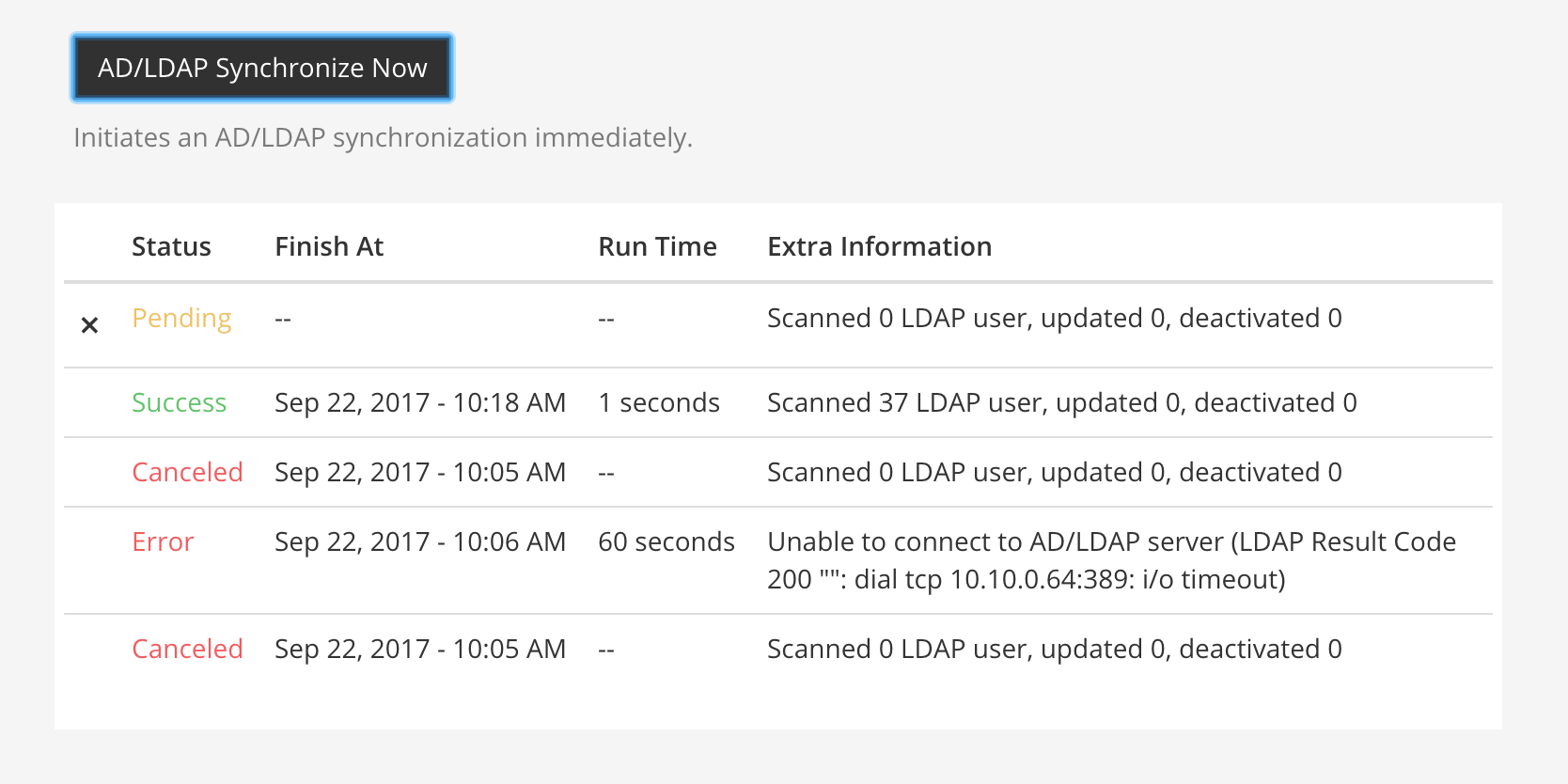
Use this button to immediately sync with the AD/LDAP server. The status of the sync is displayed in the table underneath the button (see the figure below). Following a manual sync, the next sync will occur after the time set in the Synchronization Interval.- System Config path: Authentication > AD/LDAP - config.json setting: N/A - Environment variable: N/A
Note

동기화가 Pending 상태로 완료되지 않으면, AD/LDAP와 동기화 활성화true로 설정되어 있는지 확인하세요.

An example screenshot of an AD/LDAP Synchronization table in the Mattermost System Console.

AD/LDAP 마법사에서 사용할 수 없는 구성 설정#

다음 AD/LDAP 구성 설정은 config.json 파일에서만 사용 가능하며 System Console의 AD/LDAP 마법사 인터페이스를 통해서는 사용할 수 없습니다.

동기화 시 제거된 멤버 재추가#

Enable this setting to re-add members of the LDAP group that were previously removed from group-synchronized teams or channels during LDAP synchronization. - true: Members of the LDAP group who were previously removed are re-added to group-synchronized teams or channels during LDAP synchronization. - false: (Default) Members of the LDAP group who were previously removed are not re-added to group-synchronized teams or channels during LDAP synchronization.- System Config path: Authentication > AD/LDAP - config.json setting: LdapSettings > ReAddRemovedMembers - Environment variable: MM_LDAPSETTINGS_READDREMOVEDMEMBERS

Note

mmctl ldap sync 명령은 이 서버 구성 설정보다 우선합니다. 이 설정이 비활성화된 상태에서 --include-removed-members 플래그를 사용하여 mmctl 명령을 실행하면, 제거된 멤버가 LDAP 동기화 중에 다시 추가됩니다.

#

SAML 2.0#

System Console에서 Authentication > SAML 2.0으로 이동하여 다음 구성 설정에 접근하세요.

Mattermost가 SAML에 대해 지원하는 암호화 방법에 대한 자세한 내용은 암호화 옵션 문서를 참조하세요.

Important

Microsoft ADFS 지침에 따라, WIA를 지원하지 않는 장치에 대한 인트라넷 폼 기반 인증 구성 을 권장합니다.

    • true: Enables sign-in with SAML. See SAML Single Sign-On to learn more.
    • false: (Default) Disables sign-in with SAML.

SAML로 로그인 활성화#

- true: Enables sign-in with SAML. See SAML Single Sign-On to learn more. - false: (Default) Disables sign-in with SAML.- System Config path: Authentication > SAML 2.0 - config.json setting: SamlSettings > Enable > false - Environment variable: MM_SAMLSETTINGS_ENABLE
  • true: Mattermost updates configured Mattermost user attributes (ex. FirstName, Position, Email) with their values from AD/LDAP. From Mattermost v10.9, Mattermost checks whether a user exists on the connected LDAP server during login. If the user doesn't exist on the LDAP server, login fails.
  • false: (Default) Disables syncing of SAML-authenticated Mattermost users with AD/LDAP. From Mattermost v10.9, Mattermost doesn't check whether a user exists on the connected LDAP server during login.

AD/LDAP와 SAML 계정 동기화 활성화#

- true: Mattermost updates configured Mattermost user attributes (ex. FirstName, Position, Email) with their values from AD/LDAP. From v10.9, Mattermost checks whether a user exists on the connected LDAP server during login. If the user doesn't exist on the LDAP server, login fails. - false: (Default) Disables syncing of SAML-authenticated Mattermost users with AD/LDAP. From Mattermost v10.9, Mattermost doesn't check whether a user exists on the connected LDAP server during login.- System Config path: Authentication > SAML 2.0 - config.json setting: SamlSettings > EnableSyncWithLdap > false - Environment variable: MM_SAMLSETTINGS_ENABLESYNCWITHLDAP
Note
    • AD/LDAP 동기화는 Authentication > AD/LDAP 아래의 설정을 통해 활성화 및 구성되어야 합니다.
    • Mattermost v10.9 이전에는 LDAP 서버에 존재하지 않는 사용자도 로그인할 수 있었지만, 다음 LDAP 동기화 시 비활성화되었습니다.
    • AD/LDAP 구성에 대해 자세히 알아보려면 AD/LDAP Setup 을 참조하세요.
    • true: When syncing with the AD/LDAP server, Mattermost does not sync any information about SAML-authenticated Guest Users from the AD/LDAP server.
    • false: (Default) Syncing Mattermost with the AD/LDAP server updates Guest User attributes and deactivates and removes SAML-authenticated accounts for Guest Users that are no longer active on the AD/LDAP server.

AD/LDAP와 동기화 시 게스트 사용자 무시#

- true: When syncing with the AD/LDAP server, Mattermost does not sync any information about SAML-authenticated Guest Users from the AD/LDAP server. Manage guest deactivation manually via System Console > Users. - false: (Default) Syncing Mattermost with the AD/LDAP server updates Guest User attributes and deactivates and removes SAML-authenticated accounts for Guest Users that are no longer active on the AD/LDAP server.- System Config path: Authentication > SAML 2.0 - config.json setting: SamlSettings > IgnoreGuestsLdapSync > false - Environment variable: MM_SAMLSETTINGS_IGNOREGUESTSLDAPSYNC

For more information, see AD/LDAP Setup for details.

  • true: If the SAML ID attribute is configured, Mattermost overrides the SAML ID attribute with the AD/LDAP ID attribute.
  • false: (Default) Mattermost uses the email attribute to bind users to SAML.

AD/LDAP 정보로 SAML 바인드 데이터 덮어쓰기#

- true: If the SAML ID attribute is configured, Mattermost overrides the SAML ID attribute with the AD/LDAP ID attribute. If the SAML ID attribute is not present, Mattermost overrides the SAML Email attribute with the AD/LDAP Email attribute. - false: (Default) Mattermost uses the email attribute to bind users to SAML. This setting is only available when SAML authentication is enabled and AD/LDAP synchronization is enabled.- System Config path: Authentication > SAML 2.0 - config.json setting: SamlSettings > EnableSyncWithLdapIncludeAuth > false - Environment variable: MM_SAMLSETTINGS_ENABLESYNCWITHLDAPINCLUDEAUTH
Note
    • LDAP 동기화가 활성화되지 않은 경우 이 설정은 false여야 합니다. 이 설정을 true에서 false로 변경하면 덮어쓰기가 비활성화됩니다.
    • 덮어쓰기가 활성화된 경우 SAML ID는 LDAP ID와 일치해야 합니다.
    • 자세한 내용은 AD/LDAP Setup 을 참조하세요.

ID 공급자 메타데이터 URL#

This setting is the URL from which Mattermost requests setup metadata from the provider. String input.- System Config path: Authentication > SAML 2.0 - config.json setting: SamlSettings > IdpMetadataURL - Environment variable: MM_SAMLSETTINGS_IDPMETADATAURL

SAML SSO URL#

This setting is the URL where Mattermost sends a SAML request to start the login sequence. String input.- System Config path: Authentication > SAML 2.0 - config.json setting: SamlSettings > IdpURL - Environment variable: MM_SAMLSETTINGS_IDPURL

ID 공급자 발급자 URL#

This setting is the issuer URL for the Identity Provider for SAML requests. String input.- System Config path: Authentication > SAML 2.0 - config.json setting: SamlSettings > IdpDescriptorURL - Environment variable: MM_SAMLSETTINGS_IDPDESCRIPTORURL

ID 공급자 공개 인증서#

The public authentication certificate issued by your Identity Provider. String input.- System Config path: Authentication > SAML 2.0 - config.json setting: SamlSettings > IdpCertificateFile - Environment variable: MM_SAMLSETTINGS_IDPCERTIFICATEFILE
  • true: (Default) Mattermost checks that the SAML Response signature matches the Service Provider Login URL.
  • false: The signature is not verified. This is not recommended for production. Use this option for testing only.

서명 확인#

- true: (Default) Mattermost checks that the SAML Response signature matches the Service Provider Login URL. - false: The signature is not verified. This is not recommended for production. Use this option for testing only.- System Config path: Authentication > SAML 2.0 - config.json setting: SamlSettings > Verify > true - Environment variable: MM_SAMLSETTINGS_VERIFY
Enter the URL of your Mattermost server, followed by /login/sso/saml, i.e. https://example.com/login/sso/saml. This setting is also known as the Assertion Consumer Service URL.

서비스 공급자 로그인 URL#

Enter the URL of your Mattermost server, followed by /login/sso/saml, i.e. https://example.com/login/sso/saml. Use HTTP or HTTPS depending on the configuration of the server. This setting is also known as the Assertion Consumer Service URL.- System Config path: Authentication > SAML 2.0 - config.json setting: SamlSettings > AssertionConsumerServiceURL - Environment variable: MM_SAMLSETTINGS_ASSERTIONCONSUMERSERVICEURL

서비스 공급자 식별자#

This setting is the unique identifier for the Service Provider, which in most cases is the same as the Service Provider Login URL. In ADFS, this must match the Relying Party Identifier. String input.- System Config path: Authentication > SAML 2.0 - config.json setting: SamlSettings > ServiceProviderIdentifier - Environment variable: MM_SAMLSETTINGS_SERVICEPROVIDERIDENTIFIER
  • true: (Default) Mattermost will decrypt SAML Assertions that are encrypted with your Service Provider Public Certificate.
  • false: Mattermost does not decrypt SAML Assertions. Use this option for testing only. It is not recommended for production.

암호화 활성화#

- true: (Default) Mattermost will decrypt SAML Assertions that are encrypted with your Service Provider Public Certificate. - false: Mattermost does not decrypt SAML Assertions. Use this option for testing only. It is not recommended for production.- System Config path: Authentication > SAML 2.0 - config.json setting: SamlSettings > Encrypt > true - Environment variable: MM_SAMLSETTINGS_ENCRYPT

서비스 공급자 개인 키#

This setting stores the private key used to decrypt SAML Assertions from the Identity Provider. String input.- System Config path: Authentication > SAML 2.0 - config.json setting: SamlSettings > PrivateKeyFile - Environment variable: MM_SAMLSETTINGS_PRIVATEKEYFILE

서비스 공급자 공개 인증서#

This setting stores the certificate file used to sign a SAML request to the Identity Provider for a SAML login when Mattermost is initiating the login as the Service Provider. String input.- System Config path: Authentication > SAML 2.0 - config.json setting: SamlSettings > PublicCertificateFile - Environment variable: MM_SAMLSETTINGS_PUBLICCERTIFICATEFILE
  • true: Mattermost signs the SAML request with the Service Provider Private Key.
  • false: Mattermost does not sign the SAML request.

요청 서명#

- true: Mattermost signs the SAML request with the Service Provider Private Key. - false: Mattermost does not sign the SAML request.- System Config path: Authentication > SAML 2.0 - config.json setting: SamlSettings > SignRequest - Environment variable: MM_SAMLSETTINGS_SIGNREQUEST

서명 알고리즘#

This setting determines the signature algorithm used to sign the SAML request. Options are: RSAwithSHA1, RSAwithSHA256, RSAwithSHA512. String input.
Note

From Mattermost v11, the default signature algorithm has been updated from RSAwithSHA1 to RSAwithSHA256 for improved security. Existing configurations will continue to work, but new installations will default to RSAwithSHA256.

- System Config path: Authentication > SAML 2.0 - config.json setting: SamlSettings > SignatureAlgorithm - Environment variable: MM_SAMLSETTINGS_SIGNATUREALGORITHM
This setting determines the canonicalization algorithm. With these options:
  • Canonical1.1 for Canonical XML 1.1 (omit comments) (http://www.w3.org/2006/12/xml-c14n11)
  • 정규화 알고리즘#

    This setting determines the canonicalization algorithm. With these options: - Canonical1.0: (Default) Exclusive XML Canonicalization 1.0 (omit comments) (http://www.w3.org/2001/10/xml-exc-c14n#). config.json setting: Canonical1.0. - Canonical1.1: Canonical XML 1.1 (omit comments) (http://www.w3.org/2006/12/xml-c14n11). config.json setting: Canonical1.1. String input.- System Config path: Authentication > SAML 2.0 - config.json setting: SamlSettings > CanonicalAlgorithm - Environment variable: MM_SAMLSETTINGS_CANONICALALGORITHM

    이메일 속성#

    This setting determines the attribute from the SAML Assertion that populates the user email address field in Mattermost. Notifications are sent to this email address. This email address may be visible to other users, depending on how the system admin has set-up user privacy. String input.- System Config path: Authentication > SAML 2.0 - config.json setting: SamlSettings > EmailAttribute - Environment variable: MM_SAMLSETTINGS_EMAILATTRIBUTE

    사용자명 속성#

    This setting determines the SAML Assertion attribute that populates the username field in the Mattermost UI. This attribute identifies users in the UI. For example, if a username is set to john.smith, typing @john will show @john.smith as an auto-complete option, and posting a message with @john.smith will send a notification to that user. String input.- System Config path: Authentication > SAML 2.0 - config.json setting: SamlSettings > UsernameAttribute - Environment variable: MM_SAMLSETTINGS_USERNAMEATTRIBUTE

    Id 속성#

    (Optional) This setting determines the SAML Assertion attribute used to bind users from SAML to users in Mattermost. String input.- System Config path: Authentication > SAML 2.0 - config.json setting: SamlSettings > IdAttribute - Environment variable: MM_SAMLSETTINGS_IDATTRIBUTE

    게스트 속성#

    (Optional) This setting determines the SAML Assertion attribute used to apply a Guest role to users in Mattermost. See the Guest Accounts documentation for more information. String input.- System Config path: Authentication > SAML 2.0 - config.json setting: SamlSettings > GuestAttribute - Environment variable: MM_SAMLSETTINGS_GUESTATTRIBUTE

    관리자 속성 활성화#

    - true: System admin status is determined by the SAML Assertion attribute set in Admin attribute. - false: (Default) System admin status is not determined by the SAML Assertion attribute.- System Config path: Authentication > SAML 2.0 - config.json setting: SamlSettings > EnableAdminAttribute > false - Environment variable: MM_SAMLSETTINGS_ENABLEADMINATTRIBUTE

    관리자 속성#

    (Optional) This setting determines the attribute in the SAML Assertion for designating system admins. Users are automatically promoted to this role when logging in to Mattermost. If the Admin attribute is removed, users that are logged in retain Admin status. The role is revoked only when users log out. String input.- System Config path: Authentication > SAML 2.0 - config.json setting: SamlSettings > AdminAttribute - Environment variable: MM_SAMLSETTINGS_ADMINATTRIBUTE

    이름 속성#

    (Optional) This setting determines the SAML Assertion attribute that populates the first name of users in Mattermost. String input.- System Config path: Authentication > SAML 2.0 - config.json setting: SamlSettings > FirstNameAttribute - Environment variable: MM_SAMLSETTINGS_FIRSTNAMEATTRIBUTE

    성 속성#

    (Optional) This setting determines the SAML Assertion attribute that populates the last name of users in Mattermost. String input.- System Config path: Authentication > SAML 2.0 - config.json setting: SamlSettings > LastNameAttribute - Environment variable: MM_SAMLSETTINGS_LASTNAMEATTRIBUTE

    닉네임 속성#

    (Optional) This setting determines the SAML Assertion attribute that populates the nickname of users in Mattermost. String input.- System Config path: Authentication > SAML 2.0 - config.json setting: SamlSettings > NicknameAttribute - Environment variable: MM_SAMLSETTINGS_NICKNAMEATTRIBUTE

    직위 속성#

    (Optional) This setting determines the SAML Assertion attribute that populates the position (job title or role at company) of users in Mattermost. String input.- System Config path: Authentication > SAML 2.0 - config.json setting: SamlSettings > PositionAttribute - Environment variable: MM_SAMLSETTINGS_POSITIONATTRIBUTE

    선호 언어 속성#

    (Optional) This setting determines the SAML Assertion attribute that populates the language preference of users in Mattermost. String input.- System Config path: Authentication > SAML 2.0 - config.json setting: SamlSettings > LocaleAttribute - Environment variable: MM_SAMLSETTINGS_LOCALEATTRIBUTE

    로그인 버튼 텍스트#

    (Optional) The text that appears in the login button on the sign-in page. String input. Default is SAML.- System Config path: Authentication > SAML 2.0 - config.json setting: SamlSettings > LoginButtonText - Environment variable: MM_SAMLSETTINGS_LOGINBUTTONTEXT

    OAuth 2.0#

    System Console에서 Authentication > OAuth 2.0으로 이동하여 다음 구성 설정에 접근하세요. GitLab OAuth 인증 설정은 셀프 호스팅 배포에서 Authentication > GitLab 아래에서도 접근할 수 있습니다.

    이 설정들을 사용하여 계정 생성 및 로그인을 위한 OAuth 2.0을 구성하세요.

    OAuth 2.0 서비스 공급자 선택#

    Use this setting to enable OAuth and specify the service provider, with these options: - Do not allow login via an OAuth 2.0 provider - GitLab (Available in all plans; see GitLab 2.0 OAuth settings) - Google Apps (Available in Mattermost Enterprise and Professional; see Google OAuth 2.0 settings) - Entra ID (Available in Mattermost Enterprise and Professional; see Entra ID OAuth 2.0 settings)- System Config path: Authentication > OAuth 2.0 - config.json setting: N/A - Environment variable: N/A

    GitLab OAuth 2.0 설정#

    Note

    Enterprise 구독의 경우 GitLab 설정은 OAuth 2.0 아래에서 찾을 수 있습니다.

      • true: Allows team and account creation using GitLab OAuth authentication. Input the Secret and ID credentials to configure.
      • false: (Default) Disables GitLab OAuth authentication.

    GitLab과의 OAuth 2.0 인증 활성화

    '''''''''''''''''''''''''''''''''

    - true: Allows team and account creation using GitLab OAuth authentication. Input the Secret and ID credentials to configure. - false: (Default) Disables GitLab OAuth authentication.- System Config path: Authentication > OAuth 2.0 (or GitLab) - config.json setting: GitLabSettings > Enable > false - Environment variable: MM_GITLABSETTINGS_ENABLE

    GitLab OAuth 2.0 애플리케이션 ID

    '''''''''''''''''''''''''''''''''

    This setting holds the OAuth Application ID from GitLab. Generate the ID by these steps: 1. Login to your GitLab account. 2. Go to Profile Settings > Applications > New Application and enter a name. 3. Enter the Redirect URLs: https://<your-mattermost-url>/login/gitlab/complete and https://<your-mattermost-url>/signup/gitlab/complete. 4. Take the Application ID provided by GitLab and enter it in the Mattermost System Console field, config.json setting, or Environment variable. String input.- System Config path: Authentication > OAuth 2.0 (or GitLab) - config.json setting: GitLabSettings > Id - Environment variable: MM_GITLABSETTINGS_ID
    Note

    GitLab은 애플리케이션 시크릿 키 를 ID와 함께 제공합니다.

    GitLab OAuth 2.0 애플리케이션 시크릿 키

    ''''''''''''''''''''''''''''''''''''''''

    This setting holds the OAuth Application Secret Key from GitLab. The key is generated at the same time as the Application ID (see GitLab OAuth 2.0 Application ID). Enter the key provided by GitLab in the Mattermost System Console field, config.json setting, or Environment variable. String input.- System Config path: Authentication > OAuth 2.0 (or GitLab) - config.json setting: GitLabSettings > Secret - Environment variable: MM_GITLABSETTINGS_SECRET

    GitLab OAuth 2.0 사이트 URL

    '''''''''''''''''''''''''''

    This setting holds the URL of your GitLab instance, e.g. https://example.com:3000. Use http:// if SSL is not enabled on your GitLab instance.- System Config path: Authentication > OAuth 2.0 (or GitLab) - config.json setting: N/A - Environment variable: N/A

    GitLab OAuth 2.0 사용자 API 엔드포인트

    ''''''''''''''''''''''''''''''''''''''

    This setting holds the URL of your GitLab User API endpoint, e.g. https://<your-gitlab-url>/api/v3/user. Use http:// if SSL is not enabled on your GitLab instance. Enter the URL in the Mattermost System Console field, config.json setting, or Environment variable. String input.- System Config path: Authentication > OAuth 2.0 (or GitLab) - config.json setting: GitLabSettings > UserAPIEndpoint - Environment variable: MM_GITLABSETTINGS_USERAPIENDPOINT

    GitLab OAuth 2.0 인증 엔드포인트

    '''''''''''''''''''''''''''''''''

    This setting holds the URL of your GitLab Auth endpoint, e.g. https://<your-gitlab-url>/oauth/authorize. Use http:// if SSL is not enabled on your GitLab instance. Enter the URL in the Mattermost System Console field, config.json setting, or Environment variable. String input.- System Config path: Authentication > OAuth 2.0 (or GitLab) - config.json setting: GitLabSettings > AuthEndpoint - Environment variable: MM_GITLABSETTINGS_AUTHENDPOINT

    GitLab OAuth 2.0 토큰 엔드포인트

    '''''''''''''''''''''''''''''''''

    This setting holds the URL of your GitLab OAuth Token endpoint, e.g. https://<your-gitlab-url>/oauth/token. Use http:// if SSL is not enabled on your GitLab instance. Enter the URL in the Mattermost System Console field, config.json setting, or Environment variable. String input.- System Config path: Authentication > OAuth 2.0 (or GitLab) - config.json setting: GitLabSettings > TokenEndpoint - Environment variable: MM_GITLABSETTINGS_TOKENENDPOINT

    Google OAuth 2.0 설정#

    Google과의 OAuth 2.0 인증 활성화

    '''''''''''''''''''''''''''''''''

    - true: Allows team and account creation using Google OAuth authentication. Input the Client ID and Client Secret credentials to configure. - false: (Default) Disables Google OAuth authentication. See Google Single Sign-On implementation instructions.- System Config path: Authentication > OAuth 2.0 - config.json setting: GoogleSettings > Enable > false - Environment variable: MM_GOOGLESETTINGS_ENABLE

    Google OAuth 2.0 클라이언트 ID

    ''''''''''''''''''''''''''''''

    This setting stores the OAuth Client ID from Google. Generate the ID by going to the Credentials section of the Google Cloud Platform APIs & Services menu and selecting Create Credentials > OAuth client ID. See Google Single Sign-On for instructions that can be used to implement Google OAuth or OpenID authentication. String input.- System Config path: Authentication > OAuth 2.0 - config.json setting: GoogleSettings > Id - Environment variable: MM_GOOGLESETTINGS_ID

    Google OAuth 2.0 클라이언트 시크릿

    ''''''''''''''''''''''''''''''''''

    This setting stores the OAuth Client Secret from Google. The Secret is generated at the same time as the Client ID. String input.- System Config path: Authentication > OAuth 2.0 - config.json setting: GoogleSettings > Secret - Environment variable: MM_GOOGLESETTINGS_SECRET

    Google OAuth 2.0 사용자 API 엔드포인트

    ''''''''''''''''''''''''''''''''''''''

    We recommend https://people.googleapis.com/v1/people/me?personFields=names,emailAddresses,nicknames,metadata as the User API Endpoint. Otherwise, enter a custom endpoint in config.json with HTTP, or HTTPS, if available on the API server. String input.- System Config path: Authentication > OAuth 2.0 - config.json setting: GoogleSettings > UserAPIEndpoint - Environment variable: MM_GOOGLESETTINGS_USERAPIENDPOINT

    Google OAuth 2.0 인증 엔드포인트

    '''''''''''''''''''''''''''''''''

    We recommend https://accounts.google.com/o/oauth2/v2/auth as the Auth Endpoint. Otherwise, enter a custom endpoint in config.json with HTTP, or HTTPS, if available on the server. String input.- System Config path: Authentication > OAuth 2.0 - config.json setting: GoogleSettings > AuthEndpoint - Environment variable: MM_GOOGLESETTINGS_AUTHENDPOINT

    Google OAuth 2.0 토큰 엔드포인트

    '''''''''''''''''''''''''''''''''

    We recommend https://www.googleapis.com/oauth2/v4/token as the Token Endpoint. Otherwise, enter a custom endpoint in config.json with HTTP, or HTTPS, if available on the server. String input.- System Config path: Authentication > OAuth 2.0 - config.json setting: GoogleSettings > TokenEndpoint - Environment variable: MM_GOOGLESETTINGS_TOKENENDPOINT

    Entra ID OAuth 2.0 설정#

    Note

    Microsoft ADFS 지침에 따라 WIA를 지원하지 않는 장치에 대한 인트라넷 폼 기반 인증 구성 을 권장합니다.

      • true: Allow team creation and account signup using Entra ID OAuth.
      • false: (Default) Entra ID OAuth cannot be used for team creation or account signup.

    Entra ID와의 OAuth 2.0 인증 활성화

    '''''''''''''''''''''''''''''''''''

    - true: Allows team and account creation using Entra ID OAuth authentication. - false: (Default) Disables Entra ID OAuth authentication.- System Config path: Authentication > OAuth 2.0 - config.json setting: Office365Settings > Enable > false - Environment variable: MM_OFFICE365SETTINGS_ENABLE
    Note

    자세한 내용은 Entra ID Single Sign-On 문서를 참조하세요.

    Entra ID OAuth 2.0 애플리케이션 ID

    '''''''''''''''''''''''''''''''''''

    This setting holds the Application ID generated when configuring Entra ID as a Single Sign-On service through the Microsoft Azure Portal. String input.- System Config path: Authentication > OAuth 2.0 - config.json setting: Office365Settings > Id - Environment variable: MM_OFFICE365SETTINGS_ID
    Note

    자세한 내용은 Entra ID Single Sign-On 문서를 참조하세요.

    Entra ID OAuth 2.0 애플리케이션 시크릿 비밀번호

    ''''''''''''''''''''''''''''''''''''''''''''''''

    This setting holds the Application Secret Password generated when configuring Entra ID as a Single Sign-On service through the Microsoft Azure Portal. String input.- System Config path: Authentication > OAuth 2.0 - config.json setting: Office365Settings > Secret - Environment variable: MM_OFFICE365SETTINGS_SECRET
    Note

    자세한 내용은 Entra ID Single Sign-On 문서를 참조하세요.

    Entra ID OAuth 2.0 디렉터리 (테넌트) ID

    ''''''''''''''''''''''''''''''''''''''''

    This setting holds the Directory (tenant) ID set for Mattermost through the Azure Portal. String input.- System Config path: Authentication > OAuth 2.0 - config.json setting: Office365Settings > DirectoryId - Environment variable: MM_OFFICE365SETTINGS_DIRECTORYID
    Note

    자세한 내용은 Entra ID Single Sign-On 문서를 참조하세요.

    Entra ID OAuth 2.0 사용자 API 엔드포인트

    ''''''''''''''''''''''''''''''''''''''''

    We recommend https://graph.microsoft.com/v1.0/me as the User API Endpoint. Otherwise, enter a custom endpoint in config.json with http, or https, if available on the server. String input.- System Config path: Authentication > OAuth 2.0 - config.json setting: Office365Settings > UserAPIEndpoint - Environment variable: MM_OFFICE365SETTINGS_USERAPIENDPOINT

    Entra ID OAuth 2.0 인증 엔드포인트

    '''''''''''''''''''''''''''''''''''

    We recommend https://login.microsoftonline.com/common/oauth2/v2.0/authorize as the Auth Endpoint. Otherwise, enter a custom endpoint in config.json with http, or https, if available on the server. String input.- System Config path: Authentication > OAuth 2.0 - config.json setting: Office365Settings > AuthEndpoint - Environment variable: MM_OFFICE365SETTINGS_AUTHENDPOINT

    Entra ID OAuth 2.0 토큰 엔드포인트

    '''''''''''''''''''''''''''''''''''

    We recommend https://login.microsoftonline.com/common/oauth2/v2.0/token as the Token Endpoint. Otherwise, enter a custom endpoint in config.json with http, or https, if available on the server. String input.- System Config path: Authentication > OAuth 2.0 - config.json setting: Office365Settings > TokenEndpoint - Environment variable: MM_OFFICE365SETTINGS_TOKENENDPOINT

    OpenID Connect#

    System Console에서 Authentication > OpenID Connect로 이동하여 다음 구성 설정에 접근하세요.

    OpenID Connect 서비스 공급자 선택#

    Use this setting to enable OpenID Connect, with these options: - Do not allow login via an OpenID provider - GitLab (see settings) - Google Apps (see settings) - Entra ID (see settings) - OpenID Connect (Other) (see settings)- System Config path: Authentication > OpenID Connect - config.json setting: N/A - Environment variable: N/A
    Note

    GitLab OpenID는 모든 플랜에서 사용할 수 있습니다. 다른 모든 공급자는 Mattermost Enterprise 또는 Professional이 필요합니다.

    GitLab OpenID 설정#

    GitLab과의 OpenID Connect 인증 활성화

    ''''''''''''''''''''''''''''''''''''''

    - true: Allows team and account creation using GitLab OpenID Connect authentication. - false: (Default) Disables GitLab OpenID Connect authentication.- System Config path: Authentication > OpenID Connect - config.json setting: GitLabSettings > Enable > false - Environment variable: MM_GITLABSETTINGS_ENABLE
    Note

    자세한 내용은 GitLab Single Sign-On 문서를 참조하세요.

    GitLab OpenID 사이트 URL

    ''''''''''''''''''''''''

    This setting stores the URL of your GitLab instance, e.g. https://example.com:3000. String input.- System Config path: Authentication > OpenID Connect - config.json setting: N/A - Environment variable: N/A
    Note

    자세한 내용은 GitLab Single Sign-On 문서의 2단계를 참조하세요.

    GitLab OpenID 검색 엔드포인트

    ''''''''''''''''''''''''''''''

    This setting is prepopulated with the Discovery Endpoint for GitLab OpenID Connect. String input. Default is https://gitlab.com/.well-known/openid-configuration- System Config path: Authentication > OpenID Connect - config.json setting: GitLabSettings > DiscoveryEndpoint - Environment variable: MM_GITLABSETTINGS_DISCOVERYENDPOINT
    Note

    자세한 내용은 GitLab Single Sign-On 문서의 2단계를 참조하세요.

    GitLab OpenID 클라이언트 ID

    '''''''''''''''''''''''''''

    This setting stores the Application ID generated by GitLab. String input.- System Config path: Authentication > OpenID Connect - config.json setting: GitLabSettings > Id - Environment variable: MM_GITLABSETTINGS_ID
    Note

    자세한 내용은 GitLab Single Sign-On 문서의 2단계를 참조하세요.

    GitLab OpenID 클라이언트 시크릿

    ''''''''''''''''''''''''''''''''

    This setting stores the Application Secret Key generated by GitLab. String input.- System Config path: Authentication > OpenID Connect - config.json setting: GitLabSettings > Secret - Environment variable: MM_GITLABSETTINGS_SECRET
    Note

    자세한 내용은 GitLab Single Sign-On 문서의 2단계를 참조하세요.

      • true: Mattermost uses the preferred_username claim from the GitLab OpenID token as the Mattermost username.
      • false: (Default) Mattermost does not use the preferred_username claim for username assignment.

    GitLab OpenID 선호 사용자명 사용

    ''''''''''''''''''''''''''''''''

    - true: Mattermost uses the preferred_username claim from the GitLab OpenID token as the Mattermost username. - false: (Default) Mattermost does not use the preferred_username claim for username assignment.- System Config path: Authentication > OpenID Connect - config.json setting: GitLabSettings > UsePreferredUsername > false - Environment variable: MM_GITLABSETTINGS_USEPREFERREDUSERNAME

    Google OpenID 설정#

    Google과의 OpenID Connect 인증 활성화

    ''''''''''''''''''''''''''''''''''''''

    - true: Allows team and account creation using Google OpenID authentication. - false: (Default) Disables Google OpenID authentication. See Google Single Sign-On implementation instructions.- System Config path: Authentication > OpenID Connect - config.json setting: GoogleSettings > Enable > false - Environment variable: MM_GOOGLESETTINGS_ENABLE

    Google OpenID 검색 엔드포인트

    ''''''''''''''''''''''''''''''

    This setting is prepopulated with the Discovery Endpoint for Google OpenID Connect. See Configure Mattermost for Google Apps SSO. String input. Default is https://accounts.google.com/.well-known/openid-configuration- System Config path: Authentication > OpenID Connect - config.json setting: GoogleSettings > DiscoveryEndpoint - Environment variable: MM_GOOGLESETTINGS_DISCOVERYENDPOINT

    Google OpenID 클라이언트 ID

    '''''''''''''''''''''''''''

    This setting stores the Client ID generated by Google. See Google Single Sign-On implementation instructions. String input.- System Config path: Authentication > OpenID Connect - config.json setting: GoogleSettings > Id - Environment variable: MM_GOOGLESETTINGS_ID

    Google OpenID 클라이언트 시크릿

    ''''''''''''''''''''''''''''''''

    This setting stores the Client Secret generated by Google. See Google Single Sign-On implementation instructions. String input.- System Config path: Authentication > OpenID Connect - config.json setting: GoogleSettings > Secret - Environment variable: MM_GOOGLESETTINGS_SECRET
    Google OpenID 선호 사용자명 사용

    ''''''''''''''''''''''''''''''''

    - true: Mattermost uses the preferred_username claim from the Google OpenID token as the Mattermost username. - false: (Default) Mattermost does not use the preferred_username claim for username assignment.- System Config path: Authentication > OpenID Connect - config.json setting: GoogleSettings > UsePreferredUsername > false - Environment variable: MM_GOOGLESETTINGS_USEPREFERREDUSERNAME

    Entra ID OpenID 설정#

    Note

    Microsoft ADFS 지침에 따라, WIA를 지원하지 않는 장치에 대한 인트라넷 폼 기반 인증 구성 을 권장합니다.

      • true: Allow team creation and account signup using Entra ID OpenID Connect.
      • false: (Default) Entra ID OpenID Connect cannot be used for team creation or account signup.

    Entra ID와의 OpenID Connect 인증 활성화

    '''''''''''''''''''''''''''''''''''''''

    - true: Allows team and account creation using Entra ID OpenID Connect authentication. - false: (Default) Disables Entra ID OpenID Connect authentication. See Entra ID Single Sign-On implementation instructions.- System Config path: Authentication > OpenID Connect - config.json setting: Office365Settings > Enable > false - Environment variable: MM_OFFICE365SETTINGS_ENABLE

    Entra ID OpenID 디렉터리 (테넌트) ID

    '''''''''''''''''''''''''''''''''''''

    This setting holds the Directory (tenant) ID set for Mattermost through the Microsoft Azure Portal. See Entra ID Single Sign-On implementation instructions. String input.- System Config path: Authentication > OpenID Connect - config.json setting: Office365Settings > DirectoryId - Environment variable: MM_OFFICE365SETTINGS_DIRECTORYID

    Entra ID OpenID 검색 엔드포인트

    ''''''''''''''''''''''''''''''''

    This setting is prepopulated with the Discovery Endpoint for Entra ID OpenID Connect. See Entra ID Single Sign-On implementation instructions. String input. Default is https://login.microsoftonline.com/common/v2.0/.well-known/openid-configuration- System Config path: Authentication > OpenID Connect - config.json setting: Office365Settings > DiscoveryEndpoint - Environment variable: MM_OFFICE365SETTINGS_DISCOVERYENDPOINT

    Entra ID 클라이언트 ID

    ''''''''''''''''''''''

    This setting stores the Application (client) ID generated through the Microsoft Azure Portal. See Entra ID Single Sign-On implementation instructions. String input.- System Config path: Authentication > OpenID Connect - config.json setting: Office365Settings > Id - Environment variable: MM_OFFICE365SETTINGS_ID

    Entra ID 클라이언트 시크릿

    '''''''''''''''''''''''''

    This setting stores the Client Secret generated through the Microsoft Azure Portal. See Entra ID Single Sign-On implementation instructions. String input.- System Config path: Authentication > OpenID Connect - config.json setting: Office365Settings > Secret - Environment variable: MM_OFFICE365SETTINGS_SECRET
    Entra ID 선호 사용자명 사용

    '''''''''''''''''''''''''''

    - true: Mattermost uses the preferred_username claim from the Entra ID OpenID token as the Mattermost username. - false: (Default) Mattermost does not use the preferred_username claim for username assignment.- System Config path: Authentication > OpenID Connect - config.json setting: Office365Settings > UsePreferredUsername > false - Environment variable: MM_OFFICE365SETTINGS_USEPREFERREDUSERNAME
    Note

    preferred_username 클레임을 사용 가능하게 하려면 Azure Portal의 App registrations > Token configuration 에서 선택적 클레임으로 추가하세요. 설정 세부 정보는 Entra ID Single Sign-On 을 참조하세요.

    OpenID Connect (기타) 설정#

    다른 서비스 공급자와의 OpenID Connect 인증 활성화

    '''''''''''''''''''''''''''''''''''''''''''''''''

    - true: Allows team and account creation using other OpenID Connect service providers. - false: (Default) Disables OpenID Connect authentication with other service providers. See OpenID Connect Single Sign-On implementation instructions.- System Config path: Authentication > OpenID Connect - config.json setting: OpenIdSettings > Enable > false - Environment variable: MM_OPENIDSETTINGS_ENABLE

    OpenID Connect (기타) 버튼 이름

    ''''''''''''''''''''''''''''''''

    This setting is the text for the OpenID login button. String input.- System Config path: Authentication > OpenID Connect - config.json setting: OpenIdSettings > ButtonText - Environment variable: MM_OPENIDSETTINGS_BUTTONTEXT

    OpenID Connect (기타) 버튼 색상

    '''''''''''''''''''''''''''''''

    This setting is the color of the OpenID login button. Use a hex code with a #-sign before the code, for example #145DBF. String input.- System Config path: Authentication > OpenID Connect - config.json setting: OpenIdSettings > ButtonColor - Environment variable: MM_OPENIDSETTINGS_BUTTONCOLOR

    OpenID Connect (기타) 검색 엔드포인트

    ''''''''''''''''''''''''''''''''''''''

    This setting stores the Discovery Endpoint URL from the OpenID provider. The URL should be in the format of https://myopenid.provider.com/{my_organization}/ .well-known/openid-configuration. See OpenID Connect Single Sign-On implementation instructions. String input.- System Config path: Authentication > OpenID Connect - config.json setting: OpenIdSettings > DiscoveryEndpoint - Environment variable: MM_OPENIDSETTINGS_DISCOVERYENDPOINT
    Note

    검색 엔드포인트 설정은 임의 호스트의 연결 및 가용성을 확인하는 데 사용될 수 있습니다. 이에 우려가 있는 시스템 관리자는 사용자 지정 관리자 역할을 사용하여 이 설정 수정에 대한 접근을 제한할 수 있습니다. 자세한 내용은

    위임된 세분화된 관리 문서를 참조하세요.

    OpenID Connect (기타) 클라이언트 ID

    ''''''''''''''''''''''''''''''''''''

    This setting stores the Client ID from the OpenID provider. See OpenID Connect Single Sign-On implementation instructions. String input.- System Config path: Authentication > OpenID Connect - config.json setting: OpenIdSettings > Id - Environment variable: MM_OPENIDSETTINGS_ID

    OpenID Connect (기타) 클라이언트 시크릿

    ''''''''''''''''''''''''''''''''''''''''

    This setting stores the Client Secret from the OpenID provider. See OpenID Connect Single Sign-On implementation instructions. String input.- System Config path: Authentication > OpenID Connect - config.json setting: OpenIdSettings > Secret - Environment variable: MM_OPENIDSETTINGS_SECRET
    OpenID Connect (기타) 선호 사용자명 사용

    ''''''''''''''''''''''''''''''''''''''''

    - true: Mattermost uses the preferred_username claim from the provider's OpenID token as the Mattermost username. - false: (Default) Mattermost does not use the preferred_username claim for username assignment.- System Config path: Authentication > OpenID Connect - config.json setting: OpenIdSettings > UsePreferredUsername > false - Environment variable: MM_OPENIDSETTINGS_USEPREFERREDUSERNAME

    게스트 접근#

    System Console에서 Authentication > Guest Access로 이동하여 다음 구성 설정에 접근하세요.

    게스트 접근 활성화#

    - true: Enables the guest account feature. - false: (Default) Disables the guest account feature.- System Config path: Authentication > Guest Access - config.json setting: GuestAccountsSettings > Enable > false - Environment variable: MM_GUESTACCOUNTSSETTINGS_ENABLE
    Note

    게스트 청구는 채널 접근에 따라 달라집니다. 정확히 하나의 채널에 있는 게스트는 단일 채널 게스트로 처리되며 기본 유료 시트 수에 포함되지 않습니다. 라이선스된 시트와 1:1 비율까지 무료입니다. 여러 채널에 있는 게스트는 계속해서 유료 활성 사용자로 계산됩니다. 다이렉트 메시지와 그룹 메시지는 게스트가 단일 채널 게스트로 계산되는지 여부에 영향을 미치지 않습니다. 자세한 내용은 게스트 계정 문서를 참조하세요.

    허용된 게스트 도메인#

    Use this setting to restrict the creation of guest accounts. When set, guest accounts require a verified email address from one of the listed domains. String input of one or more domains, separated by commas.- System Config path: Authentication > Guest Access - config.json setting: GuestAccountsSettings > RestrictCreationToDomains - Environment variable: MM_GUESTACCOUNTSSETTINGS_RESTRICTCREATIONTODOMAINS

    게스트 태그 표시#

    - true: (Default) Guest tags are visible in Mattermost. - false: Guest tags aren't visible in Mattermost.- System Config path: Authentication > Guest Access - config.json setting: GuestAccountsSettings > HideTags > true - Environment variable: MM_GUESTACCOUNTSSETTINGS_HIDETAGS
    Note

    이 구성 설정은 웹, 데스크톱 앱, 모바일 앱을 포함한 모든 Mattermost 클라이언트에 적용됩니다. 자세한 내용은 게스트 계정 문서를 참조하세요.

      • true: Enables magic link passwordless authentication for guest users.
      • false: (Default) Magic link authentication for guest users is disabled.

    게스트 매직 링크 인증 활성화#

    - true: Enables magic link passwordless authentication for guest users. - false: (Default) Magic link authentication for guest users is disabled.- System Config path: Authentication > Guest Access - config.json setting: GuestAccountsSettings > EnableGuestMagicLink > false
    Note
    게스트 사용자 설정에 대한 자세한 내용은 게스트 계정 문서를 참조하세요.

    인증 구성 설정

    원문 보기
    요약

    Mattermost는 최대 4가지의 동시 사용자 인증 방법을 지원합니다: 셀프 호스팅 Mattermost를 관리하는 시스템 관리자는 아래 표에 설명된 대로 config.json 파일을 편집할 수 있습니다. System Console에서 Authentication > Signup으로 이동하여 다음 구성 설정에 접근하세요.

    Mattermost는 최대 4가지의 동시 사용자 인증 방법을 지원합니다:

    • OpenID 공급자
    • SAML 공급자
    • LDAP 인스턴스 (예: Active Directory, OpenLDAP)
    • 이메일 및 비밀번호
    제품 메뉴 → System ConsoleAuthentication에서 다음 인증 구성 옵션을 검토하고 관리하세요:
    Tip

    셀프 호스팅 Mattermost를 관리하는 시스템 관리자는 아래 표에 설명된 대로 config.json 파일을 편집할 수 있습니다. 각 구성 값에는 JSON 인식 도구를 사용하여 프로그래밍 방식으로 config.json 파일에서 값에 접근할 수 있는 JSON 경로가 포함됩니다. 예를 들어, EnableUserCreation 값은 TeamSettings 아래에 있습니다.

      • jq <https://stedolan.github.io/jq/>`__ 와 같은 도구를 사용하는 경우: cat config/config.json | jq '.TeamSettings.EnableUserCreation'</li><li>config.json 파일을 수동으로 편집할 때는 TeamSettings 와 같은 객체를 찾은 뒤 그 안에서 EnableUserCreation`` 키를 찾으세요.

    #

    가입#

    System Console에서 Authentication > Signup으로 이동하여 다음 구성 설정에 접근하세요.

    • true: (Default) Anyone can sign up for a user account on this server without needing to be invited. Applies to email-based signups only.
    • false: The ability to create accounts is disabled. Selecting Create Account displays an error. Applies to email, OpenID Connect, and OAuth 2.0 user account authentication.

    계정 생성 활성화#

    - true: (Default) Anyone can sign up for a user account on this server without needing to be invited. Applies to email-based signups only. - false: The ability to create accounts is disabled. Selecting Create Account displays an error. Applies to email, OpenID Connect, and OAuth 2.0 user account authentication.- System Config path: Authentication > Signup - config.json setting: TeamSettings > EnableUserCreation > true - Environment variable: MM_TEAMSETTINGS_ENABLEUSERCREATION
    Note
      • LDAP 및 SAML 사용자는 이 구성 설정의 활성화 여부와 관계없이 LDAP 또는 SAML 자격 증명으로 로그인하여 Mattermost 계정을 항상 생성할 수 있습니다.
      • Mattermost v10.9부터 꺾쇠 괄호로 묶인 이메일 주소(예: <billy@example.com>)는 거부됩니다. 문제를 방지하려면 모든 사용자 이메일이 일반 주소 형식(예: billy@example.com)을 준수하는지 확인하세요. 또한, 이 제품 변경 사항에 맞게 Mattermost 사용자 데이터를 사전에 감사하고 업데이트하는 조치를 취하는 것을 강력히 권장합니다. 영향을 받는 사용자는 Mattermost 접근 또는 사용자 프로필 관리에 문제가 생길 수 있습니다. mmctl user email 을 사용하여 이러한 사용자 이메일을 수동으로 업데이트할 수 있습니다.
      • Mattermost가 SAML에 대해 지원하는 암호화 방법 에 대한 자세한 내용은 암호화 옵션 문서를 참조하세요.

    This setting limits the email address domains that can be used to create a new account or team.

    You must set Require Email Verification to true for the restriction to function.

    This setting only affects email login.

    String input of a comma-separated list of domains, i.e. corp.mattermost.com, mattermost.com

    계정 생성을 지정된 이메일 도메인으로 제한#

    This setting limits the email address domains that can be used to create a new account or team. You must set Require Email Verification to true for the restriction to function. This setting only affects email login.- System Config path: Authentication > Signup - config.json setting: TeamSettings > RestrictCreationToDomains - Environment variable: MM_TEAMSETTINGS_RESTRICTCREATIONTODOMAINS
    • true: Users can create accounts on the server without an invitation.
    • false: (Default) Users must have an invitation to create an account on the server.

    오픈 서버 활성화#

    - true: Users can create accounts on the server without an invitation. - false: (Default) Users must have an invitation to create an account on the server.- System Config path: Authentication > Signup - config.json setting: TeamSettings > EnableOpenServer - Environment variable: MM_TEAMSETTINGS_ENABLEOPENSERVER
    • true: Allows users to send email invitations.
    • false: (Default) Disables email invitations.

    이메일 초대 활성화#

    - true: (Default for Cloud deployments) Allows users to send email invitations. - false: (Default for self-hosted deployments) Disables email invitations.- System Config path: Authentication > Signup - config.json setting: ServiceSettings > EnableEmailInvitations > false - Environment variable: MM_SERVICESETTINGS_ENABLEEMAILINVITATIONS
    Note

    클라우드 관리자는 이 구성 설정을 수정할 수 없습니다.

    대기 중인 이메일 초대 무효화#

    This button invalidates email invitations that have not been accepted (by default, invitations expire after 48 hours). This option has no config.json setting or environment variable.- System Config path: Authentication > Signup - config.json setting: N/A - Environment variable: N/A

    이메일#

    System Console에서 Authentication > Email로 이동하여 다음 구성 설정에 접근하세요.

    • true: (Default) Allows creation of team and user accounts with email and password.
    • false: Disables creation of team and user accounts with email and password. This requires a single sign-on service to create accounts.

    이메일로 계정 생성 활성화#

    - true: (Default) Allows creation of team and user accounts with email and password. - false: Disables creation of team and user accounts with email and password. Requires a single sign-on (SSO) service to create accounts.- System Config path: Authentication > Email - config.json setting: EmailSettings > EnableSignUpWithEmail - Environment variable: MM_EMAILSETTINGS_ENABLESIGNUPWITHEMAIL
    Note

    Cloud admins can't modify this configuration setting.

      • true: Requires email verification for new accounts before allowing the user to sign-in.
      • false: (Default) Disables email verification. This can be used to speed development by skipping the verification process.

    이메일 인증 필수#

    - true: (Default for Cloud deployments) Requires email verification for new accounts before allowing the user to sign-in. - false: (Default for self-hosted deployments) Disables email verification. can be used to speed development by skipping the verification process.- System Config path: Authentication > Email - config.json setting: EmailSettings > RequireEmailVerification > false - Environment variable: MM_EMAILSETTINGS_REQUIREEMAILVERIFICATION
    • true: (Default) Allows users to sign-in with email and password.
    • false: Disables authentication with email and password, and removes the option from the login screen. Use this option to limit authentication to single sign-on services.

    이메일로 로그인 활성화#

    - true: (Default) Allows users to sign-in with email and password. - false: Disables authentication with email and password, and removes the option from the login screen. Use this option to limit authentication to single sign-on services.- System Config path: Authentication > Email - config.json setting: EmailSettings > EnableSignInWithEmail - Environment variable: MM_EMAILSETTINGS_ENABLESIGNINWITHEMAIL
    Note
      • 로그인 페이지에서 이메일 로그인 옵션만 단일하게 제공하려면, 사용자명으로 로그인 활성화 구성 설정이 false로 설정되어 있는지 확인하세요.
      • Mattermost v10.9부터 꺾쇠 괄호로 묶인 이메일 주소(예: <billy@example.com>)는 거부됩니다. 문제를 방지하려면 모든 사용자 이메일이 일반 주소 형식(예: billy@example.com)을 준수하는지 확인하세요. 또한, 이 제품 변경 사항에 맞게 Mattermost 사용자 데이터를 사전에 감사하고 업데이트하는 조치를 취하는 것을 강력히 권장합니다. 영향을 받는 사용자는 Mattermost 접근 또는 사용자 프로필 관리에 문제가 생길 수 있습니다. mmctl user email 을 사용하여 이러한 사용자 이메일을 수동으로 업데이트할 수 있습니다.
      • true: (Default) Allows authentication with a username and password for accounts created with an email address. This setting does not affect AD/LDAP sign-in.
      • false: Disables authenticaton with a username and removes the option from the login screen.

    사용자명으로 로그인 활성화#

    - true: (Default) Allows authentication with a username and password for accounts created with an email address. This setting does not affect AD/LDAP sign-in. - false: Disables authenticaton with a username and removes the sign in option from. from the login screen.- System Config path: Authentication > Email - config.json setting: EmailSettings > EnableSignInWithUsername - Environment variable: MM_EMAILSETTINGS_ENABLESIGNINWITHUSERNAME

    Note

    이메일 기반 인증은 개인 네트워크의 소규모 팀에서만 사용하도록 강력히 권장합니다.

    #

    비밀번호#

    System Console에서 Authentication > Password로 이동하여 다음 구성 설정에 접근하세요.

    Note

    Mattermost v11.0부터 비밀번호 해싱에 보안 강화를 위해 PBKDF2를 사용합니다. 사용자 비밀번호는 v11.0 이상으로 업그레이드한 후 로그인할 때 자동으로 마이그레이션됩니다. 이 마이그레이션은 점진적으로 이루어지며 사용자가 인증할 때 투명하게 처리됩니다.

    최소 비밀번호 길이#

    This setting determines the minimum number of characters in passwords. It must be a whole number greater than or equal to 5 and less than or equal to 72. Numerical input. Default is 5.- System Config path: Authentication > Password - config.json setting: PasswordSettings > MinimumLength - Environment variable: MM_PASSWORDSETTINGS_MINIMUMLENGTH

    비밀번호 요건#

    This setting controls password character requirements. By checking the corresponding box, passwords must contain: - At least one lowercase letter - At least one uppercase letter - At least one number - At least one symbol out of these: !"#$%&'()*+,-./:;<=>?@[]^_` The error message previewed in the System Console will appear if the user attempts to set an invalid password. The default for all boxes is unchecked. The default for all settings in config.json is false.</th><th>- System Config path: <strong>Authentication > Password</strong> - config.json settings: PasswordSettings > Lowercase > false, PasswordSettings > Uppercase > false, PasswordSettings > Number > false, PasswordSettings > Symbol > false - Environment variables: MM_PASSWORDSETTINGS_LOWERCASE, MM_PASSWORDSETTINGS_UPPERCASE, MM_PASSWORDSETTINGS_NUMBER, MM_PASSWORDSETTINGS_SYMBOL ~.

    최대 로그인 시도 횟수#

    This setting determines the number of failed sign-in attempts a user can make before being locked out and required to go through a password reset by email. Numerical input. Default is 10.- System Config path: Authentication > Password - config.json setting: ServiceSettings > MaximumLoginAttempts > 10 - Environment variable: MM_SERVICESETTINGS_MAXIMUMLOGINATTEMPTS
    • true: (Default) Displays the Forgot Password link on the Mattermost login page.
    • false: Hides the Forgot Password link from the Mattermost login page.

    비밀번호 찾기 링크 활성화#

    - true: (Default) Displays the Forget Password link on the Mattermost login page. - false: Hides the Forgot Password link from the Mattermost login page.- System Config path: Authentication > Enable forgot password link - config.json setting: LdapSettings > ForgotPasswordLink > true - Environment variable: MM_LDAPSETTINGS_FORGOTPASSWORDLINK
    Note

    비밀번호 찾기 링크 URL은 Site Configuration > Customization > Forgot Password Custom Link에서 사용자 지정할 수 있습니다.

    #

    MFA#

    System Console에서 Authentication > MFA로 이동하여 다음 구성 설정에 접근하세요.

    자체 사설 네트워크 내에 Mattermost를 배포하고 모바일 액세스를 위해 VPN 클라이언트를 사용하여 기존 프로토콜로 Mattermost를 보호하는 것을 권장합니다. 기존 보안 프로토콜을 우회하여 사설 네트워크 외부에서 Mattermost를 실행하려는 경우, Mattermost 액세스를 위한 다중 인증 서비스를 추가하는 것을 권장합니다.

    • true: Users who sign-in with AD/LDAP or an email address have the option to add multi-factor authentication to their accounts.
    • false: (Default) Disables multi-factor authentication.

    다중 인증 활성화#

    - true: Users who sign-in with AD/LDAP or an email address have the option to add multi-factor authentication to their accounts. - false: (Default) Disables multi-factor authentication.- System Config path: Authentication > MFA - config.json setting: ServiceSettings > EnableMultifactorAuthentication > false - Environment variable: MM_SERVICESETTINGS_ENABLEMULTIFACTORAUTHENTICATION
    New users must configure MFA. Logged in users are redirected to the MFA setup page until configuration is complete.
    • false: (Default) MFA is optional.

    다중 인증 강제 적용#

    - true: Requires multi-factor authentication (MFA) for users who sign-in with AD/LDAP or an email address. New users must set up MFA. Logged in users are redirected to the MFA setup page until configuration is complete. - false: (Default) MFA is optional.- System Config path: Authentication > MFA - config.json setting: ServiceSettings > EnforceMultifactorAuthentication > false - Environment variable: MM_SERVICESETTINGS_ENFORCEMULTIFACTORAUTHENTICATION

    Note

    AD/LDAP 및 이메일 이외의 방법으로 인증하는 사용자가 시스템에 있는 경우, Mattermost 외부의 인증 공급자에서 MFA를 강제 적용해야 합니다.

    #

    AD/LDAP#

    System Console에서 Authentication > AD/LDAP으로 이동하여 다음 구성 설정에 접근하세요. 이렇게 하면 각 설정을 단계별로 구성하고 테스트하는 AD/LDAP 설정 마법사가 열립니다.

    마법사는 다음 섹션으로 구성됩니다:

    Note

    각 섹션에는 설정을 증분적으로 확인하는 데 사용할 수 있는 테스트 옵션이 있어 설정 프로세스 초기에 문제를 식별하고 해결하는 데 도움이 됩니다.

    연결 설정#

    AD/LDAP 서버 연결 및 기본 인증 설정을 구성합니다. 이 섹션의 연결 테스트 버튼을 사용하여 다른 구성 단계로 진행하기 전에 서버 연결을 확인하세요.

    • true: Allows sign-in with AD/LDAP or Active Directory.
    • false: (Default) Disables sign-in with Entrai ID.

    AD/LDAP로 로그인 활성화#

    - true: Allows sign-in with AD/LDAP. - false: (Default) Disables sign-in with AD/LDAP.- System Config path: Authentication > AD/LDAP - config.json setting: LdapSettings > Enable > false - Environment variable: MM_LDAPSETTINGS_ENABLE
    • true: Mattermost periodically syncs users from AD/LDAP.
    • false: (Default) Disables AD/LDAP synchronization.

    AD/LDAP와 동기화 활성화#

    - true: Mattermost periodically syncs users from AD/LDAP. - false: (Default) Disables AD/LDAP synchronization.- System Config path: Authentication > AD/LDAP - config.json setting: LdapSettings > EnableSync > false - Environment variable: MM_LDAPSETTINGS_ENABLESYNC
    Note

    System Console의 AD/LDAP 설정과의 동기화를 통해 임의 호스트의 연결 및 가용성을 확인할 수 있습니다. 이에 우려가 있는 시스템 관리자는 사용자 지정 관리자 역할을 사용하여 이 설정 수정에 대한 접근을 제한할 수 있습니다. 자세한 내용은

    위임된 세분화된 관리

    문서를 참조하세요.

    로그인 필드 이름#

    This setting will display placeholder text in the login field of the sign-in page. This text can remind users to sign-in with their AD/LDAP credentials. String input. Default is AD/LDAP Username.- System Config path: Authentication > AD/LDAP - config.json setting: LdapSettings > LoginFieldName - Environment variable: MM_LDAPSETTINGS_LOGINFIELDNAME

    AD/LDAP 서버#

    This is the domain name or IP address of the AD/LDAP server. String input.- System Config path: Authentication > AD/LDAP - config.json setting: LdapSettings > LdapServer - Environment variable: MM_LDAPSETTINGS_LDAPSERVER
    Note

    System Console의 AD/LDAP 설정과의 동기화를 통해 임의 호스트의 연결 및 가용성을 확인할 수 있습니다. 이에 우려가 있는 시스템 관리자는 사용자 지정 관리자 역할을 사용하여 이 설정 수정에 대한 접근을 제한할 수 있습니다. 자세한 내용은 위임된 세분화된 관리 문서를 참조하세요.

    AD/LDAP 포트#

    This is the port Mattermost uses to connect to the AD/LDAP server. Numerical input. Default is 389.- System Config path: Authentication > AD/LDAP - config.json setting: LdapSettings > LdapPort > 389 - Environment variable: MM_LDAPSETTINGS_LDAPPORT
    This is the username for the account Mattermost utilizes to perform an AD/LDAP search. This should be an account specific to Mattermost. Limit the permissions of the account to read-only access to the portion of the AD/LDAP tree specified in the Base DN setting. When using Active Directory, Bind Username should specify domain in "DOMAIN/username" format.

    바인드 사용자명#

    This is the username for the account Mattermost utilizes to perform an AD/LDAP search. This should be an account specific to Mattermost. Limit the permissions of the account to read-only access to the portion of the AD/LDAP tree specified in the Base DN setting. When using Active Directory, Bind Username should specify domain in "DOMAIN/username" format. String input.- System Config path: Authentication > AD/LDAP - config.json setting: LdapSettings > BindUsername - Environment variable: MM_LDAPSETTINGS_BINDUSERNAME
    Note

    이 필드는 필수입니다. 현재 익명 바인드는 지원되지 않습니다.

    바인드 비밀번호#

    This is the password for the username given in the Bind Username setting. String input.- System Config path: Authentication > AD/LDAP - config.json setting: LdapSettings > BindPassword - Environment variable: MM_LDAPSETTINGS_BINDPASSWORD
    This setting controls the type of security Mattermost uses to connect to the AD/LDAP server, with these options:
    • none: (Default) No encryption. With this option, it is highly recommended that the connection be secured outside of Mattermost, such as by a stunnel proxy.
    • TLS: Encrypts communication with TLS.
    • STARTTLS: Attempts to upgrade an existing insecure connection to a secure connection with TLS.

    연결 보안#

    This setting controls the type of security Mattermost uses to connect to the AD/LDAP server, with these options: - None: (Default for self-hosted deployments) No encryption. With this option, it is highly recommended that the connection be secured outside of Mattermost, such as by a stunnel proxy. config.json option: "" - TLS: (Default for Cloud deployments) Encrypts communication with TLS. config.json option: "TLS" - STARTTLS: Attempts to upgrade an existing insecure connection to a secure connection with TLS. config.json option: "STARTTLS"- System Config path: Authentication > AD/LDAP - config.json setting: LdapSettings > ConnectionSecurity > "" - Environment variable: MM_LDAPSETTINGS_CONNECTIONSECURITY
    • true: Disables the certificate verification step for TLS and STARTTLS connections. Use this option for testing. Do not use this option when TLS is required in production.
    • false: (Default) Enables certification verification.

    인증서 검증 건너뛰기#

    - true: Disables the certificate verification step for TLS and STARTTLS connections. Use this option for testing. Do not use this option when TLS is required in production. - false: (Default) Enables certification verification.- System Config path: Authentication > AD/LDAP - config.json setting: LdapSettings > SkipCertificateVerification > false - Environment variable: MM_LDAPSETTINGS_SKIPCERTIFICATEVERIFICATION

    개인 키#

    Use this setting to upload the private key file from your LDAP authentication provider, if TLS client certificates are the primary authentication mechanism. String input.- System Config path: Authentication > AD/LDAP - config.json setting: LdapSettings > PrivateKeyFile - Environment variable: MM_LDAPSETTINGS_PRIVATEKEYFILE

    공개 인증서#

    Use this setting to upload the public TLS certificate from your LDAP authentication provider, if TLS client certificates are the primary authentication mechanism. String input.- System Config path: Authentication > AD/LDAP - config.json setting: LdapSettings > PublicCertificateFile - Environment variable: MM_LDAPSETTINGS_PUBLICCERTIFICATEFILE

    최대 로그인 시도 횟수#

    This setting determines the number of failed sign-in attempts a user can make before being locked out and required to go through a password reset by email. You can unlock the account in System Console on the users page. Setting this value lower than your LDAP maximum login attempts ensures that the users won't be locked out of your LDAP server because of failed login attempts in Mattermost. Numerical input. Default is 10.- System Config path: Authentication > AD/LDAP - config.json setting: LdapSettings > MaximumLoginAttempts > 10 - Environment variable: MM_LDAPSETTINGS_MAXIMUMLOGINATTEMPTS
    Note
      • 조직의 인증 정책에 맞게 이 값을 조정하세요.
      • 사용자 계정이 잠긴 경우, System console > User Management > Users로 이동하여 수동으로 잠금을 해제할 수 있습니다.

    사용자 필터#

    Mattermost가 AD/LDAP 디렉터리에서 사용자와 그룹을 식별하고 필터링하는 방법을 정의합니다. 이 섹션의 필터 테스트 버튼을 사용하여 다른 구성 단계로 진행하기 전에 필터가 올바르게 작동하는지 확인하세요.

    기본 DN#

    This is the Base Distinguished Name of the location in the AD/LDAP tree where Mattermost will start searching for users. String input.- System Config path: Authentication > AD/LDAP - config.json setting: LdapSettings > BaseDN - Environment variable: MM_LDAPSETTINGS_BASEDN

    사용자 필터#

    This setting accepts a general syntax AD/LDAP filter that is applied when searching for user objects. Only the users selected by the query can access Mattermost. For example, to filter out disabled users, the filter is: (&(objectCategory=Person)(!(UserAccountControl:1.2.840.113556.1.4.803:=2))). To filter by group membership, determine the distinguishedName of the group, then use group membership general syntax to format the filter. For example, if the security group distinguishedName is CN=group1,OU=groups,DC=example,DC=com, then the filter is: (memberOf=CN=group1,OU=groups,DC=example,DC=com). The user must explicitly belong to this group for the filter to apply. String input.- System Config path: Authentication > AD/LDAP - config.json setting: LdapSettings > UserFilter - Environment variable: MM_LDAPSETTINGS_USERFILTER
    Note

    이 필터는 바인드 사용자명 계정의 권한을 사용하여 검색을 실행합니다. 이 계정은 Mattermost 전용이어야 하며 기본 DN 필드에 지정된 AD/LDAP 트리 부분에 대한 읽기 전용 접근 권한이 있어야 합니다.

    그룹 필터#

    This setting accepts a general syntax AD/LDAP filter that is applied when searching for group objects. Only the groups selected by the query can access Mattermost. String input. Default is (</th><th>- System Config path: <strong>Authentication > AD/LDAP</strong> - config.json setting: LdapSettings > GroupFilter (objectClass=group)(objectClass=groupOfNames)(objectClass=groupOfUniqueNames)).
    Note

    이 필터는 AD/LDAP 그룹 동기화가 활성화된 경우에만 사용됩니다. 자세한 내용은 AD/LDAP Group Sync 를 참조하세요.

      • true: Enables the Admin Filter setting that designates system admins using an AD/LDAP filter.
      • false: (Default) Disables the Admin Filter setting.

    관리자 필터 활성화#

    - true: Enables the Admin Filter setting that designates system admins using an AD/LDAP filter. - false: (Default) Disables the Admin Filter setting.- System Config path: Authentication > AD/LDAP - config.json setting: LdapSettings > EnableAdminFilter > false - Environment variable: MM_LDAPSETTINGS_ENABLEADMINFILTER
    Note

    이 설정이 false이면 필터에 의해 시스템 관리자로 지정되는 추가 사용자가 없습니다. 이전에 시스템 관리자로 지정된 사용자는 필터가 변경되거나 제거되지 않는 한 이 역할을 유지합니다.

    관리자 필터#

    This setting accepts an AD/LDAP filter that designates the selected users as system admins. Users are promoted to this role on their next sign-in or on the next scheduled AD/LDAP sync. If the Admin Filter is removed, users who are currently logged in retain their Admin role until their next sign-in. String input.- System Config path: Authentication > AD/LDAP - config.json setting: LdapSettings > AdminFilter - Environment variable: MM_LDAPSETTINGS_ADMINFILTER

    게스트 필터#

    This setting accepts an AD/LDAP filter to apply when searching for external users with Guest Access to Mattermost. Only users selected by the query can access Mattermost as Guests. See Guest Accounts for more information. String input.- System Config path: Authentication > AD/LDAP - config.json setting: LdapSettings > GuestFilter - Environment variable: MM_LDAPSETTINGS_GUESTFILTER

    계정 동기화#

    AD/LDAP 사용자 속성을 Mattermost 사용자 프로필 필드에 매핑합니다. 이 섹션의 속성 테스트 버튼을 사용하여 다른 구성 단계로 진행하기 전에 올바른 속성 매핑 및 데이터 동기화를 확인하세요.

    ID 속성#

    This is the attribute in the AD/LDAP server that is serves as a unique user identifier in Mattermost. The attribute should have a unique value that does not change, such as objectGUID or entryUUID. Confirm that these attributes are available in your environment before making any changes. String input.- System Config path: Authentication > AD/LDAP - config.json setting: LdapSettings > IdAttribute - Environment variable: MM_LDAPSETTINGS_IDATTRIBUTE
    Note

    사용자의 ID 속성이 변경되면 이전 계정과 연결되지 않은 새 Mattermost 계정이 생성됩니다. 사용자가 로그인한 후 이 필드를 변경해야 하는 경우, mmctl ldap idmigrate 명령을 사용하세요.

    로그인 ID 속성#

    This is the attribute in the AD/LDAP server that is used for signing-in to Mattermost. This is normally the same as the Username Attribute. If your team uses domain\username to sign-in to other services with AD/LDAP, you may enter domain\username in this field to maintain consistency between sites. String input.- System Config path: Authentication > AD/LDAP - config.json setting: LdapSettings > LoginIdAttribute - Environment variable: MM_LDAPSETTINGS_LOGINIDATTRIBUTE

    사용자명 속성#

    This is the attribute in the AD/LDAP server that populates the username field in Mattermost. This attribute identifies users in the UI. For example, if a Username Attribute is set to john.smith, typing @john will show @john.smith as an auto-complete option, and posting a message with @john.smith will send a notification to that user. This is normally the same as the Login ID Attribute, but it can be mapped to a different attribute. String input.- System Config path: Authentication > AD/LDAP - config.json setting: LdapSettings > UsernameAttribute - Environment variable: MM_LDAPSETTINGS_USERNAMEATTRIBUTE

    이메일 속성#

    This is the attribute in AD/LDAP server that populates the email address field in Mattermost. Email notifications are sent to this address. The address may be seen by other Mattermost users depending on privacy settings. String input.- System Config path: Authentication > AD/LDAP - config.json setting LdapSettings > EmailAttribute - Environment variable: MM_LDAPSETTINGS_EMAILATTRIBUTE

    이름 속성#

    This is the attribute in the AD/LDAP server that populates the first name field in Mattermost. When set, users cannot edit their first name. When not set, users can edit their first name in their profile settings. String input.- System Config path: Authentication > AD/LDAP - config.json setting: LdapSettings > FirstNameAttribute - Environment variable: MM_LDAPSETTINGS_FIRSTNAMEATTRIBUTE

    성 속성#

    This is the attribute in the AD/LDAP server that populates the last name field in Mattermost. When set, users cannot edit their last name. When not set, users can edit their last name as part of their profile settings. String input.- System Config path: Authentication > AD/LDAP - config.json setting: LdapSettings > LastNameAttribute - Environment variable: MM_LDAPSETTINGS_LASTNAMEATTRIBUTE

    닉네임 속성#

    This is the attribute in the AD/LDAP server that populates the nickname field in Mattermost. When set, users cannot edit their nickname. When not set, users can edit their nickname as part of their profile settings. String input.- System Config path: Authentication > AD/LDAP - config.json setting: LdapSettings > NicknameAttribute - Environment variable: MM_LDAPSETTINGS_NICKNAMEATTRIBUTE

    직위 속성#

    This is the attribute in the AD/LDAP server that populates the position field in Mattermost. When set, users cannot edit their position. When not set, users can edit their position as part of their profile settings. String input.- System Config path: Authentication > AD/LDAP - config.json setting: LdapSettings > PositionAttribute - Environment variable: MM_LDAPSETTINGS_POSITIONATTRIBUTE

    프로필 사진 속성#

    This is the attribute in the AD/LDAP server that syncs and locks the profile picture in Mattermost. The image is updated when users sign-in, not when Mattermost syncs with the AD/LDAP server. The image is not updated if the Mattermost image already matches the AD/LDAP image. String input.- System Config path: Authentication > AD/LDAP - config.json setting: LdapSettings > PictureAttribute - Environment variable: MM_LDAPSETTINGS_PICTUREATTRIBUTE

    그룹 동기화#

    AD/LDAP 그룹 동기화를 위한 그룹 매핑을 구성합니다. 이 섹션의 그룹 속성 테스트 버튼을 사용하여 다른 구성 단계로 진행하기 전에 올바른 그룹 속성 매핑을 확인하세요.

    그룹 표시 이름 속성#

    This is the AD/LDAP Group Display name attribute that populates the Mattermost group name field. String input.- System Config path: Authentication > AD/LDAP - config.json setting: LdapSettings > GroupDisplayNameAttribute - Environment variable: MM_LDAPSETTINGS_GROUPDISPLAYNAMEATTRIBUTE
    Note

    이 속성은 AD/LDAP 그룹 동기화가 활성화된 경우에만 사용되며 필수입니다. 자세한 내용은 AD/LDAP Group Sync documentation 을 참조하세요.

    그룹 ID 속성#

    This is an AD/LDAP Group ID attribute that sets a unique identifier for groups. This should be a value that does not change, such as entryUUID or objectGUID. String input.- System Config path: Authentication > AD/LDAP - config.json setting: LdapSettings > GroupIdAttribute - Environment variable: MM_LDAPSETTINGS_GROUPIDATTRIBUTE
    Note

    이 속성은 AD/LDAP 그룹 동기화가 활성화된 경우에만 사용되며 필수입니다. 자세한 내용은 AD/LDAP Group Sync documentation 을 참조하세요.

    동기화 성능#

    AD/LDAP 동기화의 타이밍 및 성능 설정을 구성합니다. 이 설정들은 Mattermost가 AD/LDAP 서버와 얼마나 자주 동기화할지를 제어합니다.

    동기화 간격 (분)#

    This value determines how often Mattermost syncs with the AD/LDAP server by setting the number of minutes between each sync. Syncing with the AD/LDAP server will update Mattermost accounts to match any changes made to AD/LDAP attributes. Disabled AD/LDAP accounts become deactivated users in Mattermost, and any active sessions are revoked. Use the AD/LDAP Synchronize Now button to immediately revoke a session after disabling an AD/LDAP account. Numerical input. Default is 60.- System Config path: Authentication > AD/LDAP - config.json setting: LdapSettings > SyncIntervalMinutes > 60 - Environment variable: MM_LDAPSETTINGS_SYNCINTERVALMINUTES
    Note

    LDAP 동기화는 다수의 데이터베이스 읽기 쿼리를 필요로 합니다. 데이터베이스 부하를 모니터링하고 성능 저하를 최소화하도록 동기화 간격을 조정하세요.

    최대 페이지 크기#

    This setting paginates the results of AD/LDAP server queries. Use this setting if your AD/LDAP server has a page size limit. The recommended setting is 1500. This is the default AD/LDAP MaxPageSize. A page size of 0 disables pagination of results. Numerical input. Default is 0.- System Config path: Authentication > AD/LDAP - config.json setting: LdapSettings > MaxPageSize > 0 - Environment variable: MM_LDAPSETTINGS_MAXPAGESIZE

    쿼리 타임아웃 (초)#

    This setting determines the timeout period, in seconds, for AD/LDAP queries. Increase this value to avoid timeout errors when querying a slow server. Numerical input. Default is 60.- System Config path: Authentication > AD/LDAP - config.json setting: LdapSettings > QueryTimeout > 60 - Environment variable: MM_LDAPSETTINGS_QUERYTIMEOUT

    동기화 기록#

    동기화 상태를 확인하고 AD/LDAP 동기화를 수동으로 트리거합니다. 이 섹션에는 즉각적인 동기화를 위한 AD/LDAP 지금 동기화 버튼이 포함되어 있습니다.

    AD/LDAP 지금 동기화#

    Use this button to immediately sync with the AD/LDAP server. The status of the sync is displayed in the table underneath the button (see the figure below). Following a manual sync, the next sync will occur after the time set in the Synchronization Interval.- System Config path: Authentication > AD/LDAP - config.json setting: N/A - Environment variable: N/A
    Note

    동기화가 Pending 상태로 완료되지 않으면, AD/LDAP와 동기화 활성화true로 설정되어 있는지 확인하세요.

    An example screenshot of an AD/LDAP Synchronization table in the Mattermost System Console.

    AD/LDAP 마법사에서 사용할 수 없는 구성 설정#

    다음 AD/LDAP 구성 설정은 config.json 파일에서만 사용 가능하며 System Console의 AD/LDAP 마법사 인터페이스를 통해서는 사용할 수 없습니다.

    동기화 시 제거된 멤버 재추가#

    Enable this setting to re-add members of the LDAP group that were previously removed from group-synchronized teams or channels during LDAP synchronization. - true: Members of the LDAP group who were previously removed are re-added to group-synchronized teams or channels during LDAP synchronization. - false: (Default) Members of the LDAP group who were previously removed are not re-added to group-synchronized teams or channels during LDAP synchronization.- System Config path: Authentication > AD/LDAP - config.json setting: LdapSettings > ReAddRemovedMembers - Environment variable: MM_LDAPSETTINGS_READDREMOVEDMEMBERS

    Note

    mmctl ldap sync 명령은 이 서버 구성 설정보다 우선합니다. 이 설정이 비활성화된 상태에서 --include-removed-members 플래그를 사용하여 mmctl 명령을 실행하면, 제거된 멤버가 LDAP 동기화 중에 다시 추가됩니다.

    #

    SAML 2.0#

    System Console에서 Authentication > SAML 2.0으로 이동하여 다음 구성 설정에 접근하세요.

    Mattermost가 SAML에 대해 지원하는 암호화 방법에 대한 자세한 내용은 암호화 옵션 문서를 참조하세요.

    Important

    Microsoft ADFS 지침에 따라, WIA를 지원하지 않는 장치에 대한 인트라넷 폼 기반 인증 구성 을 권장합니다.

      • true: Enables sign-in with SAML. See SAML Single Sign-On to learn more.
      • false: (Default) Disables sign-in with SAML.

    SAML로 로그인 활성화#

    - true: Enables sign-in with SAML. See SAML Single Sign-On to learn more. - false: (Default) Disables sign-in with SAML.- System Config path: Authentication > SAML 2.0 - config.json setting: SamlSettings > Enable > false - Environment variable: MM_SAMLSETTINGS_ENABLE
    • true: Mattermost updates configured Mattermost user attributes (ex. FirstName, Position, Email) with their values from AD/LDAP. From Mattermost v10.9, Mattermost checks whether a user exists on the connected LDAP server during login. If the user doesn't exist on the LDAP server, login fails.
    • false: (Default) Disables syncing of SAML-authenticated Mattermost users with AD/LDAP. From Mattermost v10.9, Mattermost doesn't check whether a user exists on the connected LDAP server during login.

    AD/LDAP와 SAML 계정 동기화 활성화#

    - true: Mattermost updates configured Mattermost user attributes (ex. FirstName, Position, Email) with their values from AD/LDAP. From v10.9, Mattermost checks whether a user exists on the connected LDAP server during login. If the user doesn't exist on the LDAP server, login fails. - false: (Default) Disables syncing of SAML-authenticated Mattermost users with AD/LDAP. From Mattermost v10.9, Mattermost doesn't check whether a user exists on the connected LDAP server during login.- System Config path: Authentication > SAML 2.0 - config.json setting: SamlSettings > EnableSyncWithLdap > false - Environment variable: MM_SAMLSETTINGS_ENABLESYNCWITHLDAP
    Note
      • AD/LDAP 동기화는 Authentication > AD/LDAP 아래의 설정을 통해 활성화 및 구성되어야 합니다.
      • Mattermost v10.9 이전에는 LDAP 서버에 존재하지 않는 사용자도 로그인할 수 있었지만, 다음 LDAP 동기화 시 비활성화되었습니다.
      • AD/LDAP 구성에 대해 자세히 알아보려면 AD/LDAP Setup 을 참조하세요.
      • true: When syncing with the AD/LDAP server, Mattermost does not sync any information about SAML-authenticated Guest Users from the AD/LDAP server.
      • false: (Default) Syncing Mattermost with the AD/LDAP server updates Guest User attributes and deactivates and removes SAML-authenticated accounts for Guest Users that are no longer active on the AD/LDAP server.

    AD/LDAP와 동기화 시 게스트 사용자 무시#

    - true: When syncing with the AD/LDAP server, Mattermost does not sync any information about SAML-authenticated Guest Users from the AD/LDAP server. Manage guest deactivation manually via System Console > Users. - false: (Default) Syncing Mattermost with the AD/LDAP server updates Guest User attributes and deactivates and removes SAML-authenticated accounts for Guest Users that are no longer active on the AD/LDAP server.- System Config path: Authentication > SAML 2.0 - config.json setting: SamlSettings > IgnoreGuestsLdapSync > false - Environment variable: MM_SAMLSETTINGS_IGNOREGUESTSLDAPSYNC

    For more information, see AD/LDAP Setup for details.

    • true: If the SAML ID attribute is configured, Mattermost overrides the SAML ID attribute with the AD/LDAP ID attribute.
    • false: (Default) Mattermost uses the email attribute to bind users to SAML.

    AD/LDAP 정보로 SAML 바인드 데이터 덮어쓰기#

    - true: If the SAML ID attribute is configured, Mattermost overrides the SAML ID attribute with the AD/LDAP ID attribute. If the SAML ID attribute is not present, Mattermost overrides the SAML Email attribute with the AD/LDAP Email attribute. - false: (Default) Mattermost uses the email attribute to bind users to SAML. This setting is only available when SAML authentication is enabled and AD/LDAP synchronization is enabled.- System Config path: Authentication > SAML 2.0 - config.json setting: SamlSettings > EnableSyncWithLdapIncludeAuth > false - Environment variable: MM_SAMLSETTINGS_ENABLESYNCWITHLDAPINCLUDEAUTH
    Note
      • LDAP 동기화가 활성화되지 않은 경우 이 설정은 false여야 합니다. 이 설정을 true에서 false로 변경하면 덮어쓰기가 비활성화됩니다.
      • 덮어쓰기가 활성화된 경우 SAML ID는 LDAP ID와 일치해야 합니다.
      • 자세한 내용은 AD/LDAP Setup 을 참조하세요.

    ID 공급자 메타데이터 URL#

    This setting is the URL from which Mattermost requests setup metadata from the provider. String input.- System Config path: Authentication > SAML 2.0 - config.json setting: SamlSettings > IdpMetadataURL - Environment variable: MM_SAMLSETTINGS_IDPMETADATAURL

    SAML SSO URL#

    This setting is the URL where Mattermost sends a SAML request to start the login sequence. String input.- System Config path: Authentication > SAML 2.0 - config.json setting: SamlSettings > IdpURL - Environment variable: MM_SAMLSETTINGS_IDPURL

    ID 공급자 발급자 URL#

    This setting is the issuer URL for the Identity Provider for SAML requests. String input.- System Config path: Authentication > SAML 2.0 - config.json setting: SamlSettings > IdpDescriptorURL - Environment variable: MM_SAMLSETTINGS_IDPDESCRIPTORURL

    ID 공급자 공개 인증서#

    The public authentication certificate issued by your Identity Provider. String input.- System Config path: Authentication > SAML 2.0 - config.json setting: SamlSettings > IdpCertificateFile - Environment variable: MM_SAMLSETTINGS_IDPCERTIFICATEFILE
    • true: (Default) Mattermost checks that the SAML Response signature matches the Service Provider Login URL.
    • false: The signature is not verified. This is not recommended for production. Use this option for testing only.

    서명 확인#

    - true: (Default) Mattermost checks that the SAML Response signature matches the Service Provider Login URL. - false: The signature is not verified. This is not recommended for production. Use this option for testing only.- System Config path: Authentication > SAML 2.0 - config.json setting: SamlSettings > Verify > true - Environment variable: MM_SAMLSETTINGS_VERIFY
    Enter the URL of your Mattermost server, followed by /login/sso/saml, i.e. https://example.com/login/sso/saml. This setting is also known as the Assertion Consumer Service URL.

    서비스 공급자 로그인 URL#

    Enter the URL of your Mattermost server, followed by /login/sso/saml, i.e. https://example.com/login/sso/saml. Use HTTP or HTTPS depending on the configuration of the server. This setting is also known as the Assertion Consumer Service URL.- System Config path: Authentication > SAML 2.0 - config.json setting: SamlSettings > AssertionConsumerServiceURL - Environment variable: MM_SAMLSETTINGS_ASSERTIONCONSUMERSERVICEURL

    서비스 공급자 식별자#

    This setting is the unique identifier for the Service Provider, which in most cases is the same as the Service Provider Login URL. In ADFS, this must match the Relying Party Identifier. String input.- System Config path: Authentication > SAML 2.0 - config.json setting: SamlSettings > ServiceProviderIdentifier - Environment variable: MM_SAMLSETTINGS_SERVICEPROVIDERIDENTIFIER
    • true: (Default) Mattermost will decrypt SAML Assertions that are encrypted with your Service Provider Public Certificate.
    • false: Mattermost does not decrypt SAML Assertions. Use this option for testing only. It is not recommended for production.

    암호화 활성화#

    - true: (Default) Mattermost will decrypt SAML Assertions that are encrypted with your Service Provider Public Certificate. - false: Mattermost does not decrypt SAML Assertions. Use this option for testing only. It is not recommended for production.- System Config path: Authentication > SAML 2.0 - config.json setting: SamlSettings > Encrypt > true - Environment variable: MM_SAMLSETTINGS_ENCRYPT

    서비스 공급자 개인 키#

    This setting stores the private key used to decrypt SAML Assertions from the Identity Provider. String input.- System Config path: Authentication > SAML 2.0 - config.json setting: SamlSettings > PrivateKeyFile - Environment variable: MM_SAMLSETTINGS_PRIVATEKEYFILE

    서비스 공급자 공개 인증서#

    This setting stores the certificate file used to sign a SAML request to the Identity Provider for a SAML login when Mattermost is initiating the login as the Service Provider. String input.- System Config path: Authentication > SAML 2.0 - config.json setting: SamlSettings > PublicCertificateFile - Environment variable: MM_SAMLSETTINGS_PUBLICCERTIFICATEFILE
    • true: Mattermost signs the SAML request with the Service Provider Private Key.
    • false: Mattermost does not sign the SAML request.

    요청 서명#

    - true: Mattermost signs the SAML request with the Service Provider Private Key. - false: Mattermost does not sign the SAML request.- System Config path: Authentication > SAML 2.0 - config.json setting: SamlSettings > SignRequest - Environment variable: MM_SAMLSETTINGS_SIGNREQUEST

    서명 알고리즘#

    This setting determines the signature algorithm used to sign the SAML request. Options are: RSAwithSHA1, RSAwithSHA256, RSAwithSHA512. String input.
    Note

    From Mattermost v11, the default signature algorithm has been updated from RSAwithSHA1 to RSAwithSHA256 for improved security. Existing configurations will continue to work, but new installations will default to RSAwithSHA256.

    - System Config path: Authentication > SAML 2.0 - config.json setting: SamlSettings > SignatureAlgorithm - Environment variable: MM_SAMLSETTINGS_SIGNATUREALGORITHM
    This setting determines the canonicalization algorithm. With these options:
  • Canonical1.1 for Canonical XML 1.1 (omit comments) (http://www.w3.org/2006/12/xml-c14n11)
  • 정규화 알고리즘#

    This setting determines the canonicalization algorithm. With these options: - Canonical1.0: (Default) Exclusive XML Canonicalization 1.0 (omit comments) (http://www.w3.org/2001/10/xml-exc-c14n#). config.json setting: Canonical1.0. - Canonical1.1: Canonical XML 1.1 (omit comments) (http://www.w3.org/2006/12/xml-c14n11). config.json setting: Canonical1.1. String input.- System Config path: Authentication > SAML 2.0 - config.json setting: SamlSettings > CanonicalAlgorithm - Environment variable: MM_SAMLSETTINGS_CANONICALALGORITHM

    이메일 속성#

    This setting determines the attribute from the SAML Assertion that populates the user email address field in Mattermost. Notifications are sent to this email address. This email address may be visible to other users, depending on how the system admin has set-up user privacy. String input.- System Config path: Authentication > SAML 2.0 - config.json setting: SamlSettings > EmailAttribute - Environment variable: MM_SAMLSETTINGS_EMAILATTRIBUTE

    사용자명 속성#

    This setting determines the SAML Assertion attribute that populates the username field in the Mattermost UI. This attribute identifies users in the UI. For example, if a username is set to john.smith, typing @john will show @john.smith as an auto-complete option, and posting a message with @john.smith will send a notification to that user. String input.- System Config path: Authentication > SAML 2.0 - config.json setting: SamlSettings > UsernameAttribute - Environment variable: MM_SAMLSETTINGS_USERNAMEATTRIBUTE

    Id 속성#

    (Optional) This setting determines the SAML Assertion attribute used to bind users from SAML to users in Mattermost. String input.- System Config path: Authentication > SAML 2.0 - config.json setting: SamlSettings > IdAttribute - Environment variable: MM_SAMLSETTINGS_IDATTRIBUTE

    게스트 속성#

    (Optional) This setting determines the SAML Assertion attribute used to apply a Guest role to users in Mattermost. See the Guest Accounts documentation for more information. String input.- System Config path: Authentication > SAML 2.0 - config.json setting: SamlSettings > GuestAttribute - Environment variable: MM_SAMLSETTINGS_GUESTATTRIBUTE

    관리자 속성 활성화#

    - true: System admin status is determined by the SAML Assertion attribute set in Admin attribute. - false: (Default) System admin status is not determined by the SAML Assertion attribute.- System Config path: Authentication > SAML 2.0 - config.json setting: SamlSettings > EnableAdminAttribute > false - Environment variable: MM_SAMLSETTINGS_ENABLEADMINATTRIBUTE

    관리자 속성#

    (Optional) This setting determines the attribute in the SAML Assertion for designating system admins. Users are automatically promoted to this role when logging in to Mattermost. If the Admin attribute is removed, users that are logged in retain Admin status. The role is revoked only when users log out. String input.- System Config path: Authentication > SAML 2.0 - config.json setting: SamlSettings > AdminAttribute - Environment variable: MM_SAMLSETTINGS_ADMINATTRIBUTE

    이름 속성#

    (Optional) This setting determines the SAML Assertion attribute that populates the first name of users in Mattermost. String input.- System Config path: Authentication > SAML 2.0 - config.json setting: SamlSettings > FirstNameAttribute - Environment variable: MM_SAMLSETTINGS_FIRSTNAMEATTRIBUTE

    성 속성#

    (Optional) This setting determines the SAML Assertion attribute that populates the last name of users in Mattermost. String input.- System Config path: Authentication > SAML 2.0 - config.json setting: SamlSettings > LastNameAttribute - Environment variable: MM_SAMLSETTINGS_LASTNAMEATTRIBUTE

    닉네임 속성#

    (Optional) This setting determines the SAML Assertion attribute that populates the nickname of users in Mattermost. String input.- System Config path: Authentication > SAML 2.0 - config.json setting: SamlSettings > NicknameAttribute - Environment variable: MM_SAMLSETTINGS_NICKNAMEATTRIBUTE

    직위 속성#

    (Optional) This setting determines the SAML Assertion attribute that populates the position (job title or role at company) of users in Mattermost. String input.- System Config path: Authentication > SAML 2.0 - config.json setting: SamlSettings > PositionAttribute - Environment variable: MM_SAMLSETTINGS_POSITIONATTRIBUTE

    선호 언어 속성#

    (Optional) This setting determines the SAML Assertion attribute that populates the language preference of users in Mattermost. String input.- System Config path: Authentication > SAML 2.0 - config.json setting: SamlSettings > LocaleAttribute - Environment variable: MM_SAMLSETTINGS_LOCALEATTRIBUTE

    로그인 버튼 텍스트#

    (Optional) The text that appears in the login button on the sign-in page. String input. Default is SAML.- System Config path: Authentication > SAML 2.0 - config.json setting: SamlSettings > LoginButtonText - Environment variable: MM_SAMLSETTINGS_LOGINBUTTONTEXT

    OAuth 2.0#

    System Console에서 Authentication > OAuth 2.0으로 이동하여 다음 구성 설정에 접근하세요. GitLab OAuth 인증 설정은 셀프 호스팅 배포에서 Authentication > GitLab 아래에서도 접근할 수 있습니다.

    이 설정들을 사용하여 계정 생성 및 로그인을 위한 OAuth 2.0을 구성하세요.

    OAuth 2.0 서비스 공급자 선택#

    Use this setting to enable OAuth and specify the service provider, with these options: - Do not allow login via an OAuth 2.0 provider - GitLab (Available in all plans; see GitLab 2.0 OAuth settings) - Google Apps (Available in Mattermost Enterprise and Professional; see Google OAuth 2.0 settings) - Entra ID (Available in Mattermost Enterprise and Professional; see Entra ID OAuth 2.0 settings)- System Config path: Authentication > OAuth 2.0 - config.json setting: N/A - Environment variable: N/A

    GitLab OAuth 2.0 설정#

    Note

    Enterprise 구독의 경우 GitLab 설정은 OAuth 2.0 아래에서 찾을 수 있습니다.

    GitLab과의 OAuth 2.0 인증 활성화

    '''''''''''''''''''''''''''''''''

    - true: Allows team and account creation using GitLab OAuth authentication. Input the Secret and ID credentials to configure. - false: (Default) Disables GitLab OAuth authentication.- System Config path: Authentication > OAuth 2.0 (or GitLab) - config.json setting: GitLabSettings > Enable > false - Environment variable: MM_GITLABSETTINGS_ENABLE

    GitLab OAuth 2.0 애플리케이션 ID

    '''''''''''''''''''''''''''''''''

    This setting holds the OAuth Application ID from GitLab. Generate the ID by these steps: 1. Login to your GitLab account. 2. Go to Profile Settings > Applications > New Application and enter a name. 3. Enter the Redirect URLs: https://<your-mattermost-url>/login/gitlab/complete and https://<your-mattermost-url>/signup/gitlab/complete. 4. Take the Application ID provided by GitLab and enter it in the Mattermost System Console field, config.json setting, or Environment variable. String input.- System Config path: Authentication > OAuth 2.0 (or GitLab) - config.json setting: GitLabSettings > Id - Environment variable: MM_GITLABSETTINGS_ID
    Note

    GitLab은 애플리케이션 시크릿 키 를 ID와 함께 제공합니다.

    GitLab OAuth 2.0 애플리케이션 시크릿 키

    ''''''''''''''''''''''''''''''''''''''''

    This setting holds the OAuth Application Secret Key from GitLab. The key is generated at the same time as the Application ID (see GitLab OAuth 2.0 Application ID). Enter the key provided by GitLab in the Mattermost System Console field, config.json setting, or Environment variable. String input.- System Config path: Authentication > OAuth 2.0 (or GitLab) - config.json setting: GitLabSettings > Secret - Environment variable: MM_GITLABSETTINGS_SECRET

    GitLab OAuth 2.0 사이트 URL

    '''''''''''''''''''''''''''

    This setting holds the URL of your GitLab instance, e.g. https://example.com:3000. Use http:// if SSL is not enabled on your GitLab instance.- System Config path: Authentication > OAuth 2.0 (or GitLab) - config.json setting: N/A - Environment variable: N/A

    GitLab OAuth 2.0 사용자 API 엔드포인트

    ''''''''''''''''''''''''''''''''''''''

    This setting holds the URL of your GitLab User API endpoint, e.g. https://<your-gitlab-url>/api/v3/user. Use http:// if SSL is not enabled on your GitLab instance. Enter the URL in the Mattermost System Console field, config.json setting, or Environment variable. String input.- System Config path: Authentication > OAuth 2.0 (or GitLab) - config.json setting: GitLabSettings > UserAPIEndpoint - Environment variable: MM_GITLABSETTINGS_USERAPIENDPOINT

    GitLab OAuth 2.0 인증 엔드포인트

    '''''''''''''''''''''''''''''''''

    This setting holds the URL of your GitLab Auth endpoint, e.g. https://<your-gitlab-url>/oauth/authorize. Use http:// if SSL is not enabled on your GitLab instance. Enter the URL in the Mattermost System Console field, config.json setting, or Environment variable. String input.- System Config path: Authentication > OAuth 2.0 (or GitLab) - config.json setting: GitLabSettings > AuthEndpoint - Environment variable: MM_GITLABSETTINGS_AUTHENDPOINT

    GitLab OAuth 2.0 토큰 엔드포인트

    '''''''''''''''''''''''''''''''''

    This setting holds the URL of your GitLab OAuth Token endpoint, e.g. https://<your-gitlab-url>/oauth/token. Use http:// if SSL is not enabled on your GitLab instance. Enter the URL in the Mattermost System Console field, config.json setting, or Environment variable. String input.- System Config path: Authentication > OAuth 2.0 (or GitLab) - config.json setting: GitLabSettings > TokenEndpoint - Environment variable: MM_GITLABSETTINGS_TOKENENDPOINT

    Google OAuth 2.0 설정#

    Google과의 OAuth 2.0 인증 활성화

    '''''''''''''''''''''''''''''''''

    - true: Allows team and account creation using Google OAuth authentication. Input the Client ID and Client Secret credentials to configure. - false: (Default) Disables Google OAuth authentication. See Google Single Sign-On implementation instructions.- System Config path: Authentication > OAuth 2.0 - config.json setting: GoogleSettings > Enable > false - Environment variable: MM_GOOGLESETTINGS_ENABLE

    Google OAuth 2.0 클라이언트 ID

    ''''''''''''''''''''''''''''''

    This setting stores the OAuth Client ID from Google. Generate the ID by going to the Credentials section of the Google Cloud Platform APIs & Services menu and selecting Create Credentials > OAuth client ID. See Google Single Sign-On for instructions that can be used to implement Google OAuth or OpenID authentication. String input.- System Config path: Authentication > OAuth 2.0 - config.json setting: GoogleSettings > Id - Environment variable: MM_GOOGLESETTINGS_ID

    Google OAuth 2.0 클라이언트 시크릿

    ''''''''''''''''''''''''''''''''''

    This setting stores the OAuth Client Secret from Google. The Secret is generated at the same time as the Client ID. String input.- System Config path: Authentication > OAuth 2.0 - config.json setting: GoogleSettings > Secret - Environment variable: MM_GOOGLESETTINGS_SECRET

    Google OAuth 2.0 사용자 API 엔드포인트

    ''''''''''''''''''''''''''''''''''''''

    We recommend https://people.googleapis.com/v1/people/me?personFields=names,emailAddresses,nicknames,metadata as the User API Endpoint. Otherwise, enter a custom endpoint in config.json with HTTP, or HTTPS, if available on the API server. String input.- System Config path: Authentication > OAuth 2.0 - config.json setting: GoogleSettings > UserAPIEndpoint - Environment variable: MM_GOOGLESETTINGS_USERAPIENDPOINT

    Google OAuth 2.0 인증 엔드포인트

    '''''''''''''''''''''''''''''''''

    We recommend https://accounts.google.com/o/oauth2/v2/auth as the Auth Endpoint. Otherwise, enter a custom endpoint in config.json with HTTP, or HTTPS, if available on the server. String input.- System Config path: Authentication > OAuth 2.0 - config.json setting: GoogleSettings > AuthEndpoint - Environment variable: MM_GOOGLESETTINGS_AUTHENDPOINT

    Google OAuth 2.0 토큰 엔드포인트

    '''''''''''''''''''''''''''''''''

    We recommend https://www.googleapis.com/oauth2/v4/token as the Token Endpoint. Otherwise, enter a custom endpoint in config.json with HTTP, or HTTPS, if available on the server. String input.- System Config path: Authentication > OAuth 2.0 - config.json setting: GoogleSettings > TokenEndpoint - Environment variable: MM_GOOGLESETTINGS_TOKENENDPOINT

    Entra ID OAuth 2.0 설정#

    Note

    Microsoft ADFS 지침에 따라 WIA를 지원하지 않는 장치에 대한 인트라넷 폼 기반 인증 구성 을 권장합니다.

    Entra ID와의 OAuth 2.0 인증 활성화

    '''''''''''''''''''''''''''''''''''

    - true: Allows team and account creation using Entra ID OAuth authentication. - false: (Default) Disables Entra ID OAuth authentication.- System Config path: Authentication > OAuth 2.0 - config.json setting: Office365Settings > Enable > false - Environment variable: MM_OFFICE365SETTINGS_ENABLE
    Note

    자세한 내용은 Entra ID Single Sign-On 문서를 참조하세요.

    Entra ID OAuth 2.0 애플리케이션 ID

    '''''''''''''''''''''''''''''''''''

    This setting holds the Application ID generated when configuring Entra ID as a Single Sign-On service through the Microsoft Azure Portal. String input.- System Config path: Authentication > OAuth 2.0 - config.json setting: Office365Settings > Id - Environment variable: MM_OFFICE365SETTINGS_ID
    Note

    자세한 내용은 Entra ID Single Sign-On 문서를 참조하세요.

    Entra ID OAuth 2.0 애플리케이션 시크릿 비밀번호

    ''''''''''''''''''''''''''''''''''''''''''''''''

    This setting holds the Application Secret Password generated when configuring Entra ID as a Single Sign-On service through the Microsoft Azure Portal. String input.- System Config path: Authentication > OAuth 2.0 - config.json setting: Office365Settings > Secret - Environment variable: MM_OFFICE365SETTINGS_SECRET
    Note

    자세한 내용은 Entra ID Single Sign-On 문서를 참조하세요.

    Entra ID OAuth 2.0 디렉터리 (테넌트) ID

    ''''''''''''''''''''''''''''''''''''''''

    This setting holds the Directory (tenant) ID set for Mattermost through the Azure Portal. String input.- System Config path: Authentication > OAuth 2.0 - config.json setting: Office365Settings > DirectoryId - Environment variable: MM_OFFICE365SETTINGS_DIRECTORYID
    Note

    자세한 내용은 Entra ID Single Sign-On 문서를 참조하세요.

    Entra ID OAuth 2.0 사용자 API 엔드포인트

    ''''''''''''''''''''''''''''''''''''''''

    We recommend https://graph.microsoft.com/v1.0/me as the User API Endpoint. Otherwise, enter a custom endpoint in config.json with http, or https, if available on the server. String input.- System Config path: Authentication > OAuth 2.0 - config.json setting: Office365Settings > UserAPIEndpoint - Environment variable: MM_OFFICE365SETTINGS_USERAPIENDPOINT

    Entra ID OAuth 2.0 인증 엔드포인트

    '''''''''''''''''''''''''''''''''''

    We recommend https://login.microsoftonline.com/common/oauth2/v2.0/authorize as the Auth Endpoint. Otherwise, enter a custom endpoint in config.json with http, or https, if available on the server. String input.- System Config path: Authentication > OAuth 2.0 - config.json setting: Office365Settings > AuthEndpoint - Environment variable: MM_OFFICE365SETTINGS_AUTHENDPOINT

    Entra ID OAuth 2.0 토큰 엔드포인트

    '''''''''''''''''''''''''''''''''''

    We recommend https://login.microsoftonline.com/common/oauth2/v2.0/token as the Token Endpoint. Otherwise, enter a custom endpoint in config.json with http, or https, if available on the server. String input.- System Config path: Authentication > OAuth 2.0 - config.json setting: Office365Settings > TokenEndpoint - Environment variable: MM_OFFICE365SETTINGS_TOKENENDPOINT

    OpenID Connect#

    System Console에서 Authentication > OpenID Connect로 이동하여 다음 구성 설정에 접근하세요.

    OpenID Connect 서비스 공급자 선택#

    Use this setting to enable OpenID Connect, with these options: - Do not allow login via an OpenID provider - GitLab (see settings) - Google Apps (see settings) - Entra ID (see settings) - OpenID Connect (Other) (see settings)- System Config path: Authentication > OpenID Connect - config.json setting: N/A - Environment variable: N/A
    Note

    GitLab OpenID는 모든 플랜에서 사용할 수 있습니다. 다른 모든 공급자는 Mattermost Enterprise 또는 Professional이 필요합니다.

    GitLab OpenID 설정#

    GitLab과의 OpenID Connect 인증 활성화

    ''''''''''''''''''''''''''''''''''''''

    - true: Allows team and account creation using GitLab OpenID Connect authentication. - false: (Default) Disables GitLab OpenID Connect authentication.- System Config path: Authentication > OpenID Connect - config.json setting: GitLabSettings > Enable > false - Environment variable: MM_GITLABSETTINGS_ENABLE
    Note

    자세한 내용은 GitLab Single Sign-On 문서를 참조하세요.

    GitLab OpenID 사이트 URL

    ''''''''''''''''''''''''

    This setting stores the URL of your GitLab instance, e.g. https://example.com:3000. String input.- System Config path: Authentication > OpenID Connect - config.json setting: N/A - Environment variable: N/A
    Note

    자세한 내용은 GitLab Single Sign-On 문서의 2단계를 참조하세요.

    GitLab OpenID 검색 엔드포인트

    ''''''''''''''''''''''''''''''

    This setting is prepopulated with the Discovery Endpoint for GitLab OpenID Connect. String input. Default is https://gitlab.com/.well-known/openid-configuration- System Config path: Authentication > OpenID Connect - config.json setting: GitLabSettings > DiscoveryEndpoint - Environment variable: MM_GITLABSETTINGS_DISCOVERYENDPOINT
    Note

    자세한 내용은 GitLab Single Sign-On 문서의 2단계를 참조하세요.

    GitLab OpenID 클라이언트 ID

    '''''''''''''''''''''''''''

    This setting stores the Application ID generated by GitLab. String input.- System Config path: Authentication > OpenID Connect - config.json setting: GitLabSettings > Id - Environment variable: MM_GITLABSETTINGS_ID
    Note

    자세한 내용은 GitLab Single Sign-On 문서의 2단계를 참조하세요.

    GitLab OpenID 클라이언트 시크릿

    ''''''''''''''''''''''''''''''''

    This setting stores the Application Secret Key generated by GitLab. String input.- System Config path: Authentication > OpenID Connect - config.json setting: GitLabSettings > Secret - Environment variable: MM_GITLABSETTINGS_SECRET
    Note

    자세한 내용은 GitLab Single Sign-On 문서의 2단계를 참조하세요.

    GitLab OpenID 선호 사용자명 사용

    ''''''''''''''''''''''''''''''''

    - true: Mattermost uses the preferred_username claim from the GitLab OpenID token as the Mattermost username. - false: (Default) Mattermost does not use the preferred_username claim for username assignment.- System Config path: Authentication > OpenID Connect - config.json setting: GitLabSettings > UsePreferredUsername > false - Environment variable: MM_GITLABSETTINGS_USEPREFERREDUSERNAME

    Google OpenID 설정#

    Google과의 OpenID Connect 인증 활성화

    ''''''''''''''''''''''''''''''''''''''

    - true: Allows team and account creation using Google OpenID authentication. - false: (Default) Disables Google OpenID authentication. See Google Single Sign-On implementation instructions.- System Config path: Authentication > OpenID Connect - config.json setting: GoogleSettings > Enable > false - Environment variable: MM_GOOGLESETTINGS_ENABLE

    Google OpenID 검색 엔드포인트

    ''''''''''''''''''''''''''''''

    This setting is prepopulated with the Discovery Endpoint for Google OpenID Connect. See Configure Mattermost for Google Apps SSO. String input. Default is https://accounts.google.com/.well-known/openid-configuration- System Config path: Authentication > OpenID Connect - config.json setting: GoogleSettings > DiscoveryEndpoint - Environment variable: MM_GOOGLESETTINGS_DISCOVERYENDPOINT

    Google OpenID 클라이언트 ID

    '''''''''''''''''''''''''''

    This setting stores the Client ID generated by Google. See Google Single Sign-On implementation instructions. String input.- System Config path: Authentication > OpenID Connect - config.json setting: GoogleSettings > Id - Environment variable: MM_GOOGLESETTINGS_ID

    Google OpenID 클라이언트 시크릿

    ''''''''''''''''''''''''''''''''

    This setting stores the Client Secret generated by Google. See Google Single Sign-On implementation instructions. String input.- System Config path: Authentication > OpenID Connect - config.json setting: GoogleSettings > Secret - Environment variable: MM_GOOGLESETTINGS_SECRET
    Google OpenID 선호 사용자명 사용

    ''''''''''''''''''''''''''''''''

    - true: Mattermost uses the preferred_username claim from the Google OpenID token as the Mattermost username. - false: (Default) Mattermost does not use the preferred_username claim for username assignment.- System Config path: Authentication > OpenID Connect - config.json setting: GoogleSettings > UsePreferredUsername > false - Environment variable: MM_GOOGLESETTINGS_USEPREFERREDUSERNAME

    Entra ID OpenID 설정#

    Note

    Microsoft ADFS 지침에 따라, WIA를 지원하지 않는 장치에 대한 인트라넷 폼 기반 인증 구성 을 권장합니다.

    Entra ID와의 OpenID Connect 인증 활성화

    '''''''''''''''''''''''''''''''''''''''

    - true: Allows team and account creation using Entra ID OpenID Connect authentication. - false: (Default) Disables Entra ID OpenID Connect authentication. See Entra ID Single Sign-On implementation instructions.- System Config path: Authentication > OpenID Connect - config.json setting: Office365Settings > Enable > false - Environment variable: MM_OFFICE365SETTINGS_ENABLE

    Entra ID OpenID 디렉터리 (테넌트) ID

    '''''''''''''''''''''''''''''''''''''

    This setting holds the Directory (tenant) ID set for Mattermost through the Microsoft Azure Portal. See Entra ID Single Sign-On implementation instructions. String input.- System Config path: Authentication > OpenID Connect - config.json setting: Office365Settings > DirectoryId - Environment variable: MM_OFFICE365SETTINGS_DIRECTORYID

    Entra ID OpenID 검색 엔드포인트

    ''''''''''''''''''''''''''''''''

    This setting is prepopulated with the Discovery Endpoint for Entra ID OpenID Connect. See Entra ID Single Sign-On implementation instructions. String input. Default is https://login.microsoftonline.com/common/v2.0/.well-known/openid-configuration- System Config path: Authentication > OpenID Connect - config.json setting: Office365Settings > DiscoveryEndpoint - Environment variable: MM_OFFICE365SETTINGS_DISCOVERYENDPOINT

    Entra ID 클라이언트 ID

    ''''''''''''''''''''''

    This setting stores the Application (client) ID generated through the Microsoft Azure Portal. See Entra ID Single Sign-On implementation instructions. String input.- System Config path: Authentication > OpenID Connect - config.json setting: Office365Settings > Id - Environment variable: MM_OFFICE365SETTINGS_ID

    Entra ID 클라이언트 시크릿

    '''''''''''''''''''''''''

    This setting stores the Client Secret generated through the Microsoft Azure Portal. See Entra ID Single Sign-On implementation instructions. String input.- System Config path: Authentication > OpenID Connect - config.json setting: Office365Settings > Secret - Environment variable: MM_OFFICE365SETTINGS_SECRET
    Entra ID 선호 사용자명 사용

    '''''''''''''''''''''''''''

    - true: Mattermost uses the preferred_username claim from the Entra ID OpenID token as the Mattermost username. - false: (Default) Mattermost does not use the preferred_username claim for username assignment.- System Config path: Authentication > OpenID Connect - config.json setting: Office365Settings > UsePreferredUsername > false - Environment variable: MM_OFFICE365SETTINGS_USEPREFERREDUSERNAME
    Note

    preferred_username 클레임을 사용 가능하게 하려면 Azure Portal의 App registrations > Token configuration 에서 선택적 클레임으로 추가하세요. 설정 세부 정보는 Entra ID Single Sign-On 을 참조하세요.

    OpenID Connect (기타) 설정#

    다른 서비스 공급자와의 OpenID Connect 인증 활성화

    '''''''''''''''''''''''''''''''''''''''''''''''''

    - true: Allows team and account creation using other OpenID Connect service providers. - false: (Default) Disables OpenID Connect authentication with other service providers. See OpenID Connect Single Sign-On implementation instructions.- System Config path: Authentication > OpenID Connect - config.json setting: OpenIdSettings > Enable > false - Environment variable: MM_OPENIDSETTINGS_ENABLE

    OpenID Connect (기타) 버튼 이름

    ''''''''''''''''''''''''''''''''

    This setting is the text for the OpenID login button. String input.- System Config path: Authentication > OpenID Connect - config.json setting: OpenIdSettings > ButtonText - Environment variable: MM_OPENIDSETTINGS_BUTTONTEXT

    OpenID Connect (기타) 버튼 색상

    '''''''''''''''''''''''''''''''

    This setting is the color of the OpenID login button. Use a hex code with a #-sign before the code, for example #145DBF. String input.- System Config path: Authentication > OpenID Connect - config.json setting: OpenIdSettings > ButtonColor - Environment variable: MM_OPENIDSETTINGS_BUTTONCOLOR

    OpenID Connect (기타) 검색 엔드포인트

    ''''''''''''''''''''''''''''''''''''''

    This setting stores the Discovery Endpoint URL from the OpenID provider. The URL should be in the format of https://myopenid.provider.com/{my_organization}/ .well-known/openid-configuration. See OpenID Connect Single Sign-On implementation instructions. String input.- System Config path: Authentication > OpenID Connect - config.json setting: OpenIdSettings > DiscoveryEndpoint - Environment variable: MM_OPENIDSETTINGS_DISCOVERYENDPOINT
    Note

    검색 엔드포인트 설정은 임의 호스트의 연결 및 가용성을 확인하는 데 사용될 수 있습니다. 이에 우려가 있는 시스템 관리자는 사용자 지정 관리자 역할을 사용하여 이 설정 수정에 대한 접근을 제한할 수 있습니다. 자세한 내용은

    위임된 세분화된 관리 문서를 참조하세요.

    OpenID Connect (기타) 클라이언트 ID

    ''''''''''''''''''''''''''''''''''''

    This setting stores the Client ID from the OpenID provider. See OpenID Connect Single Sign-On implementation instructions. String input.- System Config path: Authentication > OpenID Connect - config.json setting: OpenIdSettings > Id - Environment variable: MM_OPENIDSETTINGS_ID

    OpenID Connect (기타) 클라이언트 시크릿

    ''''''''''''''''''''''''''''''''''''''''

    This setting stores the Client Secret from the OpenID provider. See OpenID Connect Single Sign-On implementation instructions. String input.- System Config path: Authentication > OpenID Connect - config.json setting: OpenIdSettings > Secret - Environment variable: MM_OPENIDSETTINGS_SECRET
    OpenID Connect (기타) 선호 사용자명 사용

    ''''''''''''''''''''''''''''''''''''''''

    - true: Mattermost uses the preferred_username claim from the provider's OpenID token as the Mattermost username. - false: (Default) Mattermost does not use the preferred_username claim for username assignment.- System Config path: Authentication > OpenID Connect - config.json setting: OpenIdSettings > UsePreferredUsername > false - Environment variable: MM_OPENIDSETTINGS_USEPREFERREDUSERNAME

    게스트 접근#

    System Console에서 Authentication > Guest Access로 이동하여 다음 구성 설정에 접근하세요.

    게스트 접근 활성화#

    - true: Enables the guest account feature. - false: (Default) Disables the guest account feature.- System Config path: Authentication > Guest Access - config.json setting: GuestAccountsSettings > Enable > false - Environment variable: MM_GUESTACCOUNTSSETTINGS_ENABLE
    Note

    게스트 청구는 채널 접근에 따라 달라집니다. 정확히 하나의 채널에 있는 게스트는 단일 채널 게스트로 처리되며 기본 유료 시트 수에 포함되지 않습니다. 라이선스된 시트와 1:1 비율까지 무료입니다. 여러 채널에 있는 게스트는 계속해서 유료 활성 사용자로 계산됩니다. 다이렉트 메시지와 그룹 메시지는 게스트가 단일 채널 게스트로 계산되는지 여부에 영향을 미치지 않습니다. 자세한 내용은 게스트 계정 문서를 참조하세요.

    허용된 게스트 도메인#

    Use this setting to restrict the creation of guest accounts. When set, guest accounts require a verified email address from one of the listed domains. String input of one or more domains, separated by commas.- System Config path: Authentication > Guest Access - config.json setting: GuestAccountsSettings > RestrictCreationToDomains - Environment variable: MM_GUESTACCOUNTSSETTINGS_RESTRICTCREATIONTODOMAINS

    게스트 태그 표시#

    - true: (Default) Guest tags are visible in Mattermost. - false: Guest tags aren't visible in Mattermost.- System Config path: Authentication > Guest Access - config.json setting: GuestAccountsSettings > HideTags > true - Environment variable: MM_GUESTACCOUNTSSETTINGS_HIDETAGS
    Note

    이 구성 설정은 웹, 데스크톱 앱, 모바일 앱을 포함한 모든 Mattermost 클라이언트에 적용됩니다. 자세한 내용은 게스트 계정 문서를 참조하세요.

    게스트 매직 링크 인증 활성화#

    - true: Enables magic link passwordless authentication for guest users. - false: (Default) Magic link authentication for guest users is disabled.- System Config path: Authentication > Guest Access - config.json setting: GuestAccountsSettings > EnableGuestMagicLink > false
    Note
    게스트 사용자 설정에 대한 자세한 내용은 게스트 계정 문서를 참조하세요.